How to Unblur an Image with AI
Introduction 👋
A blurry photo is more than a technical glitch—it’s a missed opportunity.
You capture a moment that feels irreplaceable: a fleeting family smile, a high-stakes product shot, or a breathtaking landscape. But when you review the frame, the disappointment hits. The details look soft. The edges are muddy. The magic of the moment feels trapped behind a veil of blur.
Blur is the most common "photo-killer," and it happens for many reasons:
Camera Shake: Your hands moved just a fraction of a millimeter during the shot.
Low Light: The camera struggled to stabilize in a dim environment.
Digital Artifacts: You’ve zoomed in on a screenshot or upscaled a low-res web image.
Aging Photos: Old printed photos have lost their crispness after years of storage or low-quality scanning.
When an image loses clarity, its emotional and professional impact fades. Facial expressions become unreadable, text turns into a smudge, and fine textures—like fabric, hair, or skin—disappear entirely.
That’s why the search for how to unblur an image is so common. But before you reach for the nearest "sharpen" tool, it’s vital to understand what blur actually is—and why intelligent reconstruction is the only way to truly bring your details back to life.
What Does It Mean to Unblur an Image? 🤔
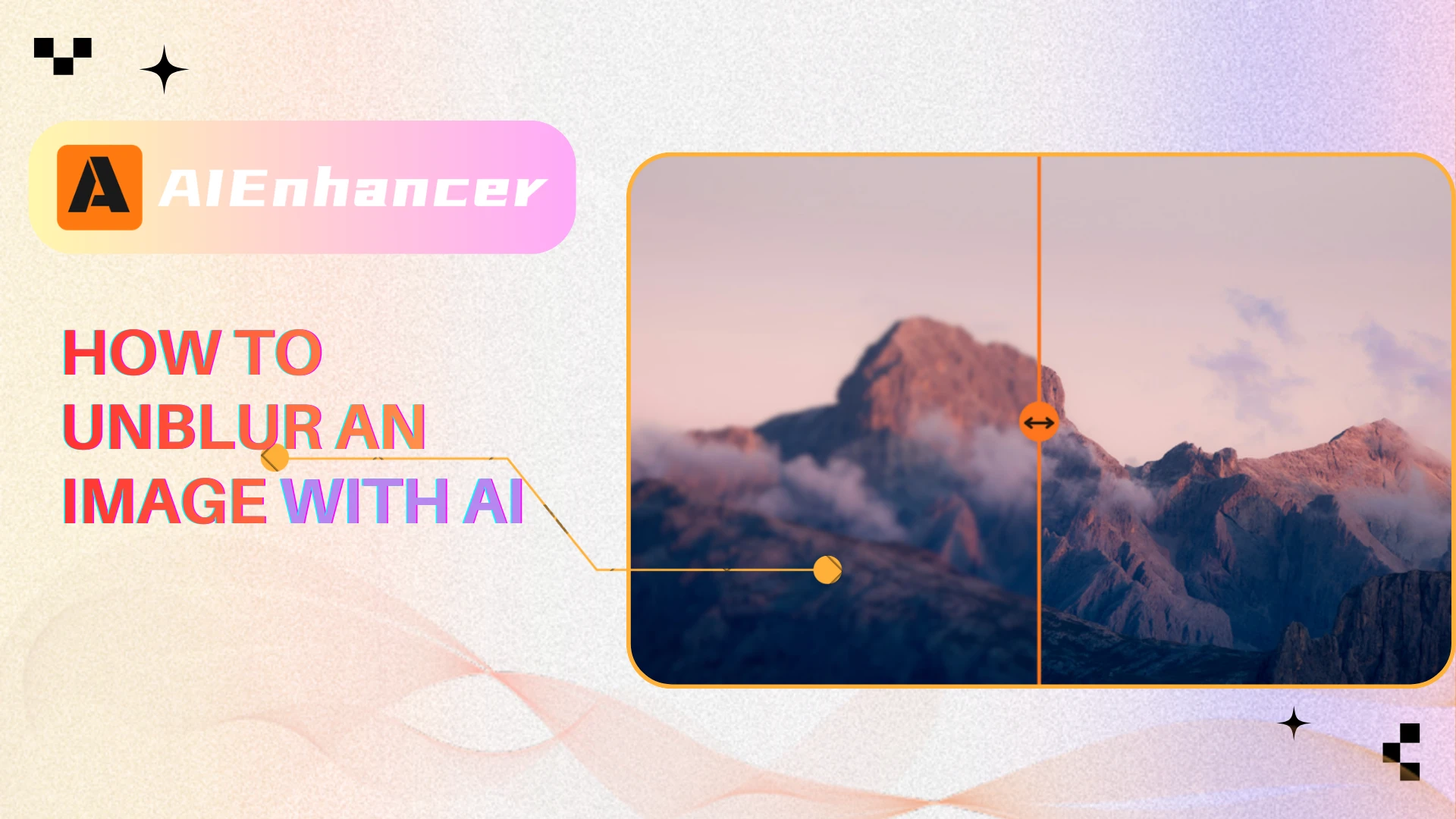
The phrase “unblur image” sounds straightforward, but technically it’s more complex than it seems.
A common misunderstanding is that unblurring is simply another word for sharpening. It isn’t.
Sharpening increases contrast along edges. It makes boundaries appear stronger. While this can create the illusion of sharpness, it doesn’t truly bring back lost detail.
When people look up how to unblur an image, what they’re usually hoping for is something deeper:
Recover facial definition
Improve texture clarity
Make text readable again
Enhance structure without making the image look artificial
Real image restoration focuses on reconstruction rather than enhancement.
Why blur is difficult to reverse
In digital imaging, sharpness depends on high-frequency detail — subtle differences in light and texture.
Blur spreads or softens that detail.
Motion blur smears pixel information across a direction.
Focus blur reduces edge contrast evenly.
Compression removes micro-texture to save file size.
To truly unblur image content, a system must estimate what those missing details might have looked like.
That’s not a simple adjustment — it’s an intelligent reconstruction process.
Setting realistic expectations
It’s also important to understand the limits.
If an image is severely blurred, some information may be permanently lost. No software can fully recreate data that was never captured.
Learning how to unblur an image effectively includes recognizing what can be improved — and what cannot.
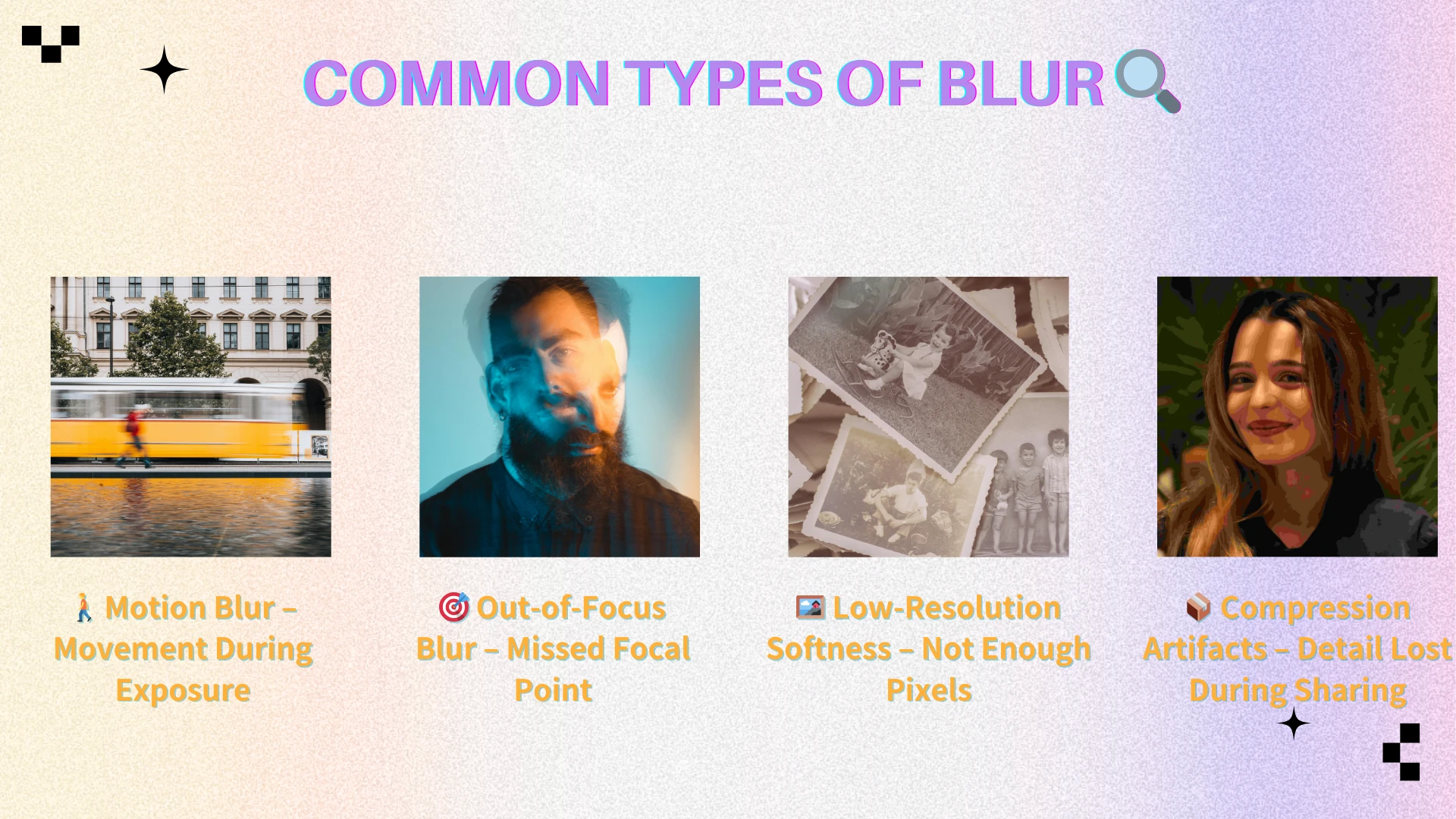
Common Types of Blur 🔍
Different kinds of blur require different approaches. Identifying the source helps determine what kind of correction is realistic.
Motion Blur 🚶♂️
Motion blur occurs when the camera or subject moves during exposure.
Instead of recording a crisp edge, the sensor captures a streaked version of the subject.
Typical causes include:
Shooting handheld without stabilization
Fast-moving subjects
Longer exposure times in dim lighting
Because motion blur spreads pixel data directionally, simply increasing sharpness rarely works. Successfully addressing this type of softness requires analyzing the direction and strength of movement.
Out-of-Focus Blur 🎯
Out-of-focus blur happens when the lens doesn’t lock onto the intended focal point.
This type of blur appears as overall softness, especially around faces and fine edges.
Common situations include:
Autofocus selecting the wrong subject
Extremely shallow depth of field
Subject positioned outside the focal range
Restoring clarity here requires rebuilding edge contrast carefully — not just intensifying it.
Low-Resolution Softness 🖼️
Sometimes a photo looks blurry simply because it lacks enough resolution.
This often happens when:
Cropping heavily
Enlarging a small file
Downloading compressed previews
In these cases, clarity loss isn’t caused by motion or focus, but by insufficient pixel detail. Attempts to unblur image files under these conditions often need both detail enhancement and resolution improvement.
Compression Artifacts 📦
Images shared through social media and messaging apps are frequently compressed.
Compression reduces file size by discarding subtle information, which can lead to:
Muddy textures
Blocky transitions
Reduced micro-detail
When someone searches for how to unblur an image downloaded from a messaging platform, they’re often dealing with both blur and compression loss at the same time.
Why Traditional Fixes Often Fall Short 🧰
Before AI-based tools became widely available, most people relied on manual adjustments.
These methods can help slightly — but they rarely restore genuine detail.
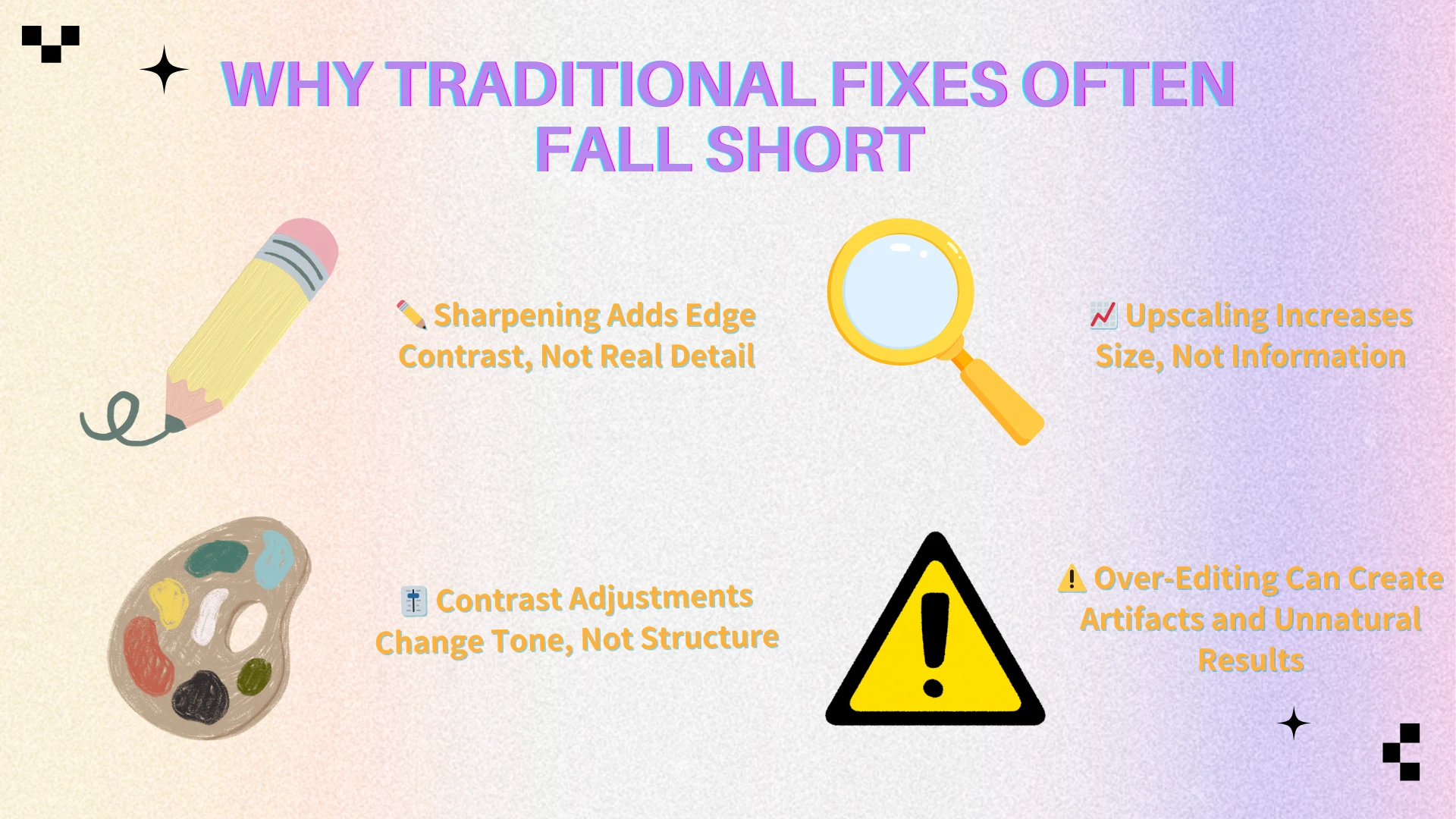
Sharpening is not reconstruction
Sharpen filters increase edge contrast.
While this may make a photo appear crisper at first glance, it often introduces:
Halo outlines
Amplified noise
Harsh-looking skin
The result may look sharper, but not truly clearer.
Increasing contrast changes perception, not structure
Boosting contrast or clarity can add definition, but it alters tonal balance rather than restoring missing detail.
Overdoing it may lead to:
Crushed shadows
Overexposed highlights
Unnatural transitions
This doesn’t truly solve the underlying problem.
Upscaling does not recreate lost detail
Enlarging an image increases its size — not its information.
Without intelligent modeling, scaling simply spreads existing softness across more pixels.
Understanding this distinction is key when exploring how to unblur an image in a meaningful way.
How AI Approaches Image Unblurring More Intelligently 🤖
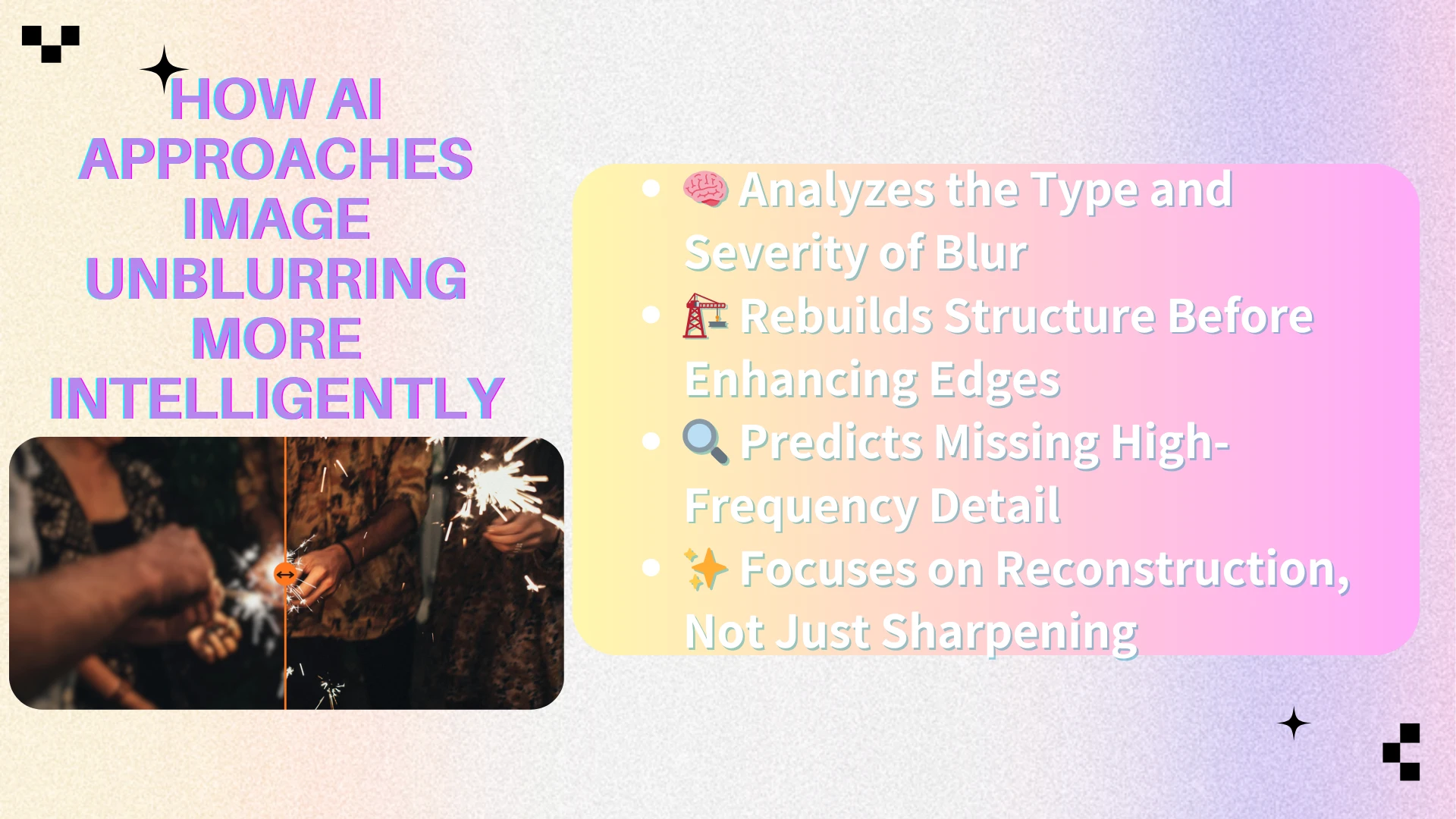
Modern AI systems approach blur differently.
Instead of exaggerating edges globally, they analyze patterns and rebuild plausible detail based on learned visual structures.
When trying to unblur image content using AI, the process usually involves several stages.
Blur analysis
The system first determines what kind of blur is present and how severe it is.
Motion, focus, compression, or a combination — each requires a slightly different strategy.
Structural reconstruction
Rather than pushing every edge harder, AI prioritizes restoring structure.
Facial contours, object outlines, and readable shapes are analyzed contextually. This structure-first approach makes results appear more natural.
Detail prediction and refinement
Using deep learning models trained on large image datasets, AI predicts what high-frequency detail should look like.
This may include:
Clarifying hair strands
Enhancing eye definition
Restoring text edges
Instead of simply sharpening, the system reconstructs.
That shift — from enhancement to reconstruction — is what makes AI-based methods significantly more effective when attempting to restore clarity.
How to Unblur an Image Step by Step 🛠️
Restoring clarity doesn’t have to be a game of guesswork. Instead of blindly pushing sliders, follow this streamlined, five-step process to achieve professional results every time.
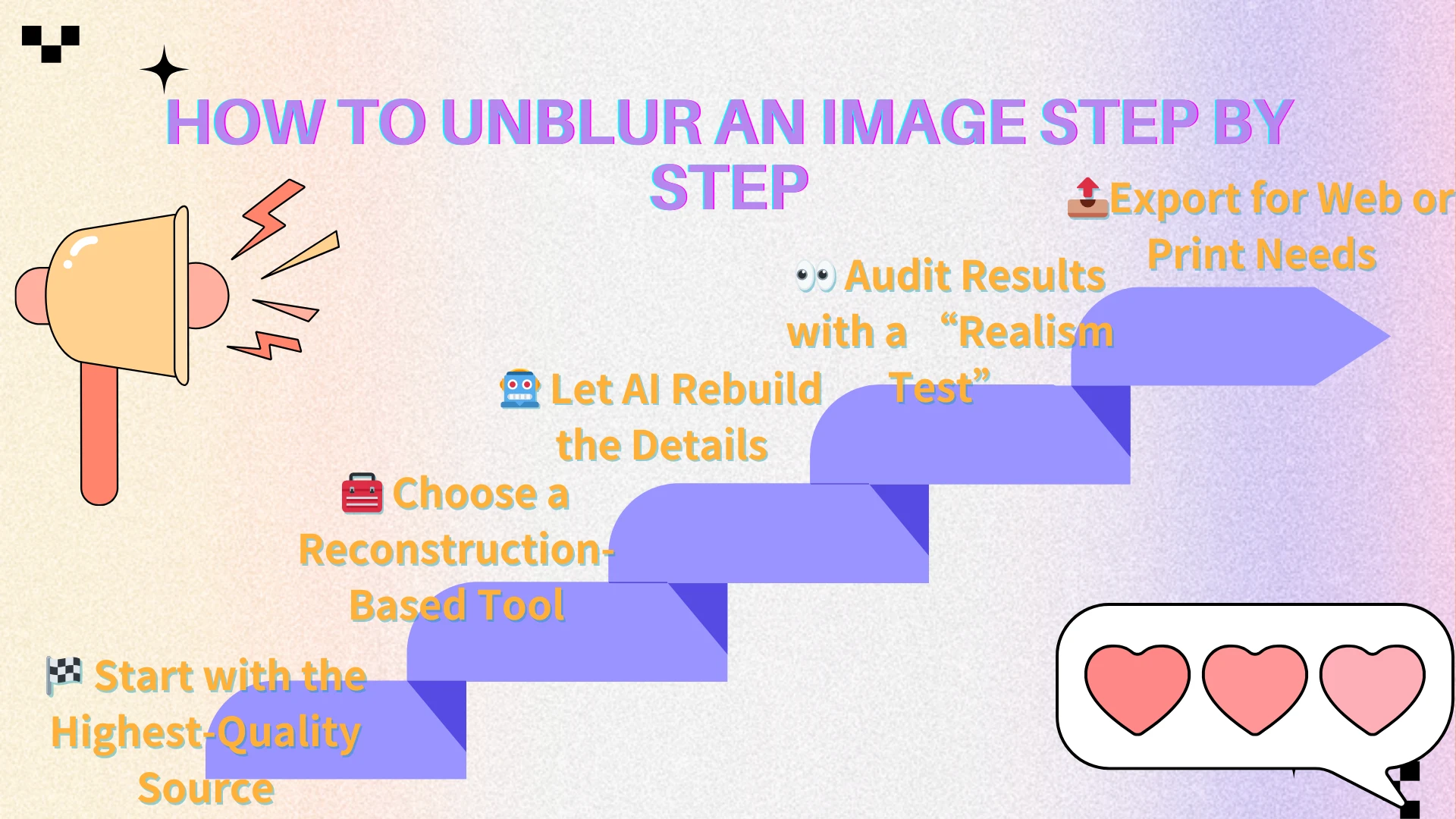
Step 1: Start with the Highest-Quality Source
The success of AI reconstruction depends on the data available. Always feed the system the best version of your photo.
The Golden Rule: Use the original file from your camera or phone.
Avoid "Double Compression": Don't use photos downloaded from social media or messaging apps if you have access to the original. Each time a file is compressed, vital structural data is lost.
Pro Tip: If you only have a small thumbnail, don't manually resize it first—let the AI handle the upscaling and unblurring simultaneously for a cleaner result.
Step 2: Select a Reconstruction-Based Tool
Not all "unblur" tools are created equal. To move beyond simple sharpening, you need a platform built for structural rebuilding.
Why AIEnhancer? Unlike basic editors that just darken edges, AIEnhancer analyzes the type of blur (motion vs. focus) and selects the appropriate deep-learning model to fix it.
Action: Upload your image to the AIEnhancer workspace and select the "Unblur" or "Photo Restorer" mode.
Step 3: Let the AI Rebuild the Details 🤖
Once you hit the process button, the AI performs a three-stage "surgical" restoration:
Blur Analysis: It identifies if the softness comes from a shaky hand or a missed focus.
Structural Restoration: It prioritizes the "anchors" of the image—eyes, lips, product outlines, and text.
Texture Refinement: It fills in the micro-details, such as individual hair strands or fabric weaves, without adding digital noise.
Step 4: Audit the Results (The "Realism Test") 👀
A great restoration should look natural, not "plastic." When reviewing the preview, check these three areas:
Eyes & Faces: Are the pupils sharp without looking like a painting?
Edges: Are there any glowing white lines (halos)? If not, the reconstruction is successful.
Background: Is the background noise kept under control?
Pro Tip: Use the Before/After slider in AIEnhancer to ensure the tool hasn't over-corrected the tonal balance of your original shot.
Step 5: Export for Your Specific Needs
Once you're satisfied with the result, download your enhanced unblur image in the appropriate format.
AIEnhancer exports in high-quality PNG format, which preserves restored detail without additional compression.
For Web or Social Media: You can use the PNG directly, or convert it to JPG separately if you need a smaller file size.
For Printing or Larger Display: Use the HD Upscale option before downloading to ensure the image remains sharp at bigger sizes.
Saving the file properly ensures the clarity improvements remain intact.
Why AIEnhancer Stands Out for Image Clarity 🌟
With many unblur image tools available online, choosing the right one can feel overwhelming. However, reconstruction-focused platforms offer clear advantages over traditional sharpening-based editors.
Here’s why AIEnhancer provides a more balanced and reliable solution for restoring image clarity.
Realistic Texture Preservation
Over-sharpened images are easy to recognize.
They often show:
Thick edge halos
Amplified grain
Plastic-looking skin
AIEnhancer prioritizes maintaining natural texture while improving structure. Instead of exaggerating contrast, it focuses on rebuilding believable detail.
A successful unblur image result should enhance clarity while keeping surfaces authentic.
Intelligent Noise Management
Blur and digital noise frequently appear together, especially in low-light photography. When attempting to unblur image content, unmanaged noise can easily become more noticeable if sharpening is applied aggressively.
AIEnhancer integrates noise balancing into the reconstruction process, preventing grain from overwhelming restored detail.
This is particularly beneficial for:
Indoor events
Evening portraits
Slightly shaky handheld shots
The combination of structural rebuilding and controlled smoothing leads to more professional results.
Consistency Across Different Use Cases
Real-world images rarely present a single isolated issue.
An image might combine:
Mild motion blur
Focus softness
Compression artifacts
Resolution limitations
AIEnhancer adapts to these combined conditions rather than applying a uniform correction.
This adaptability makes it a practical solution for users repeatedly searching for how to unblur an image across different contexts.
Streamlined Workflow Without Complexity ⏱️
Professional editing software offers flexibility, but it requires time and experience.
AIEnhancer simplifies the process into a clear sequence:
Upload → Select Unblur → Review → Download
This accessibility benefits:
Content creators
Online sellers
Designers working under deadlines
Everyday users restoring personal photos
You don’t need advanced editing knowledge to achieve a clean unblur image outcome.
Built on Professional Standards: Precision, Security, and Intelligence
AIEnhancer is designed around a reconstruction-first philosophy rather than simple visual enhancement.
Precision
The system uses deep-learning models trained on high-resolution image data to rebuild structure and detail contextually. Instead of exaggerating edges, it focuses on restoring clarity in a balanced and natural way.Intelligence
By analyzing blur patterns—whether caused by motion, focus issues, or compression—the platform adapts its reconstruction strategy accordingly. This allows it to handle complex scenarios more effectively than generic sharpening tools.Security
All image processing is handled through secure protocols. Uploaded files are not stored or reused without user permission, ensuring that personal and business assets remain private.
Real-World Applications 📌
Clarity restoration through intelligent unblur image techniques has practical value across multiple scenarios.
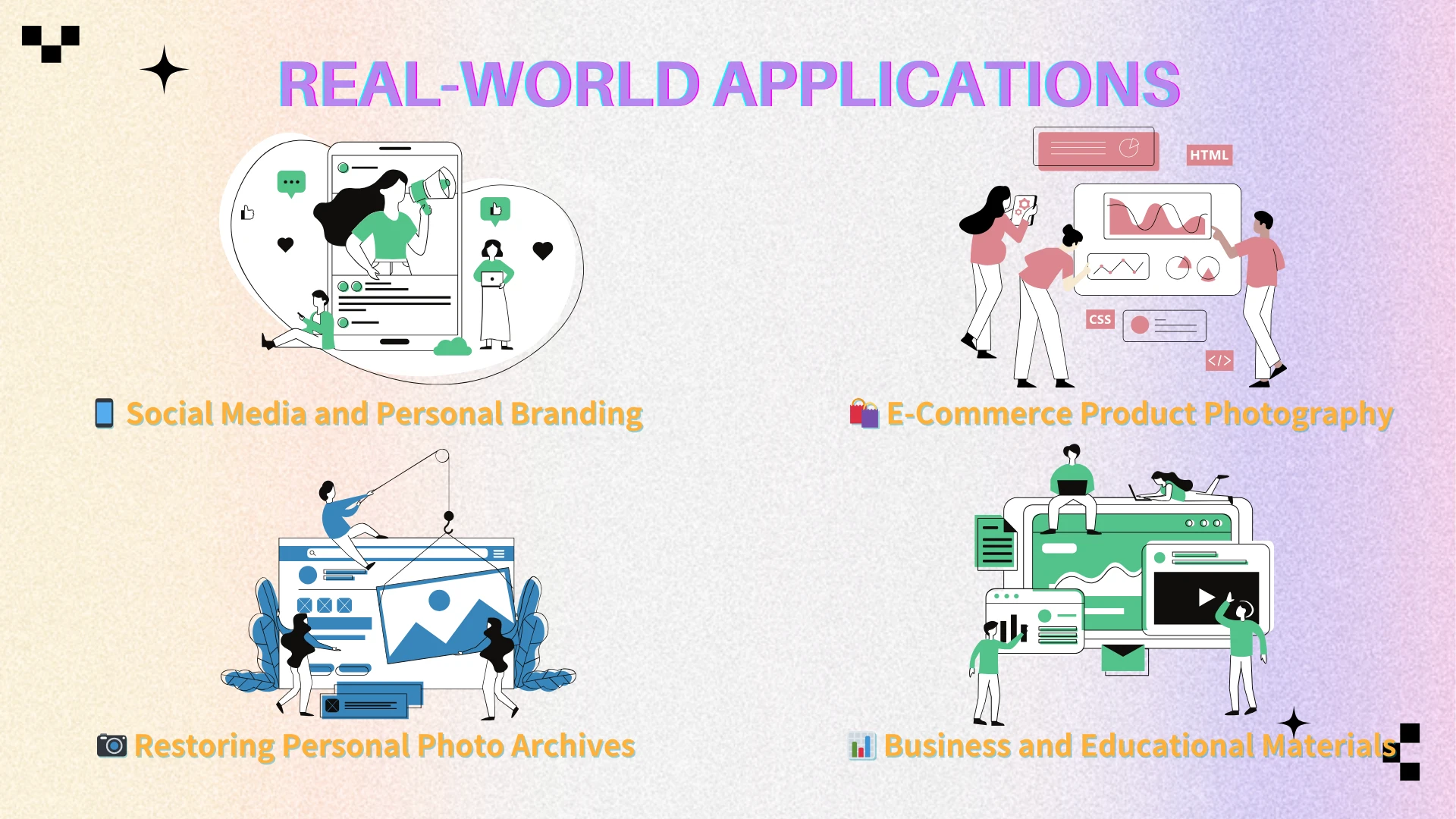
Social Media and Branding
Sharper images increase engagement and perceived quality.
Even moderate improvements in facial detail can elevate overall presentation.
E-Commerce Photography
Clear product images build trust.
Improved edge definition and readable packaging details support purchasing decisions.
Restoring Personal Archives
Old printed photos often appear soft after scanning.
Careful reconstruction can restore meaningful detail while preserving authenticity.
Business and Educational Use
Sharper screenshots, charts, and visuals improve professionalism in presentations and reports.
When exploring how to unblur an image for professional use, clarity directly affects credibility.
Recognizing the Limits ⚠️
While AIEnhancer performs well in most mild-to-moderate blur scenarios, some limitations remain.
Severe Motion Streaking
If a subject is heavily smeared across the frame, too much structural data may be missing.
Improvement is possible, but perfect restoration is unlikely.
Completely Missed Focus
If the lens never captured a clear focal plane, reconstruction becomes estimation.
The result may look cleaner, but not fully sharp.
Extremely Low-Resolution Files
Tiny source files limit reconstruction accuracy.
Even advanced tools cannot invent unlimited detail.
Understanding these boundaries is part of responsibly learning how to unblur an image.
Final Recommendation ✨
Blur is common—and often unavoidable.
The important shift is recognizing that modern restoration is about reconstruction, not aggressive sharpening.
If you’re looking for a reliable and accessible way to unblur image files without introducing artificial sharpness, AIEnhancer provides a structured approach focused on rebuilding detail while maintaining realism.
For everyday photography, product visuals, archived memories, or professional materials, a reconstruction-first workflow offers a more natural path to clarity.
When clarity matters—but realism matters more—choosing a tool built for intelligent reconstruction makes all the difference.