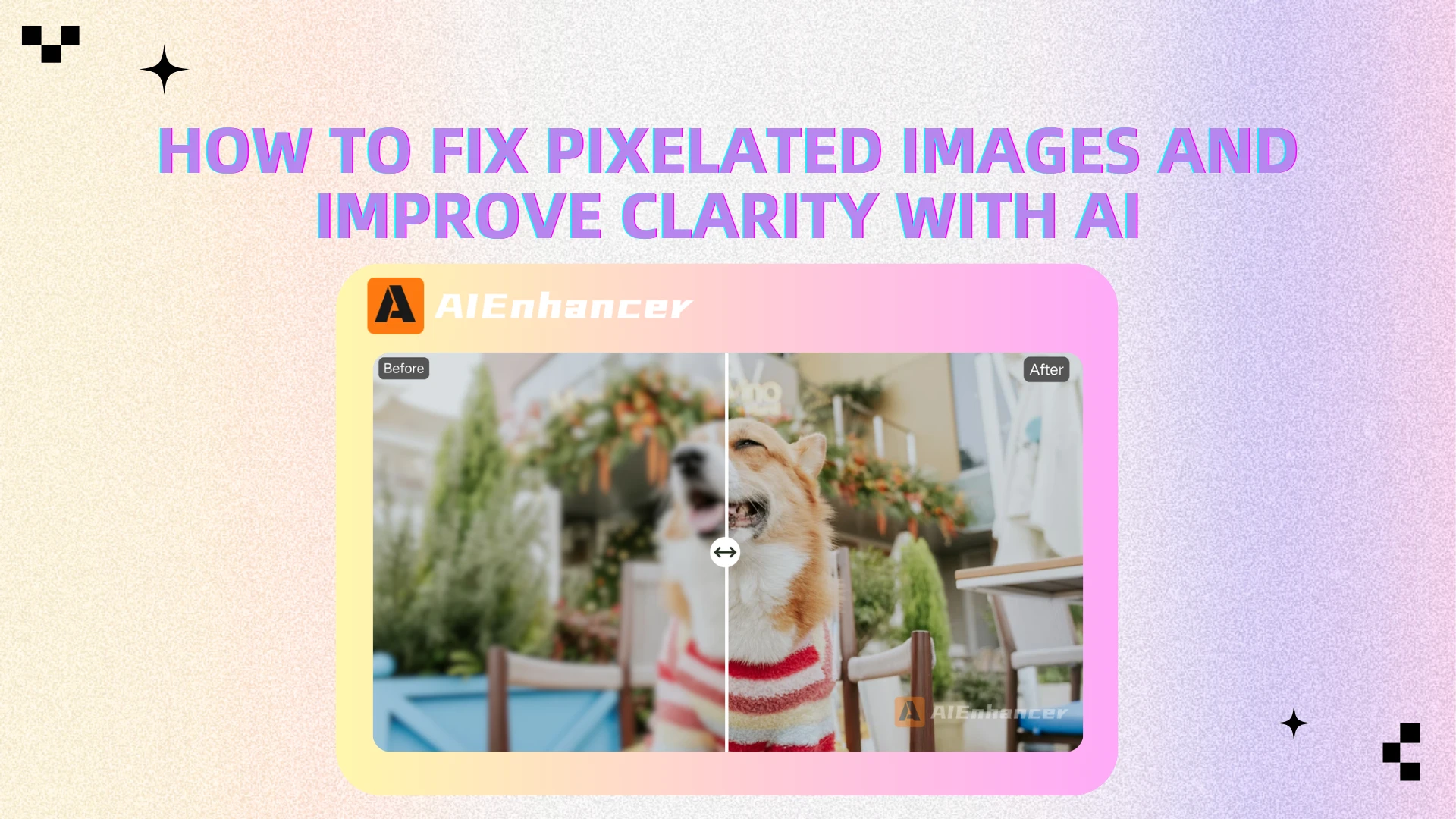
How to Fix Pixelated Images and Improve Clarity with AI
Introduction
Pixelated images are one of the most common frustrations in digital photography and design. Whether you’re working with a low-resolution download, an old screenshot, or an image that’s been resized too many times, the result is the same: blocky, blurry visuals that lack detail.
So, how can you improve the clarity of pixelated images?
The quick fix:
You can restore pixelated images using an AI photo enhancer, upscaling the image (2x, 4x, or 8x), and applying sharpening to restore lost details. The most effective solution today is to use an AI-powered tool like AIEnhancer, which automates this entire process.
In this guide, you’ll learn exactly why images become pixelated, how AI improves image clarity, and step-by-step methods to fix pixelation using modern tools.
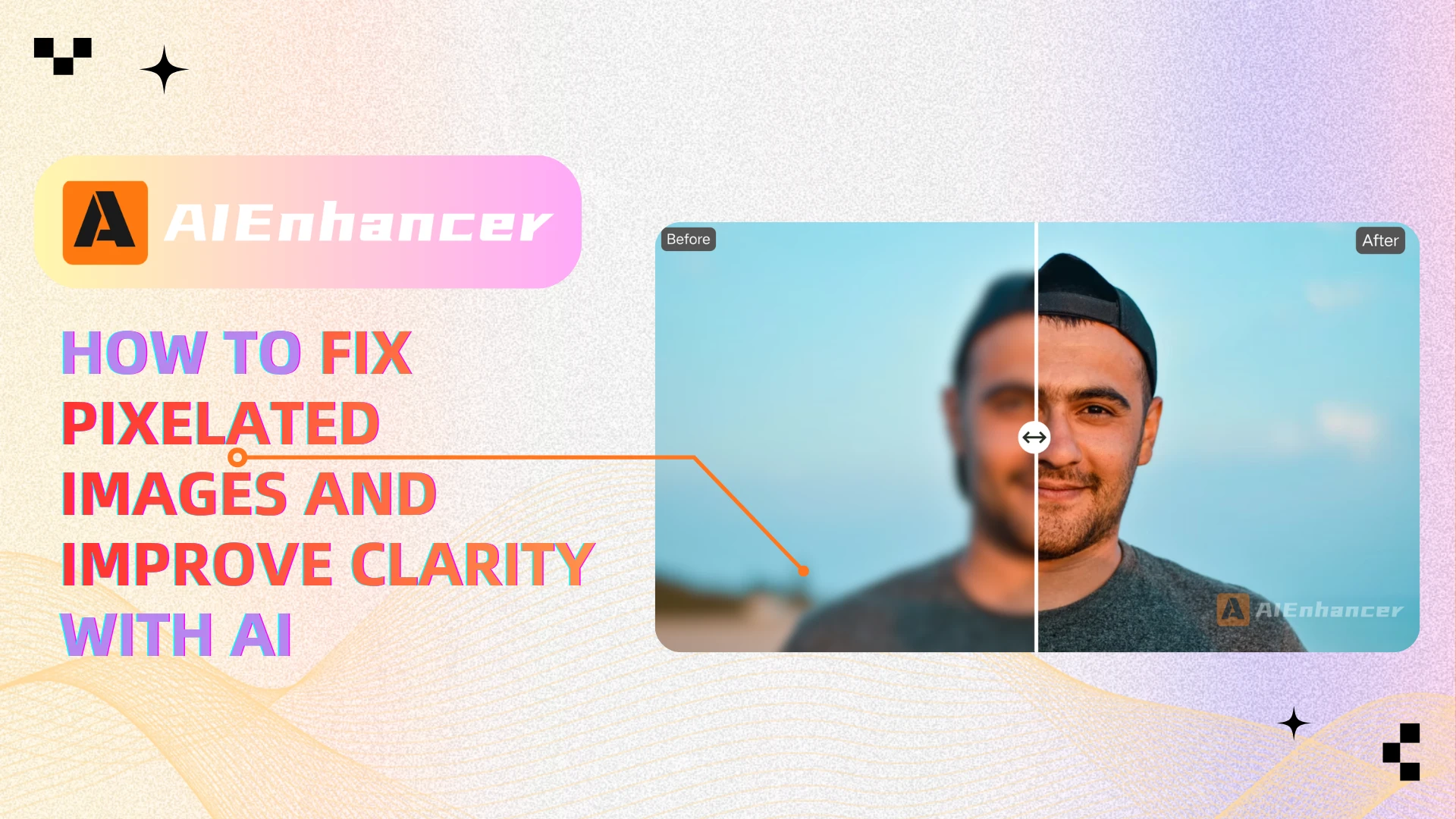
Why Do Images Become Pixelated?
To fix pixelation effectively, it’s important to understand what causes it in the first place.
1. Low Resolution
Digital images are composed of thousands of tiny pixels. When an image has too few pixels (low resolution), it lacks the data needed to display fine details.
When you enlarge such an image, those pixels stretch, leading to distorted, blocky squares—the dreaded pixelation effect.
2. Over-Compression
Formats like JPEG reduce file size by compressing image data. While this is useful for storage and web use, excessive compression removes detail.
As a result, the image appears blurry or blocky, especially in areas with texture.
3. Cropping and Zooming
When you crop a small portion of an image and enlarge it, you’re effectively reducing the available pixel data.
Zooming into a small section amplifies pixelation because the image wasn’t meant to be viewed at that scale.
4. Poor Image Source
Images downloaded from social media, messaging apps, or low-quality websites are often already compressed or resized.
Repeated editing, saving, or screenshotting can further degrade quality.
Key Takeaway
Pixelation happens when there isn’t enough image data to display detail. Traditional tools can only stretch existing pixels—but they cannot create new detail.
How AI Improves Image Clarity
Modern AI tools have changed how we deal with pixelated images. Instead of simply enlarging pixels, AI can intelligently improve clarity.
AI Upscaling
AI upscaling increases image size (2x, 4x, or 8x) while maintaining or improving clarity.
Unlike traditional resizing, AI analyzes patterns from high-resolution images and predicts what missing pixels should look like. This allows the image to scale up without becoming blocky.
Detail Enhancement with AI Photo Enhancer
An AI photo enhancer improves the overall clarity of an image by refining edges, textures, and fine details.
It identifies areas that appear soft or unclear and enhances them automatically, making the image look sharper and more defined.
Sharpening
Sharpening enhances edges and contrast between pixels.
While traditional sharpening can sometimes create noise, AI-powered sharpening applies this effect more intelligently, reducing the “blocky” appearance of pixelated images.
Key Insight
AI doesn’t just enlarge images—it enhances clarity by improving structure and detail. This is why AI-based methods outperform traditional editing techniques.
How to Improve Pixelated Images
There are two main approaches to fixing pixelated images: traditional editing and AI-based enhancement.
1. Traditional Methods
Traditional tools like Photoshop allow you to:
Resize images
Apply sharpening filters
Adjust contrast and clarity
However, these methods have limitations:
They cannot create new detail
Over-editing can worsen artifacts
They require manual adjustments and experience
2. AI-Based Enhancement (Recommended)
AI tools provide a faster and more effective solution:
AI photo enhancer improves clarity automatically
Upscale image (2x / 4x / 8x) without losing detail
Sharpen enhances edges and reduces pixelation
These tools require minimal effort and produce significantly better results, especially for heavily pixelated images.
Tool Recommendations by Use Case
Choosing the right tool to fix pixelated images depends on your experience level, desired results, and how much time you’re willing to spend editing. While there are many options available, not all tools deliver the same level of clarity improvement—especially when dealing with heavily pixelated images.
Below is a breakdown to help you choose the most effective solution.
🟢 Best Overall: AIEnhancer
AIEnhancer is an all-in-one solution specifically designed to improve the clarity of pixelated and low-resolution images using AI.
Move over, manual editing. Unlike old-school tools that require tedious adjustments, AIEnhancer automates the entire enhancement process—making it ideal for both beginners and professionals who want fast, high-quality results.
Why AIEnhancer Stands Out
AI Photo Enhancer (Clarity Improvement)
Automatically detects blurry or pixelated areas and enhances image clarity without requiring manual input.AI Image Editor (Editing + Enhancement in One)
Combines editing and enhancement in a single workflow, saving you the hassle of jumping between different apps.Upscale Image (2x / 4x / 8x)
Increases image size while preserving and improving detail—something traditional resizing cannot achieve.Sharpen (Detail Refinement)
Enhances edges and textures, reducing the blocky appearance typical of pixelated images.
What Makes It More Effective
Most tools only handle one part of the problem (e.g., resizing or sharpening).
AIEnhancer combines upscaling + enhancement + sharpening into a single process, which results in:
More natural-looking details
Less noise and distortion
Faster workflow (no manual tuning)
👉 This makes it one of the most efficient ways to fix pixelated images without technical skills.
🟡 Alternative Options
While AIEnhancer is the most streamlined solution, other tools may suit specific needs:
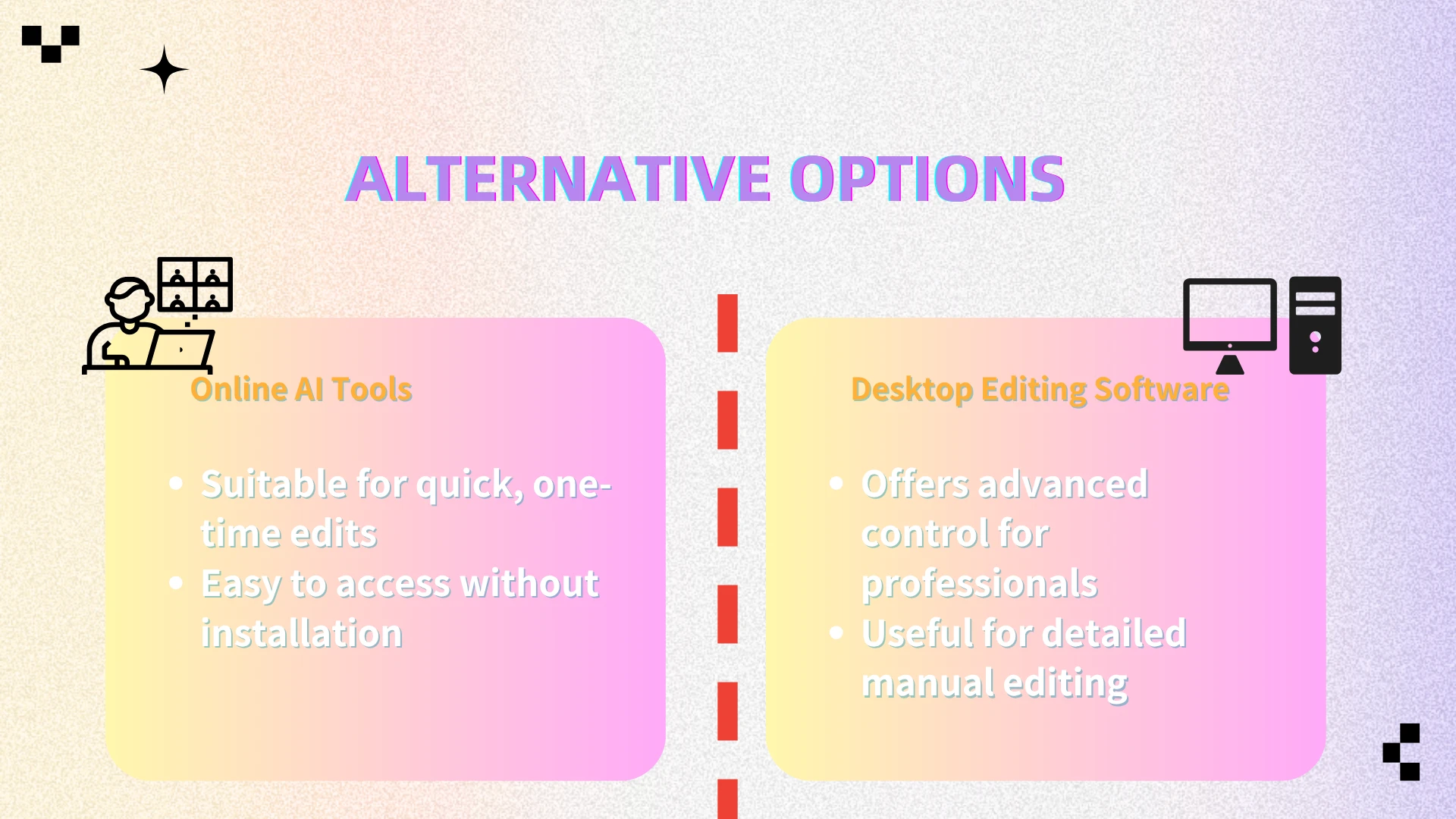
Online AI Tools
Suitable for quick, one-time edits
Easy to access without installation
However:
Often limited in features
May restrict resolution or downloads
Results can vary in quality
Desktop Editing Software
Offers advanced control for professionals
Useful for detailed manual editing
However:
Requires experience and time
Manual sharpening and resizing can’t truly restore lost detail
Workflow is more complex compared to AI tools
✅ Final Recommendation
If your goal is to quickly and effectively improve the clarity of pixelated images, an all-in-one AI solution is the best choice.
AIEnhancer stands out because it combines:
AI photo enhancement
Image editing
Upscaling (2x/4x/8x)
Sharpening
…into a single, simple workflow.
👉 For most users, it offers the best balance between quality, speed, and ease of use, making it the most practical tool for fixing pixelated images today.
Best Way: Use an AI Photo Enhancer (AIEnhancer)
If you want the best balance between image quality and ease of use, using an AI photo enhancer is the most effective way to fix pixelated images.
Instead of relying on manual editing or basic resizing, AI-powered tools can automatically improve clarity, restore detail, and enhance overall image quality in just a few clicks.
What Is AIEnhancer?
AIEnhancer (aienhancer.ai) is a web-based AI photo enhancer and AI image editor designed to improve image clarity automatically.
It focuses on enhancing sharpness and detail in low-quality or pixelated images—without requiring any technical skills or complicated adjustments.
What makes AIEnhancer different is that it doesn’t just enhance images—it also provides an integrated editing experience, allowing users to both improve and transform images in one place.
Core Features
AIEnhancer combines AI photo enhancement, intelligent editing, creative effects, and sharpening tools to improve image clarity and transform low-quality images with ease.
AI Photo Enhancer (Clarity Improvement)
The AI photo enhancer is the core of AIEnhancer.
It automatically analyzes your image and:
Enhances fine details
Reduces blur and pixelation
Improves overall sharpness
This is especially effective for:
Pixelated images
Low-resolution photos
Images that have been compressed or resized
👉 Unlike traditional tools, it doesn't merely interpolate pixels; it reconstructs the underlying visual structure.
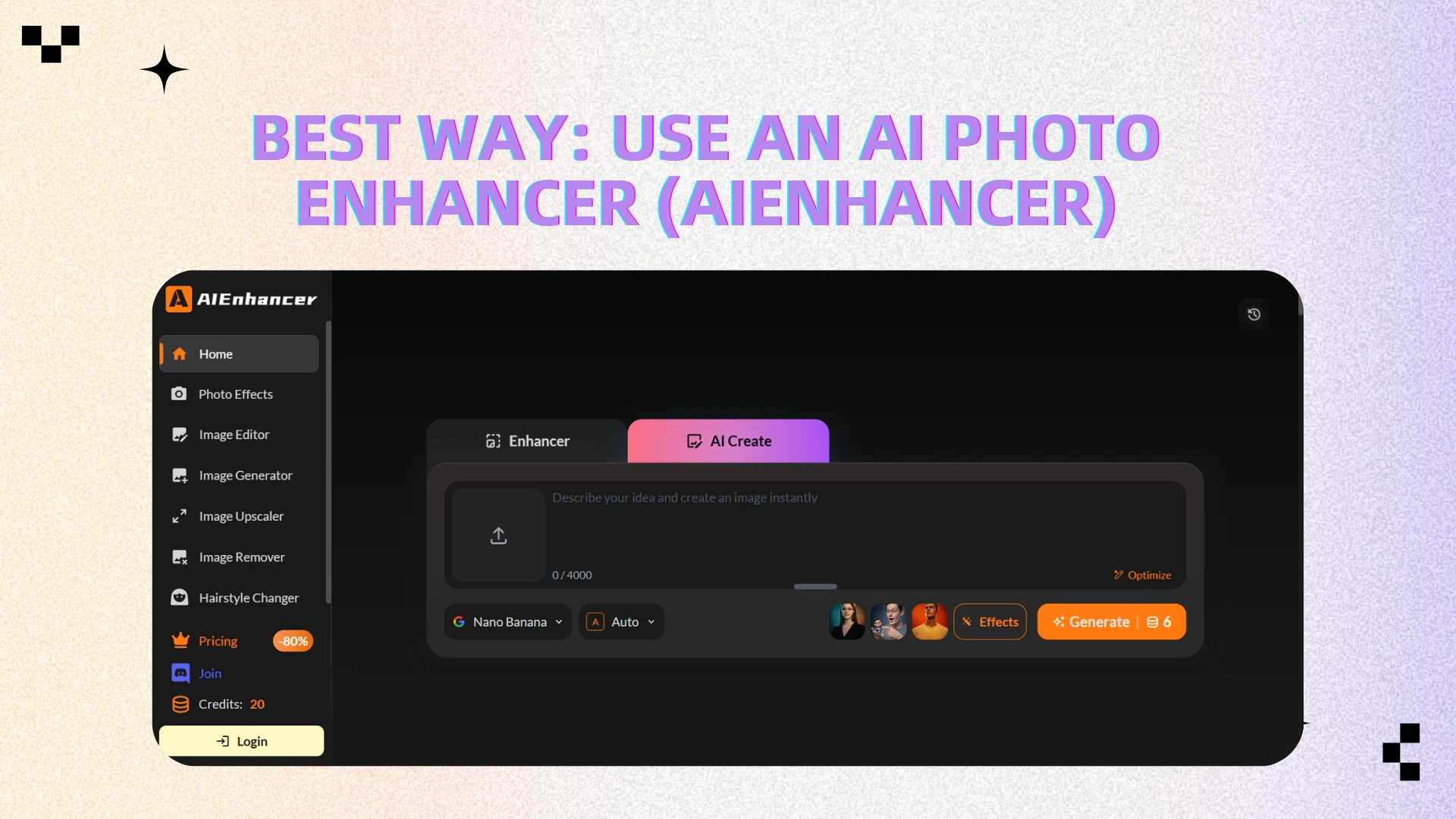
AI Image Editor (Editing + Enhancement in One)
Beyond enhancement, AIEnhancer also works as a powerful AI image editor, allowing you to refine and transform your images within the same workflow.
Instead of switching between multiple tools, you can:
Enhance clarity
Adjust image presentation
Apply creative edits
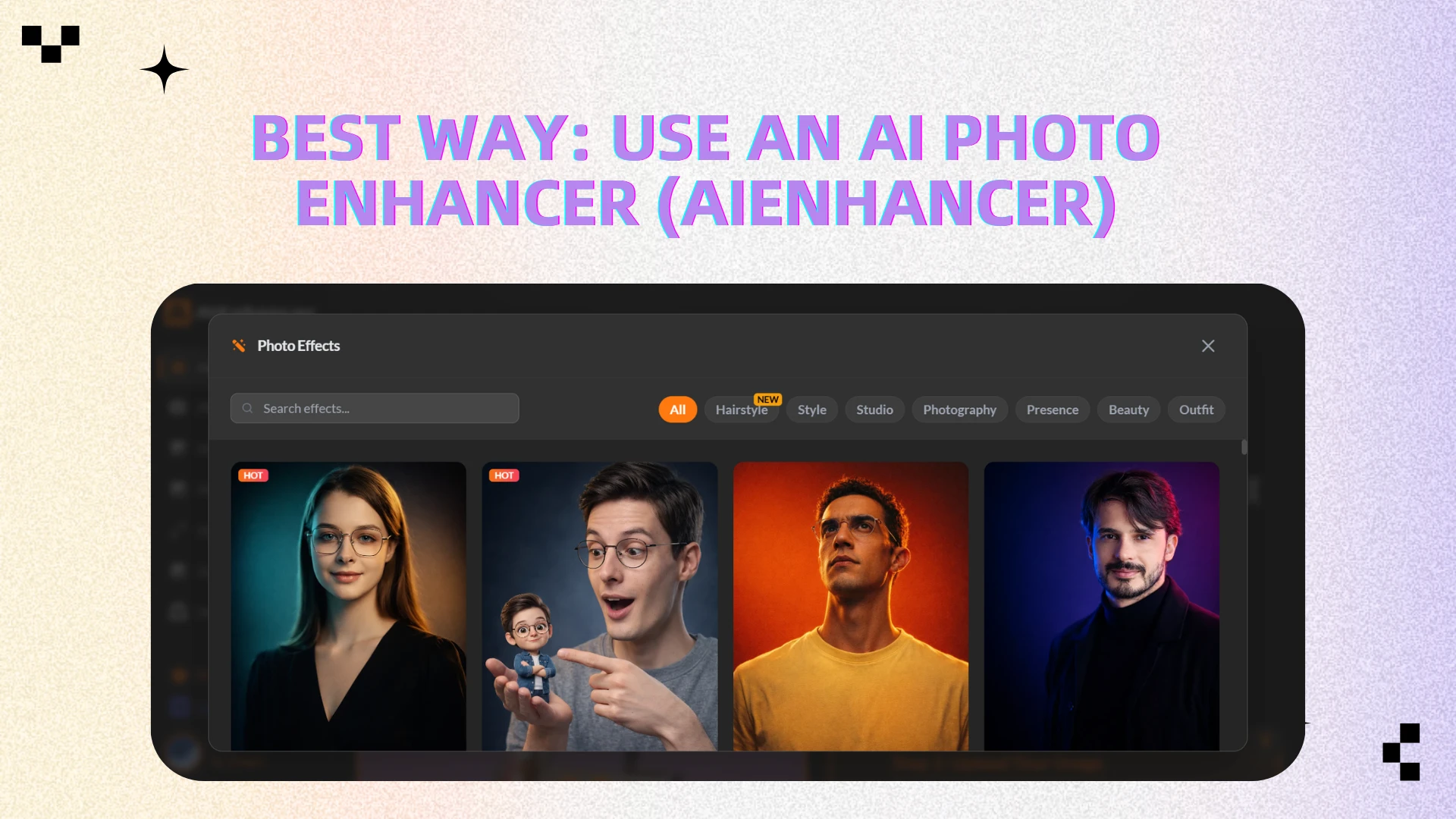
Effects Library (Templates & Filters)
One standout feature is the built-in effects library, which includes a wide range of popular templates and filters.
These effects make it easy to go beyond basic enhancement and create visually engaging images:
Trendy hairstyle transformations
Cinematic-style filters
Creative visual effects and presets
👉 This means you’re not just fixing pixelation—you’re also upgrading the overall visual impact of your image.
Sharpen (Detail Enhancement)
The sharpen feature enhances edges and textures, making images look clearer and more defined.
It helps:
Reduce the blocky appearance of pixelation
Improve edge contrast
Add crispness to fine details
Important Note
AIEnhancer is designed specifically for clarity and detail enhancement.
It does not restore or recolor images, but instead focuses on making your existing image sharper, clearer, and more visually refined.
Step-by-Step: How to Fix Pixelated Images
Here’s a simple step-by-step guide to improving a pixelated image using AIEnhancer. The entire process only takes a few clicks and requires no editing experience.
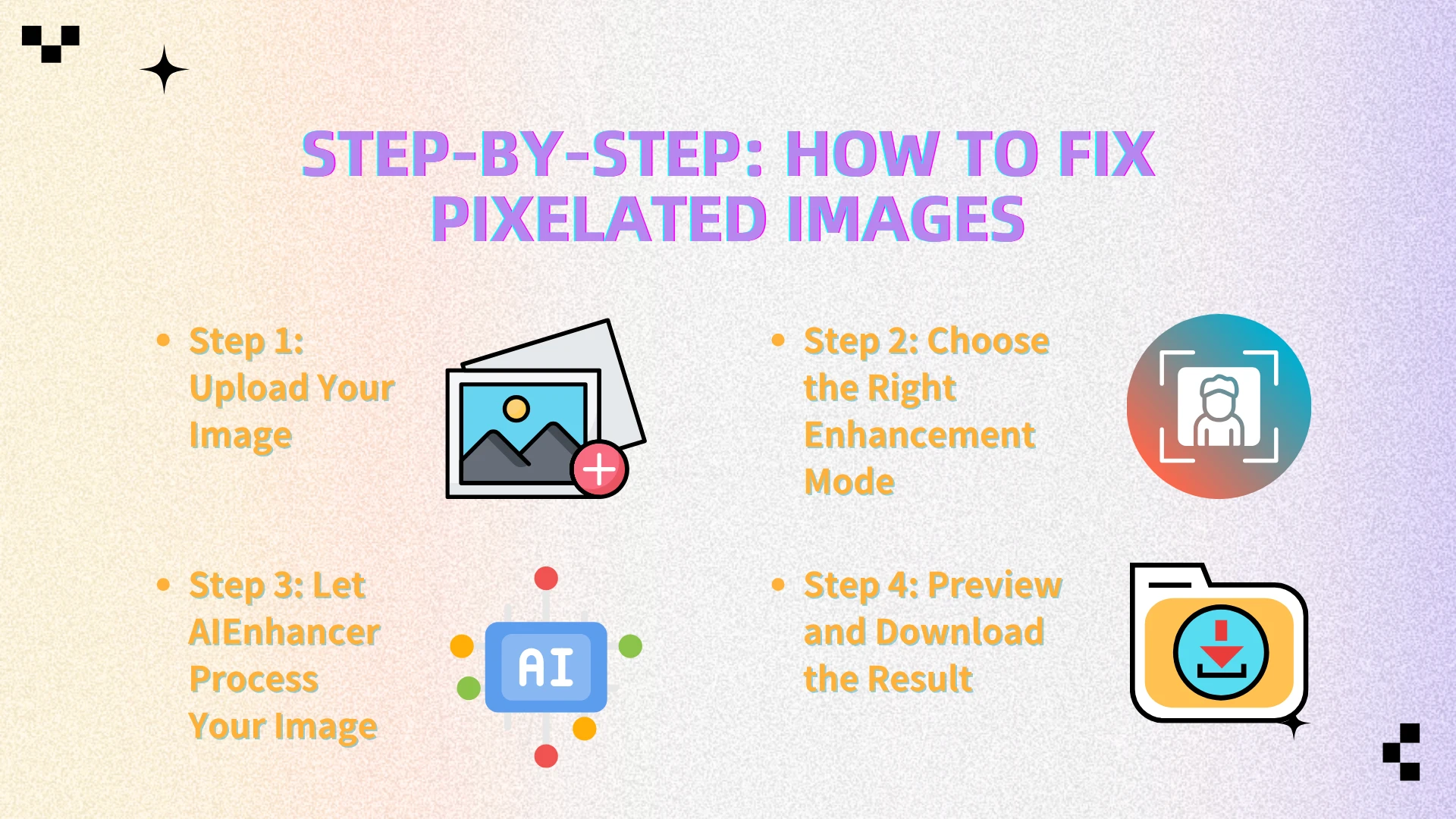
Step 1: Upload Your Image
Go to aienhancer.ai and upload your pixelated or low-quality image.
Supported formats typically include JPG, PNG, and more
For best results, use the highest-quality version of your image available
👉 Tip: Even if your image looks very blurry or pixelated, AIEnhancer can still significantly improve it.
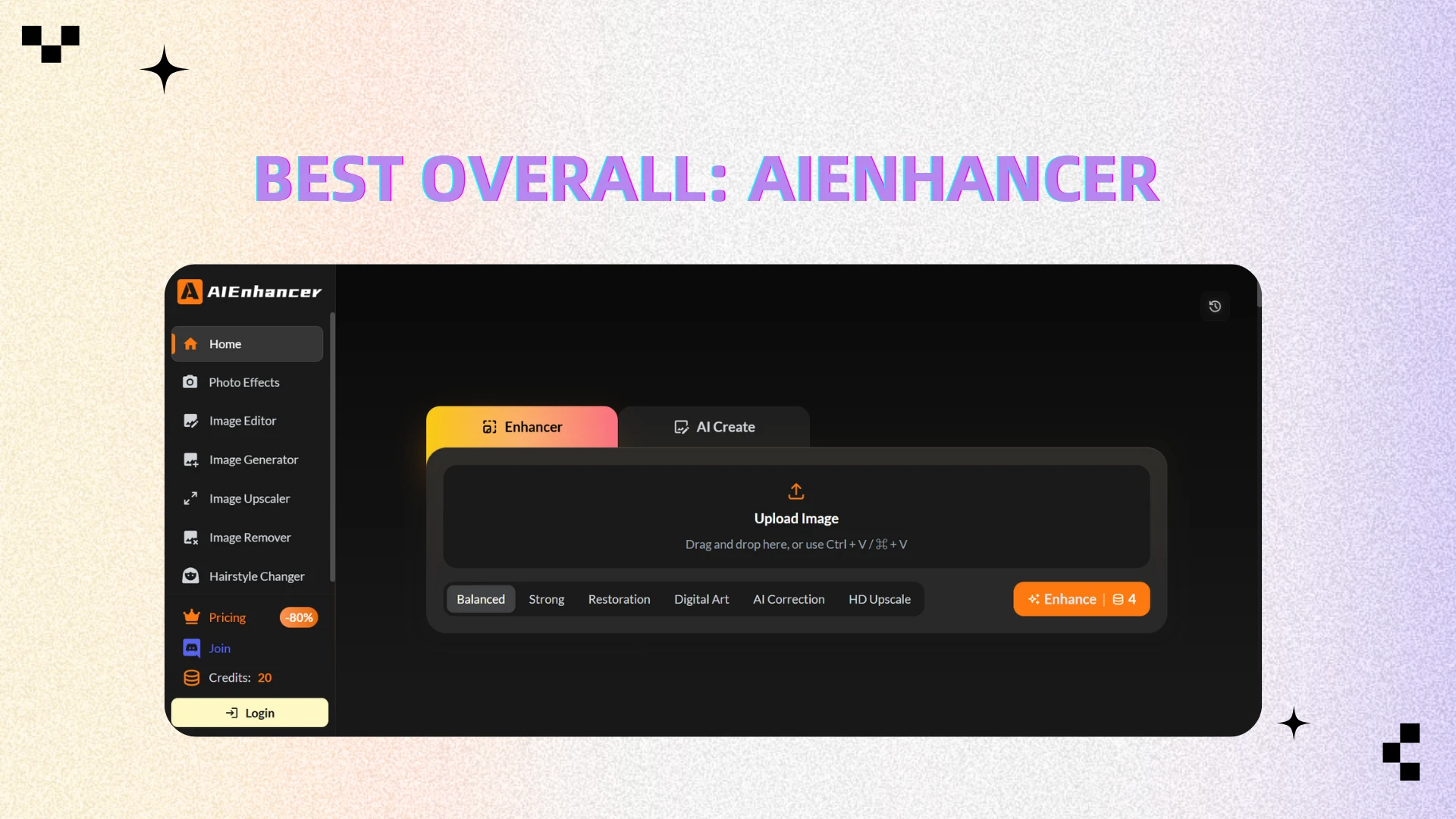
Step 2: Choose the Right Enhancement Mode
Selecting the right AI optimization mode is more important than simply increasing size, as different modes affect how the image is enhanced and reconstructed.
Balanced: Ideal for most images, offering a natural improvement in clarity and detail without over-processing
Strong: Best for heavily pixelated or low-quality images that need more aggressive enhancement
Restoration: Designed for recovering older or heavily degraded images with more detailed reconstruction
Digital Art: Optimized for illustrations, anime, or stylized images rather than real photos
AI Correction: Automatically detects issues like blur, noise, and pixelation and applies balanced fixes
HD Upscale: Focuses on high-definition enlargement while preserving sharpness and structure
👉 Tip: For most real-life photos, start with Balanced or AI Correction, then switch to Strong or Restoration if more detail recovery is needed.
Step 3: Let AIEnhancer Process Your Image
After selecting your settings, start the enhancement process.
The AI will automatically analyze your image
It improves clarity, refines details, and reduces pixelation
No manual adjustments or technical skills are required
👉 This step usually takes just a few seconds.
Step 4: Preview and Download the Result
Once processing is complete:
Compare the before and after versions
Check improvements in clarity, sharpness, and detail
Download the enhanced image instantly
👉 Tip: If needed, you can reprocess the image with different upscale levels for even better results.
Why This Works
This workflow combines multiple AI-powered improvements into a single process:
Upscaling increases image resolution
AI photo enhancer restores clarity and detail
Sharpening refines edges and textures
Instead of relying on manual editing, AIEnhancer applies all of these enhancements intelligently—resulting in clearer, more natural-looking images with minimal effort.
Tips to Get Better Results
To get the best possible results when fixing pixelated images, follow these practical tips:
1. Start with the Best Possible Source
AI works best when there is more original data to work with.
Try to use the highest-resolution version of your image
Avoid images that have been repeatedly compressed or screenshot
👉 Better input = noticeably better output.
2. Combine AI Photo Enhancer and Sharpen
For optimal clarity, use both features together:
AI photo enhancer improves overall detail and reduces blur
Sharpen enhances edges and fine textures
👉 This combination produces clearer and more realistic results than using either alone.
3. Avoid Over-Processing
More enhancement doesn’t always mean better results.
Excessive upscaling can make images look artificial
Too much sharpening may create harsh edges
👉 Aim for a balanced, natural-looking result rather than maximum intensity.
FAQ
Can pixelated images be fully restored?
Not always. If too much detail is lost, full restoration isn’t possible, but AI tools can significantly improve clarity and reconstruct missing details to make images more usable.
Does increasing resolution improve quality?
Only when using AI. Traditional resizing stretches pixels and reduces quality, while AI upscaling improves clarity by enhancing and rebuilding image details.
What is the easiest way to fix pixelation?
The easiest way is using an AI image editor like AIEnhancer, which automatically enhances clarity, upscales resolution, and sharpens details in one click.
Is sharpening enough to fix pixelation?
Sharpening alone is not enough because it only enhances edges, but it works best when combined with AI photo enhancement and upscaling for full improvement.
What is the best AI photo enhancer for pixelated images?
An all-in-one tool like AIEnhancer is ideal because it combines AI photo enhancement, image editing, upscaling, and sharpening in one workflow.
Conclusion
Pixelated images are caused by low resolution, compression, and loss of detail—but they are no longer impossible to fix.
Thanks to AI technology, you can now:
Enhance clarity automatically
Upscale images without losing quality
Sharpen details for a cleaner look
Among all available solutions, AIEnhancer offers one of the simplest and most effective ways to improve image clarity. By combining AI photo enhancement, image editing, upscaling, and sharpening in one tool, it eliminates the need for complex manual editing.
If you’re dealing with pixelated images, the best next step is simple:
Try AIEnhancer and instantly improve your image clarity.