Best AI Image Upscaling and Enhancement Tools in 2026
What to Know Before Upscaling and Enhancing Images
A larger photo can still look blurry. A sharper photo can still be too small to print. Image upscaling and AI enhancement address different problems: upscaling increases pixel dimensions, while enhancement targets noise, soft edges, faded color, or compression. Many tools combine both, which makes choosing by the biggest advertised enlargement factor surprisingly unhelpful.
For effective AI image upscaling, start with the image and its destination. A family portrait needs recognizable faces; a product listing needs accurate materials and labels; an illustration may allow invented texture. This guide explains those choices, compares ten options, and provides a repeatable workflow for deciding whether the result actually improves your photograph.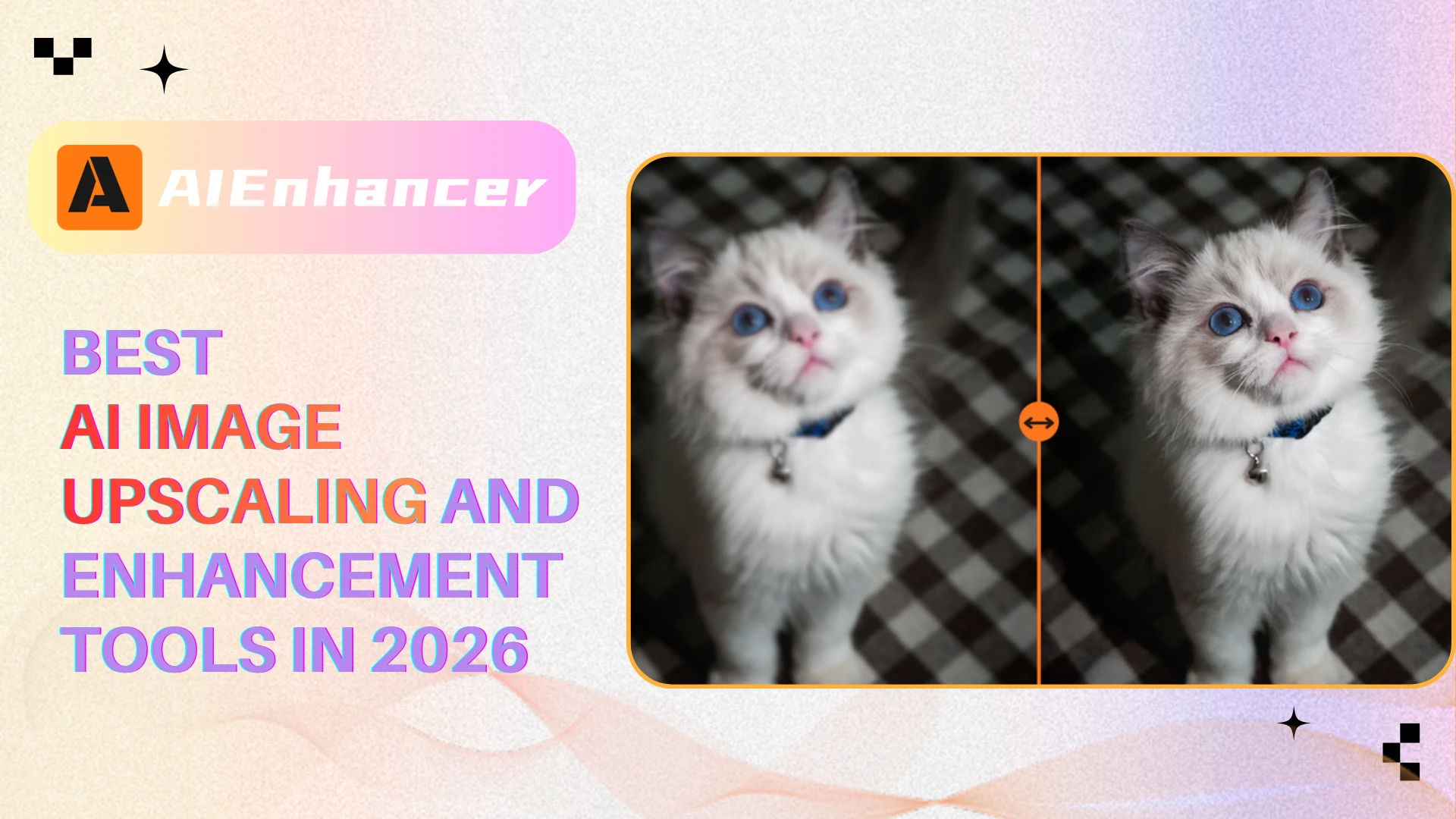
Compare Image Upscaling and AI Enhancement Tools
AI image upscaling at a glance: ten tools organized by workflow. Prices describe access models, not guaranteed checkout offers. Free access can have usage or export limits; paid terms vary by plan and region.
| Tool | Category | Suitable use case | Access model | Distinguishing feature |
|---|---|---|---|---|
| AIEnhancer | Browser enhancement | Everyday photo cleanup | Free basic tools; advanced features may require subscription | Enhancement and enlargement in one online workflow |
| Let's Enhance | Browser production | Multiple images and print preparation | Free start; paid plans | Batch editing and large output options |
| Upscale.media | Browser upscaling | Occasional resolution increases | Free access; paid options | Upload-based enlargement with published limits |
| Remini | Photo enhancement | Portraits and older face photos | Check current app or web offer | Dedicated face enhancement tools |
| Topaz Gigapixel | Desktop and cloud | Model-controlled enlargement | Paid; check current plan | Specialized models and local rendering |
| Adobe Camera Raw | Editing workflow | Existing Adobe photo projects | Requires compatible Adobe access | Enhance tools inside a familiar editor |
| Upscayl Desktop | Open-source desktop | Free local enlargement | Free software | Windows, macOS, and Linux availability |
| Real-ESRGAN | Open-source restoration | Technical or scripted workflows | Free software; hardware costs apply | Configurable restoration inference |
| Magnific | Creative upscaling | Art and texture exploration | Free entry advertised; plan limits apply | Creative and precision workflow options |
| waifu2x | Illustration upscaling | Small artwork and scans | Public web tool | Style selection and noise reduction |
The useful shortlist is usually much smaller than ten. For AI image upscaling on a personal photo, begin with an accessible preview workflow. For confidential client work, consider local processing. For artwork, decide in advance how much interpretation you want to allow.
What Official Documentation Actually Tells You
Product documentation can verify features and constraints. It cannot establish a universal quality winner, because input images, settings, and acceptance criteria differ.
| Primary source | Documented finding | Practical implication |
|---|---|---|
| Let's Enhance | Advertises editing 20 images at once and outputs up to 512 megapixels | Check batch and output allowances for the specific plan |
| Upscale.media | Publishes different input limits for guests, logged-in users, and scale factors | Confirm your source fits before planning a large export |
| waifu2x | Lists a 5 MB upload limit and a 1500 x 1500-pixel upscaling input limit | A useful illustration tool may still reject a large source |
| Real-ESRGAN repository | Provides restoration code and inference instructions | Technical users can inspect and configure the processing workflow |
These are published specifications, not comparative test results. AI image upscaling quality should still be judged on your own files. A tool that exports more pixels may also produce more visible mistakes when those pixels are examined closely.
How AI Image Upscaling Differs From Enhancement
Think of resolution and appearance as separate controls. Resolution describes the image grid: its width and height in pixels. Enhancement describes changes to the information presented within that grid. Noise reduction, color adjustment, sharpening, and face reconstruction can change appearance even when dimensions remain unchanged.
AI image upscaling estimates detail while creating a larger grid. The result can look convincing, but plausibility is different from recovering the original detail. If a tiny face contains too little information, software may create believable eyelashes without reproducing the person's actual eyelashes.
A two-times increase in width and height creates four times as many pixels. For example, a 1000 x 1500-pixel image becomes 2000 x 3000 pixels, growing from 1.5 to 6 megapixels. A four-times increase on both axes produces sixteen times the original pixel count. Check whether a vendor's multiplier refers to dimensions or total pixels.
For print-focused AI image upscaling, divide pixel dimensions by the intended pixels per inch. A 2400 x 3000-pixel file supports an 8 x 10-inch print at 300 PPI. That calculation describes sampling density, not guaranteed visual quality. Viewing distance, paper, printer settings, and the original capture still affect the result.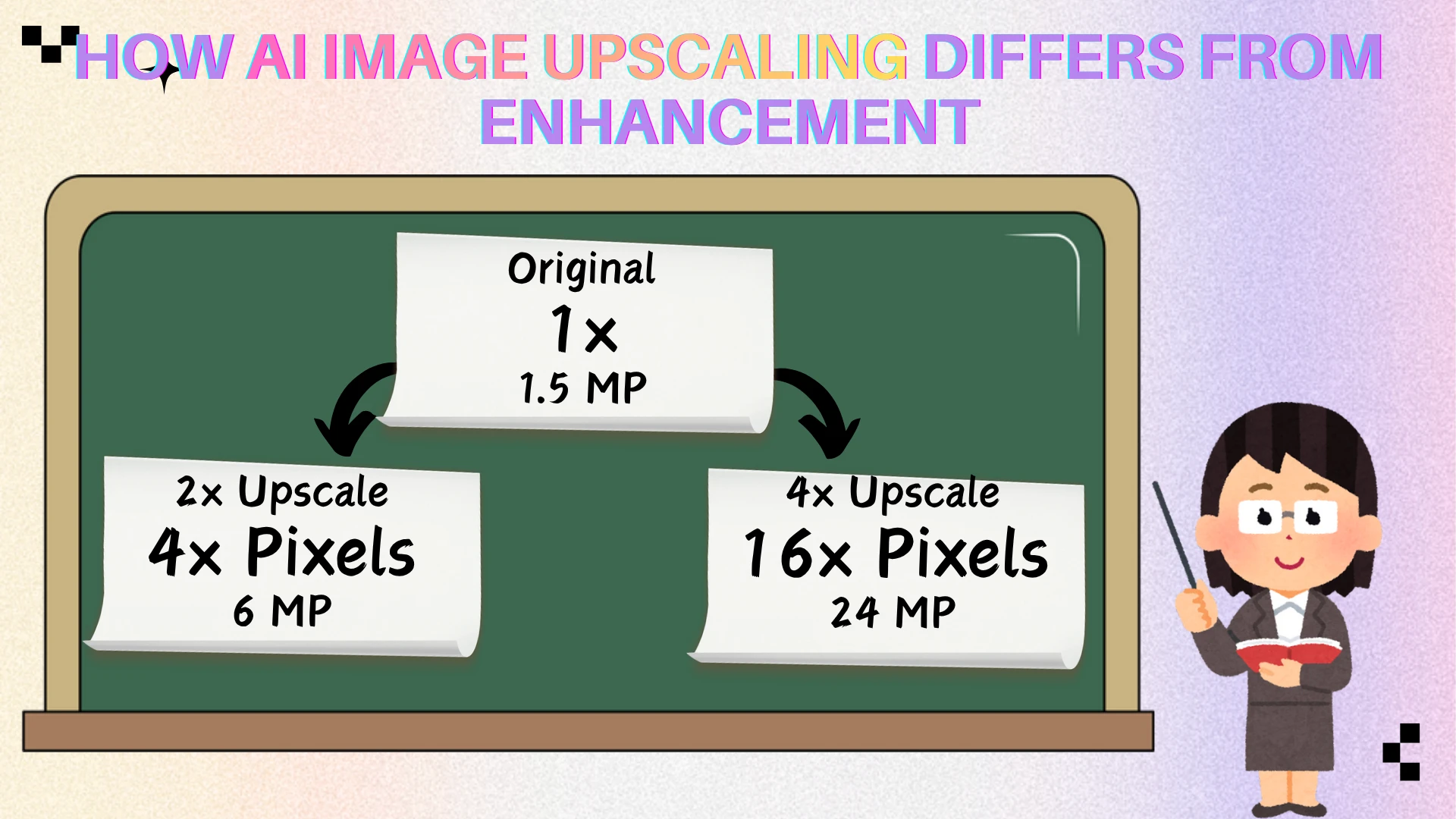
Browser Tools for Everyday Photos and Product Images
AIEnhancer for an Accessible Photo Enhancement Workflow
What sets it apart: AIEnhancer presents a browser workflow for uploading, choosing enhancement options, previewing, and downloading. Its homepage describes resolution enhancement alongside blur, noise, and color correction. This combination suits users addressing several visible problems in one photo rather than chasing enlargement alone.
Limitations: A browser preview is a starting point for evaluation. Check faces, text, and product surfaces before accepting reconstructed detail; output suitability depends on the source.
Price: AIEnhancer offers free image upscaling.
For a useful first trial, choose a representative personal photo with both fine texture and smooth areas. Decide whether it needs a bigger output, cleaner appearance, or both, then judge each change separately.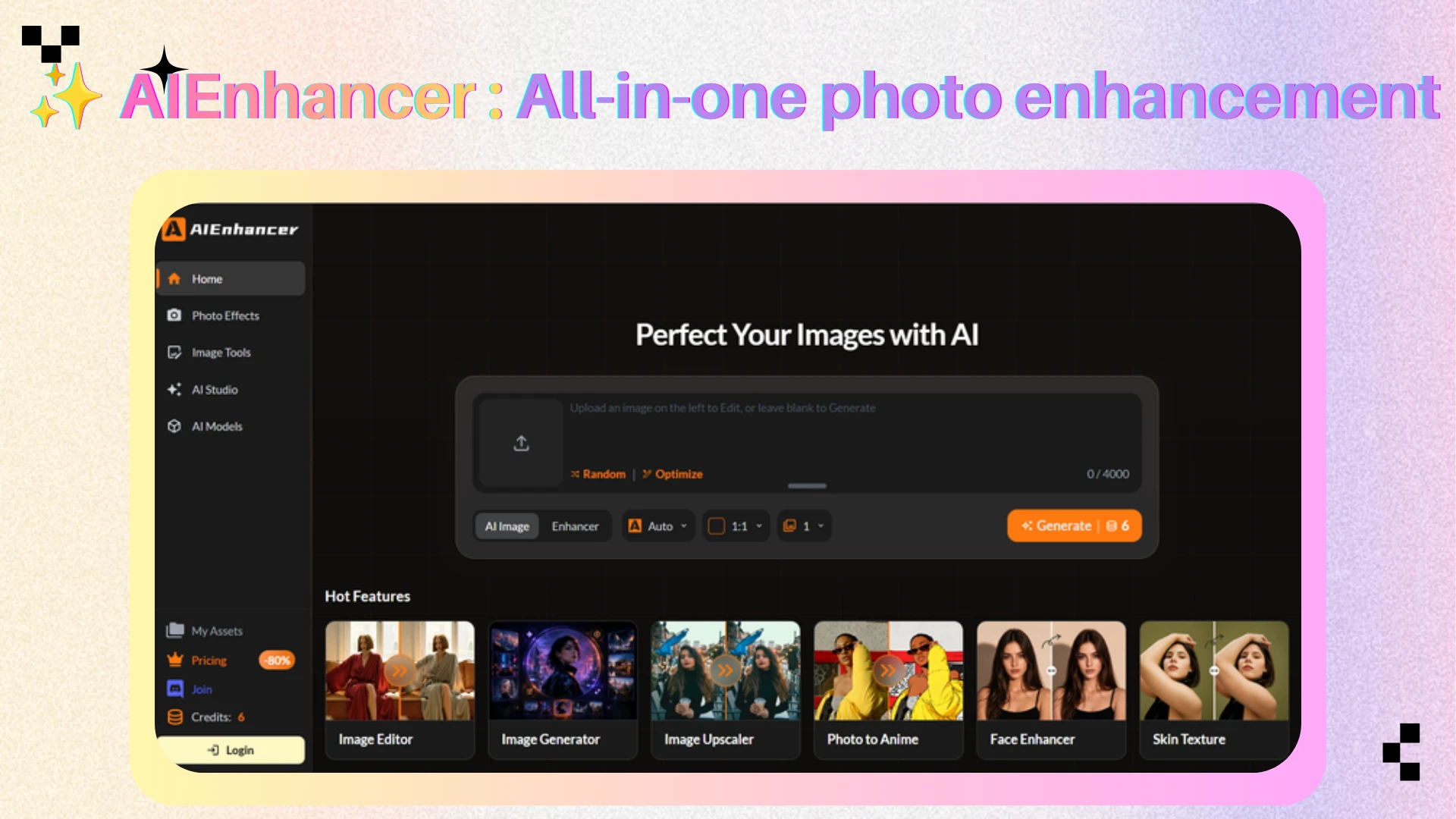
Let's Enhance for Batch and Print-Oriented Work
What sets it apart: Let's Enhance emphasizes batch editing and high-resolution exports, making it relevant when AI image upscaling is one stage in preparing multiple deliverables.
Limitations: Published maximums do not establish what every account receives. Check output ceilings, processing allowances, and whether your preferred settings carry across a batch.
Price: Free entry is advertised; ongoing production may require a paid plan.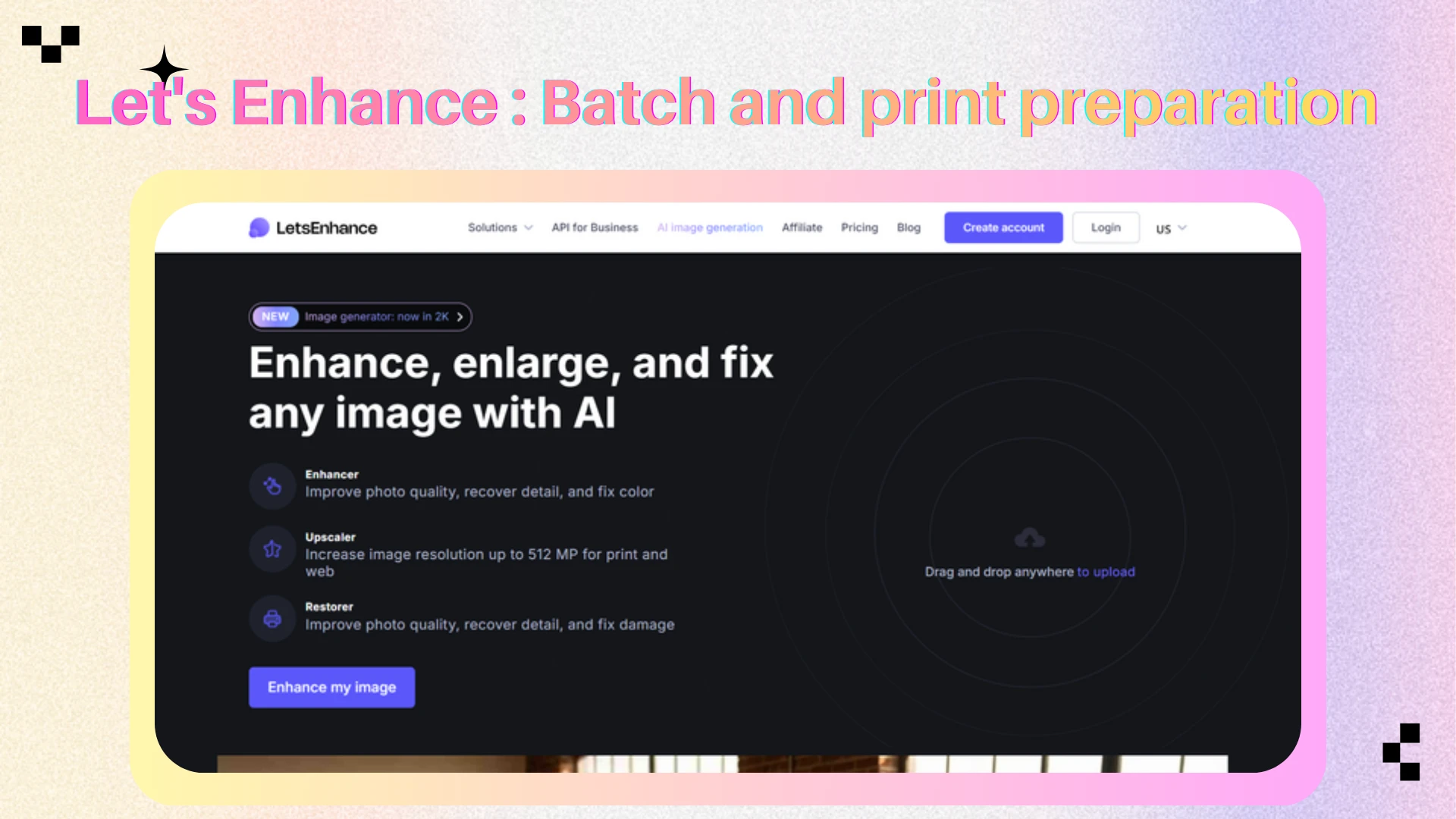
Upscale.media for Occasional Browser Enlargement
What sets it apart: Upscale.media puts upload-based enlargement at the center of its interface and publishes input limits by enlargement factor.
Limitations: Guest and signed-in allowances differ. A file accepted at one scale may exceed the input threshold at another.
Price: Free access is advertised, with paid options available. Confirm the export allowance before processing a collection.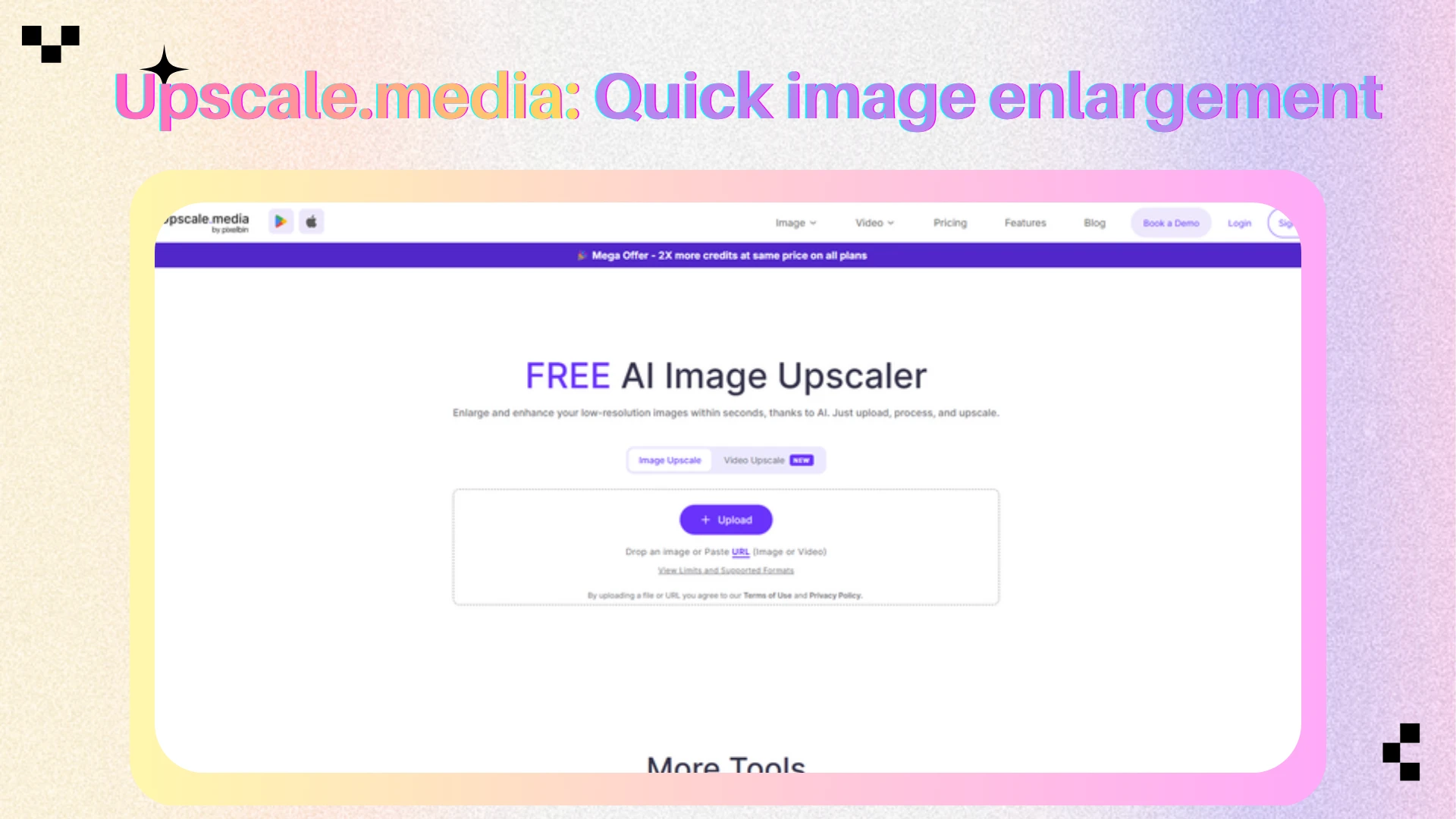
Remini for Portrait-Focused Enhancement
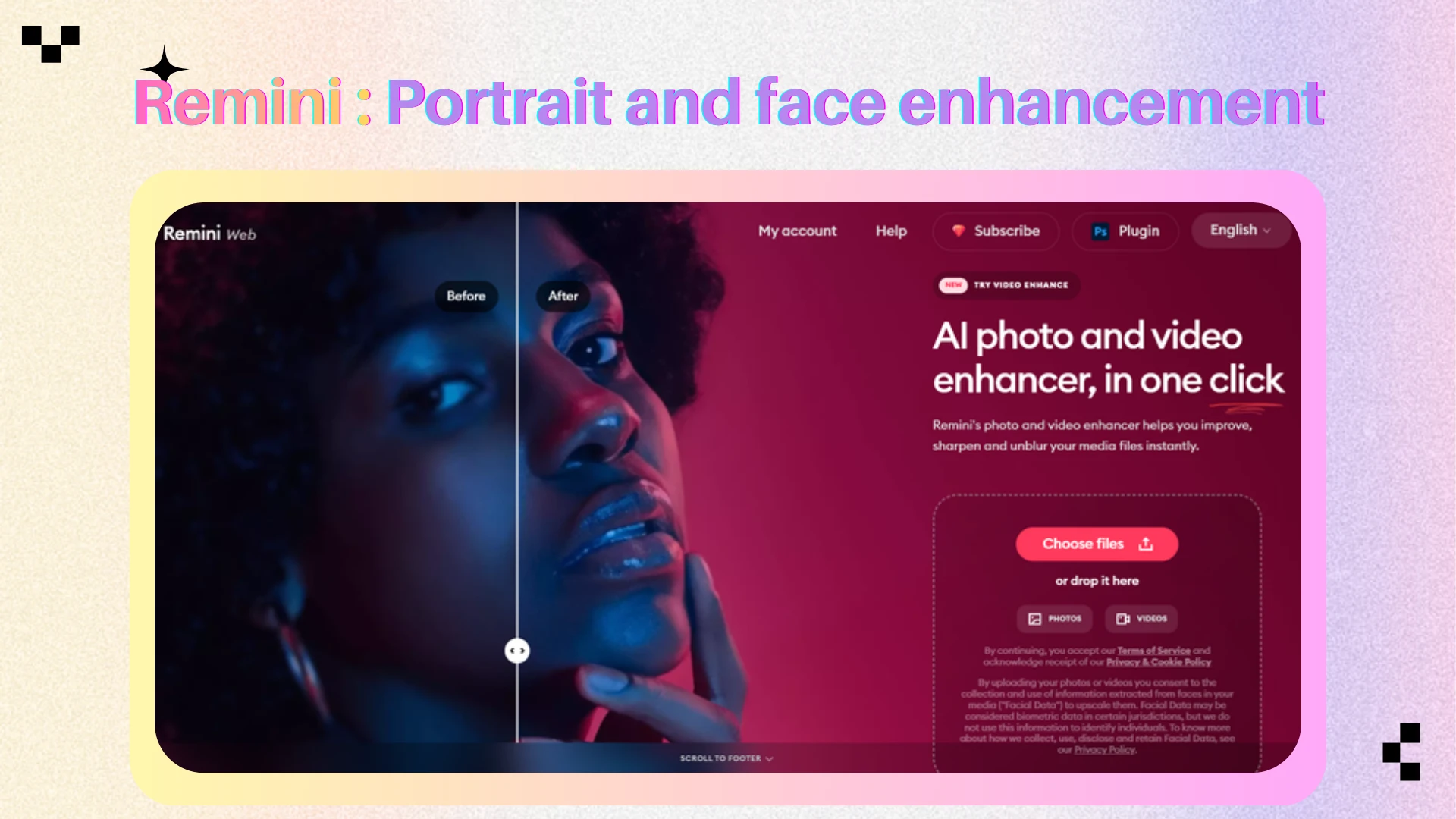
What sets it apart: Remini offers dedicated face enhancement alongside other photo improvement functions. It belongs on a portrait shortlist when facial clarity is the main concern.
Limitations: Judge identity and expression as carefully as sharpness. An attractive face reconstruction is not automatically a faithful one.
Price: Review the current offer on your chosen platform; app and web terms can differ.
Desktop and Open-Source Options for More Control
Topaz Gigapixel for Model Selection and Local Rendering
What sets it apart: Topaz Gigapixel documents specialized models and a local rendering option. This makes it relevant when AI image upscaling needs deliberate model selection or a workflow that keeps processing on your computer.
Limitations: Local performance depends on hardware and model choice. The presence of creative models means settings still matter when fidelity is the priority.
Price: Paid access; verify current licensing and any cloud-related terms directly.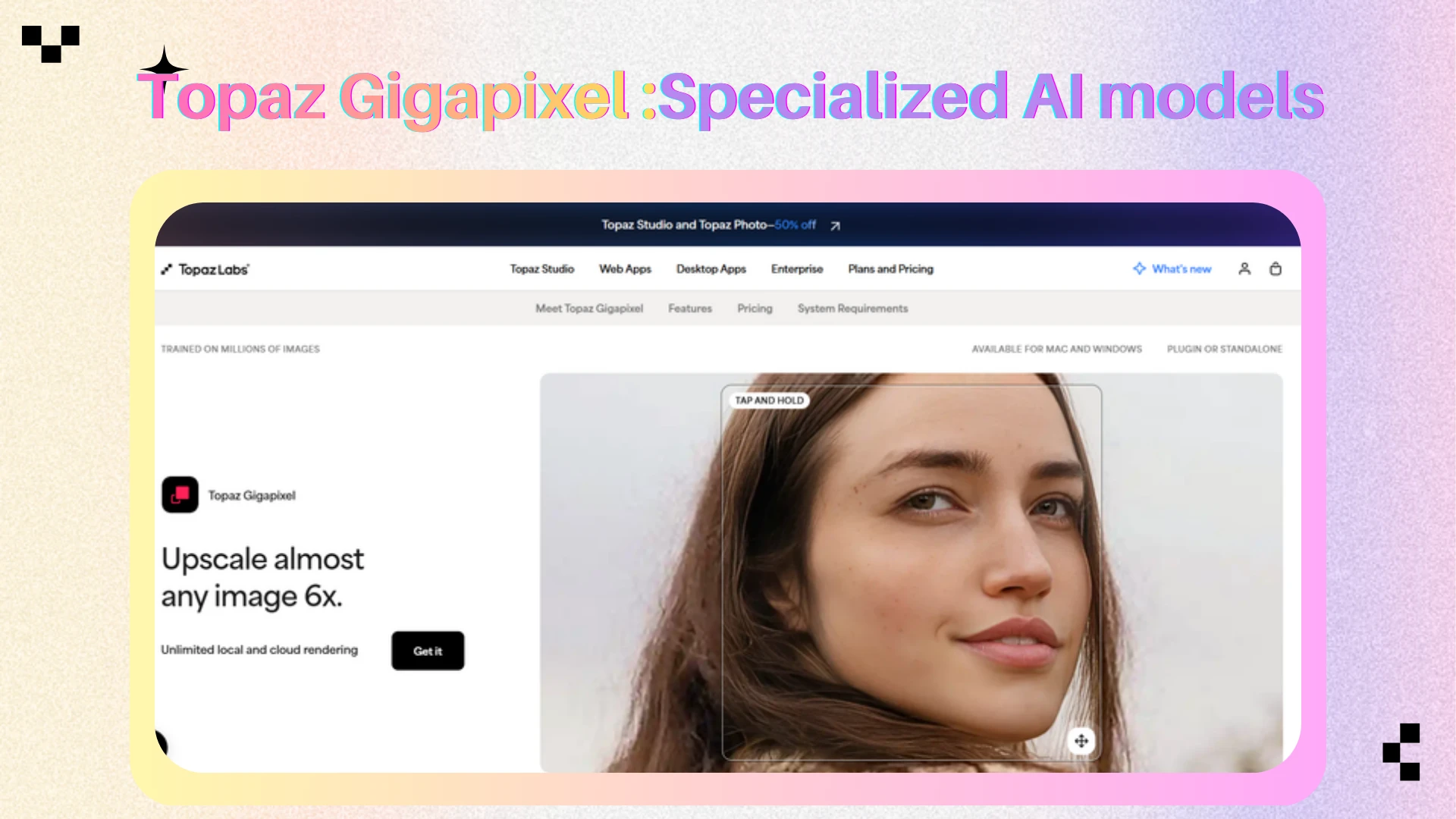
Adobe Camera Raw for Existing Editing Workflows
What sets it apart: Adobe's Enhance documentation places enhancement inside Camera Raw. Staying within an established editing environment can simplify file handling and subsequent adjustments.
Limitations: Check compatibility, supported files, and the available controls in your installed version. Existing Adobe familiarity does not remove the need to inspect artifacts.
Price: Requires access to compatible Adobe software; consider your existing subscription before adding another tool.
Upscayl Desktop for Free Local Upscaling
What sets it apart: Upscayl's desktop repository identifies a free, open-source application for Linux, macOS, and Windows. It offers an approachable local route to AI image upscaling.
Limitations: Check hardware compatibility before downloading. Distinguish the desktop application from separately offered cloud services when assessing cost and processing location.
Price: The desktop software is free; suitable hardware and processing time remain practical costs.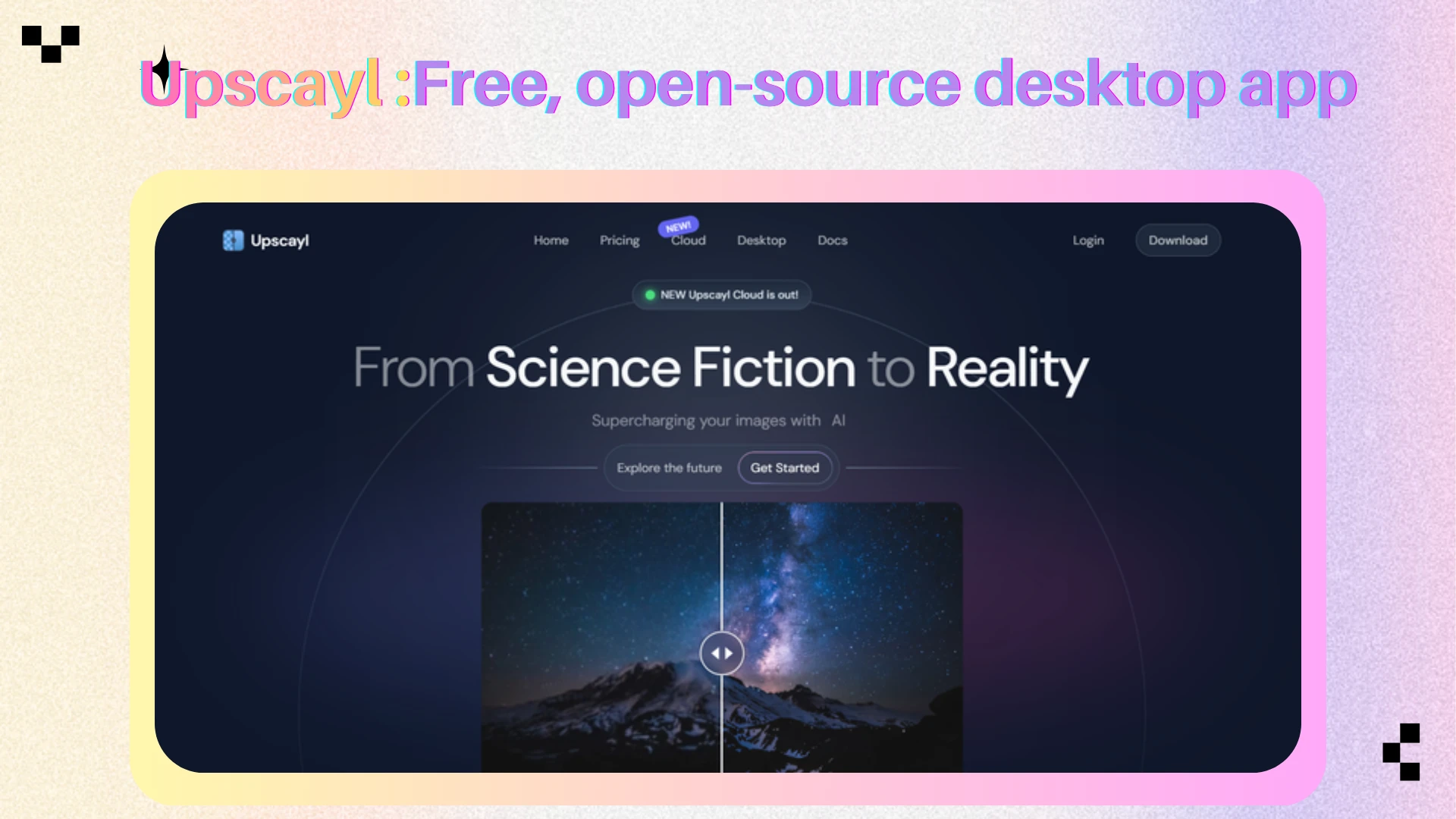
Real-ESRGAN for Technical Restoration Workflows
What sets it apart: Real-ESRGAN provides code, models, and inference instructions for image restoration. It is relevant when repeatability and configuration matter more than a polished upload interface.
Limitations: Installation, dependencies, and model selection require technical attention. Automated processing also needs quality checks before outputs reach clients.
Price: Free software; computing resources, setup, and maintenance still consume time or money.
Creative and Illustration Upscaling Options
Magnific for Deliberate Texture Exploration
What sets it apart: Magnific's upscaler presents creative and precision-oriented options. Creative AI image upscaling can suit concept art when additional texture is part of the brief.
Limitations: Treat invented surface detail as an editorial change. Keep a conservative version when product appearance, recognizable people, or source accuracy matters.
Price: Free entry is advertised; check which models, resolutions, and processing allowances your plan includes.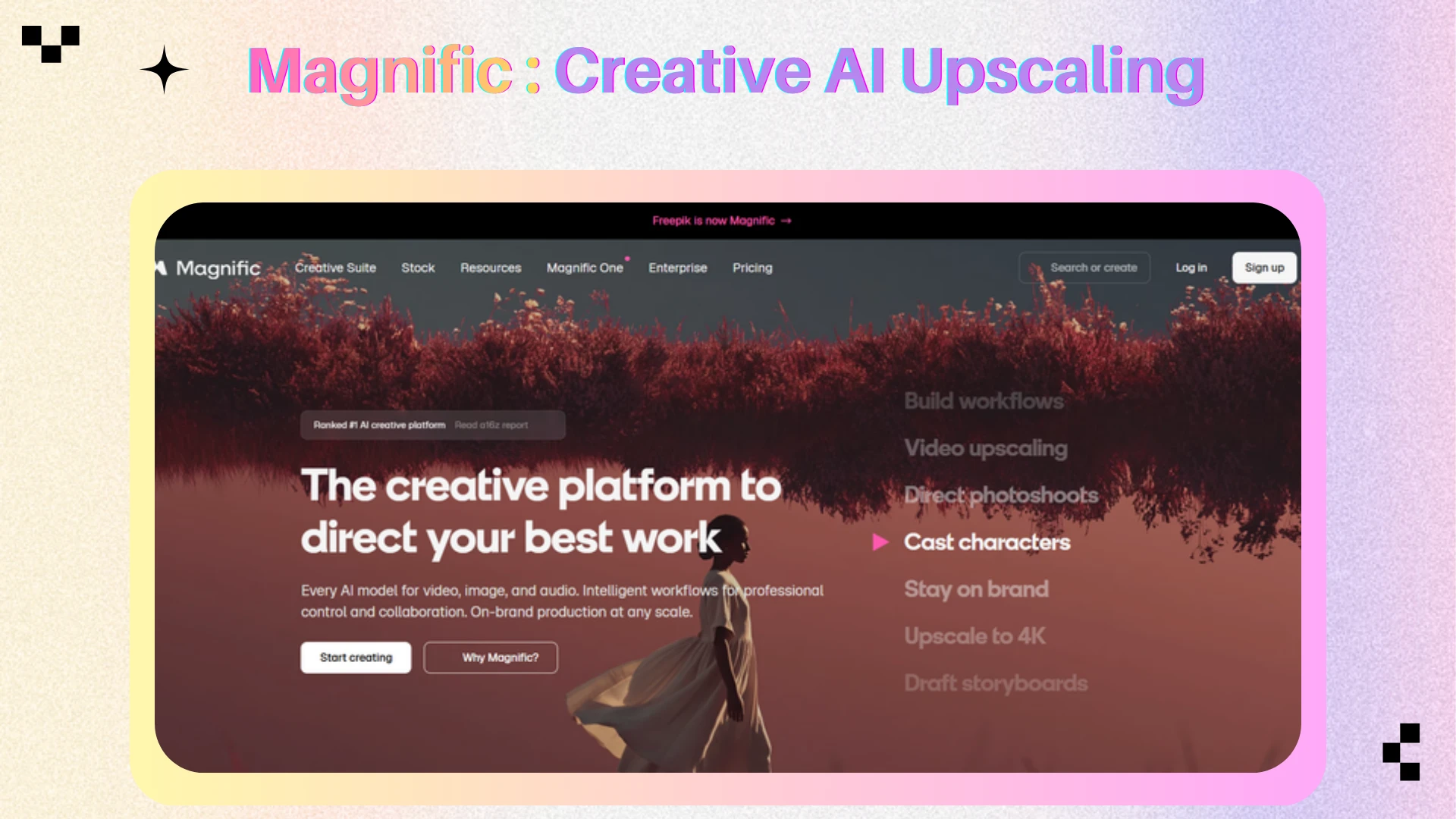
waifu2x for Small Illustrations and Scans
What sets it apart: waifu2x exposes artwork, scan, and photo styles alongside noise reduction settings. Those controls make it useful for testing line-based sources.
Limitations: Its published upload and dimension limits restrict large inputs. Strong noise reduction can also remove intentional grain or delicate drawn texture.
Price: The public interface provides access without displaying a purchase requirement; check any linked alternative service separately.
Build a Four-Step Image Enhancement Workflow
1. Define the Destination and the Defect
Write down the required dimensions and identify the dominant problem: insufficient pixels, noise, soft focus, compression, or color. Use the highest-quality source available. Download the original camera file or scan when possible instead of repeatedly editing a messaging-app copy.
AI image upscaling should solve a specific output requirement. If an image already fits its display size, improvement may require careful cleanup rather than enlargement. For product work, record which details must remain exact, including labels, seams, surface finishes, and color.
2. Make One Conservative Test
Keep the original and process a duplicate. Change one major setting at a time so you can understand its effect. For an accessible browser test, try an AI photo enhancer and compare the preview before committing to the download.
Avoid repeatedly feeding enhanced outputs back into the same tool. Accumulated processing can exaggerate edges and synthetic texture. If the first attempt is wrong, return to the source and revise the settings.
3. Check Fine Detail and the Image at Its Intended Size
Inspect each image at 100% for artifacts, then compare the same area at a matched display size. Finally, view the complete image at its intended display size. Check eyes, hair, skin, lettering, repetitive patterns, and high-contrast edges. Look for halos, plastic surfaces, altered expressions, and texture that changes meaning.
Record a simple acceptance decision: usable unchanged, usable after editing, or rejected. For batch work, test several representative sources first. AI image upscaling is only efficient when the result meets the brief without creating more correction work.
4. Export Once and Keep a Master
Confirm actual pixel dimensions, aspect ratio, and file format. Use a high-quality master for further editing, then create delivery copies for web or print. Inspect the delivered file after any compression, because export settings can erase gains visible in the preview.
For recurring AI image upscaling projects, save the settings and a few approved examples. That small reference set makes future AI image upscaling decisions more consistent than relying on memory or comparing unrelated before-and-after demonstrations.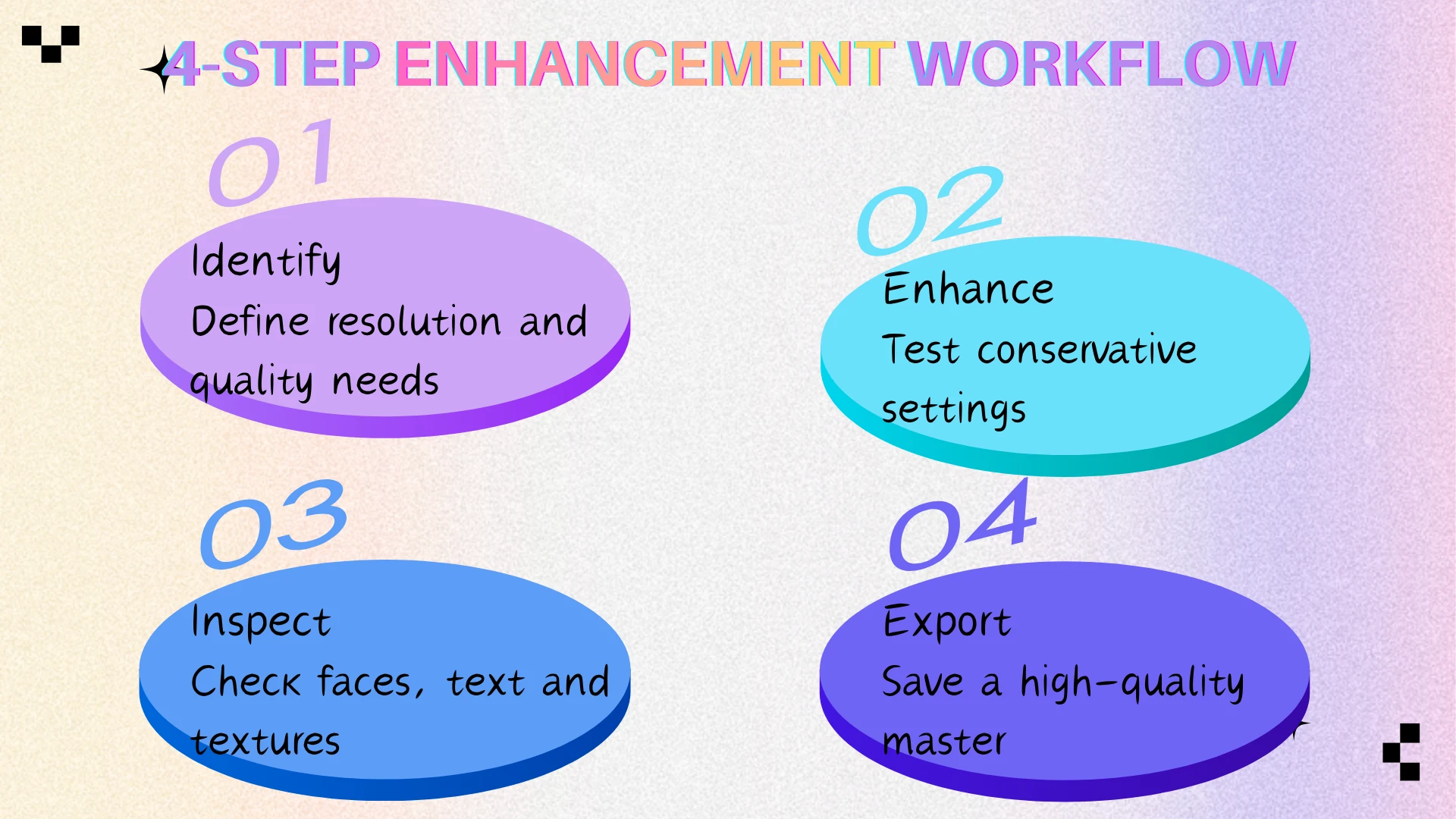
Frequently Asked Questions
Can AI Upscaling Recover the Original Detail?
AI image upscaling can estimate plausible detail and improve apparent clarity, but it cannot guarantee reconstruction of information absent from the source. Faces, text, and fine patterns deserve special scrutiny. Keep the original whenever accuracy matters.
Is a Free AI Photo Enhancer Enough?
Yes—for an occasional photo, a free tool may be enough if the output meets your size and quality requirements. AIEnhancer offers free image upscaling. Compare the result with the original, paying particular attention to faces, text, and fine textures before using it.
Should I Choose 2x or 4x Enlargement?
Choose the smallest increase that meets the destination's pixel requirements. If your file already fits, AI image upscaling may add size without a useful visual benefit. Compare a modest enlargement with a stronger one before accepting extra texture.
How Do I Keep Product Photos Accurate?
Use conservative settings and compare labels, color, geometry, and materials with the original. Reject invented detail that changes what buyers think they will receive. If accurate source detail is missing, obtain a better photo rather than asking enhancement to supply it.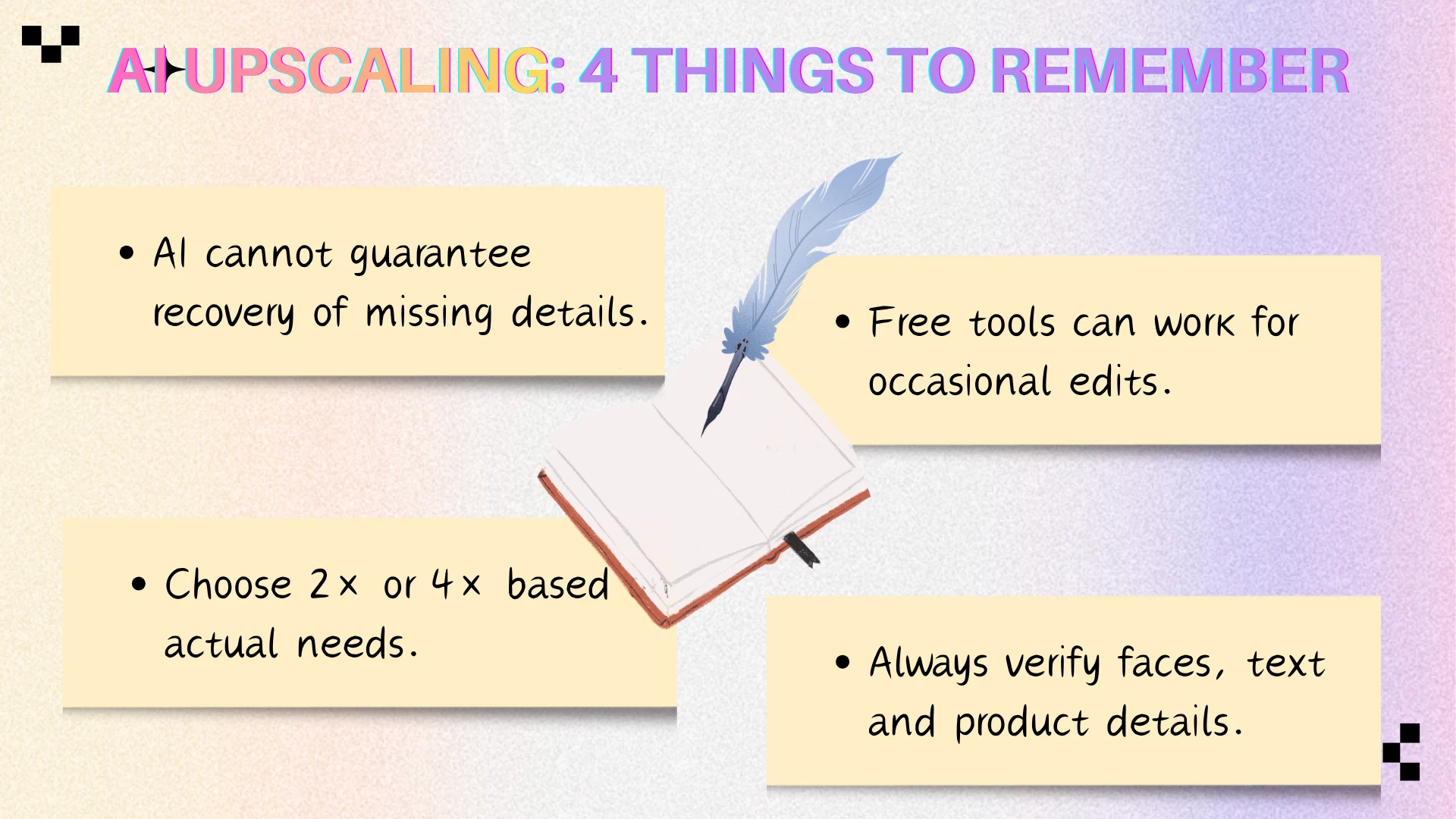
Choose the Next Step for Your Image
Image upscaling and AI enhancement work best when the output requirement is clear. Pick a representative image, calculate the dimensions you need, and compare a conservative result against the original. Keep results that improve clarity and useful detail; reject changes that alter identity, lettering, or materials.
To enhance photo quality online, start with AIEnhancer and evaluate one preview against that checklist. If your brief instead demands local processing, repeated production, or creative reinvention, choose the matching workflow above. Let the final image determine whether AI image upscaling helped.