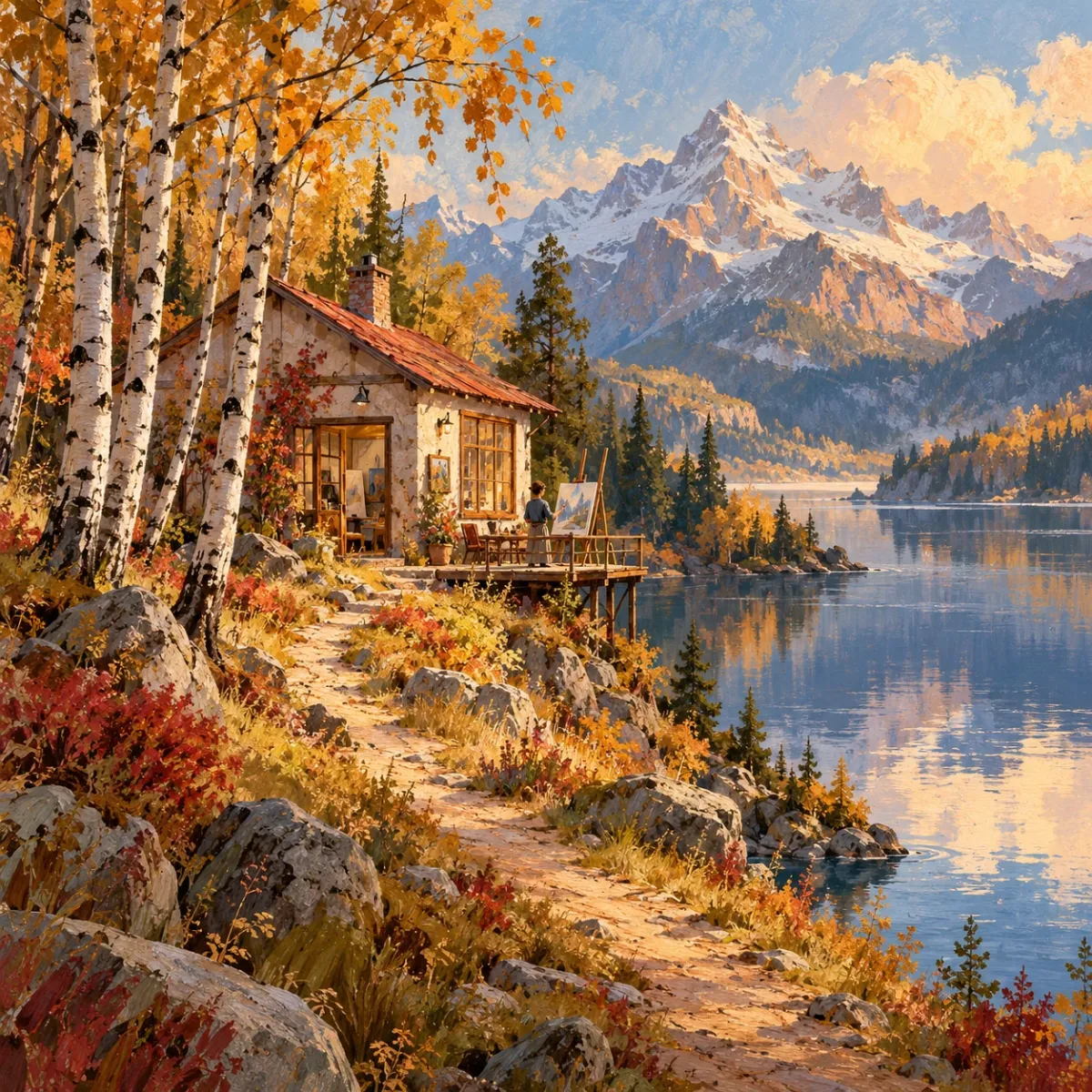
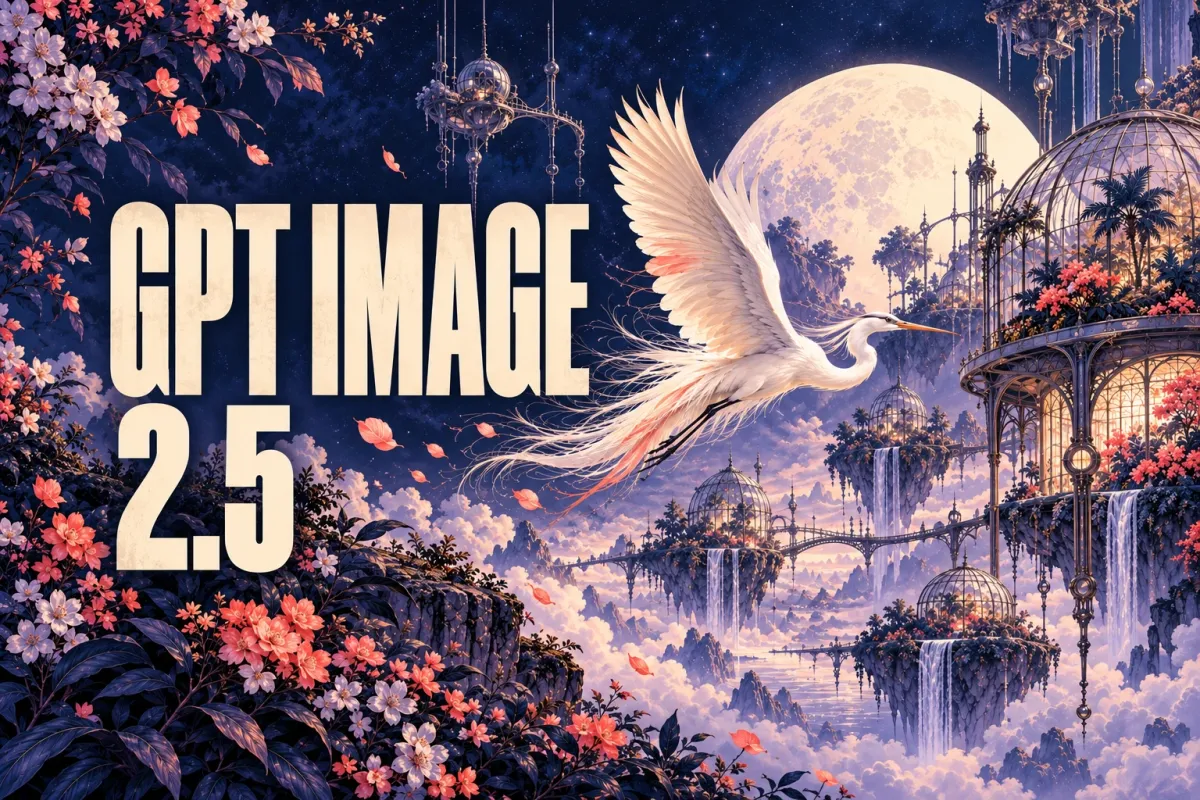
GPT Image 2.5 — create and edit AI images up to 4K!
GPT Image 2.5
Models
Icon - AIEnhancerGPT Image 2.5
Source images (Optional)
Click to upload
Drag & drop or Ctrl + V / ⌘ + V
Up to 4 images, 20MB each
0 / 4000
1:1
1K
Example - AIEnhancer

GPT Image 2.5: Create and Edit AI Images up to 4K

Two Variants for Different Creative Needs

GPT Image 2.5 offers Flare for everyday content creation and Sunburst for detail-focused editing. Generate from text or use a reference photo with either variant. For reference-based edits with other models, explore the AI Image Editor.

FLARE

Flare for Everyday Creation

Use the default Flare variant to draft a launch graphic, explore a product setting, or test a concept. Start with a clear brief and compare the directions you want to develop. Describe the audience, subject, and intended use so each attempt explores a purposeful variation rather than an unrelated image.
SUNBURST

Sunburst for Detailed Editing

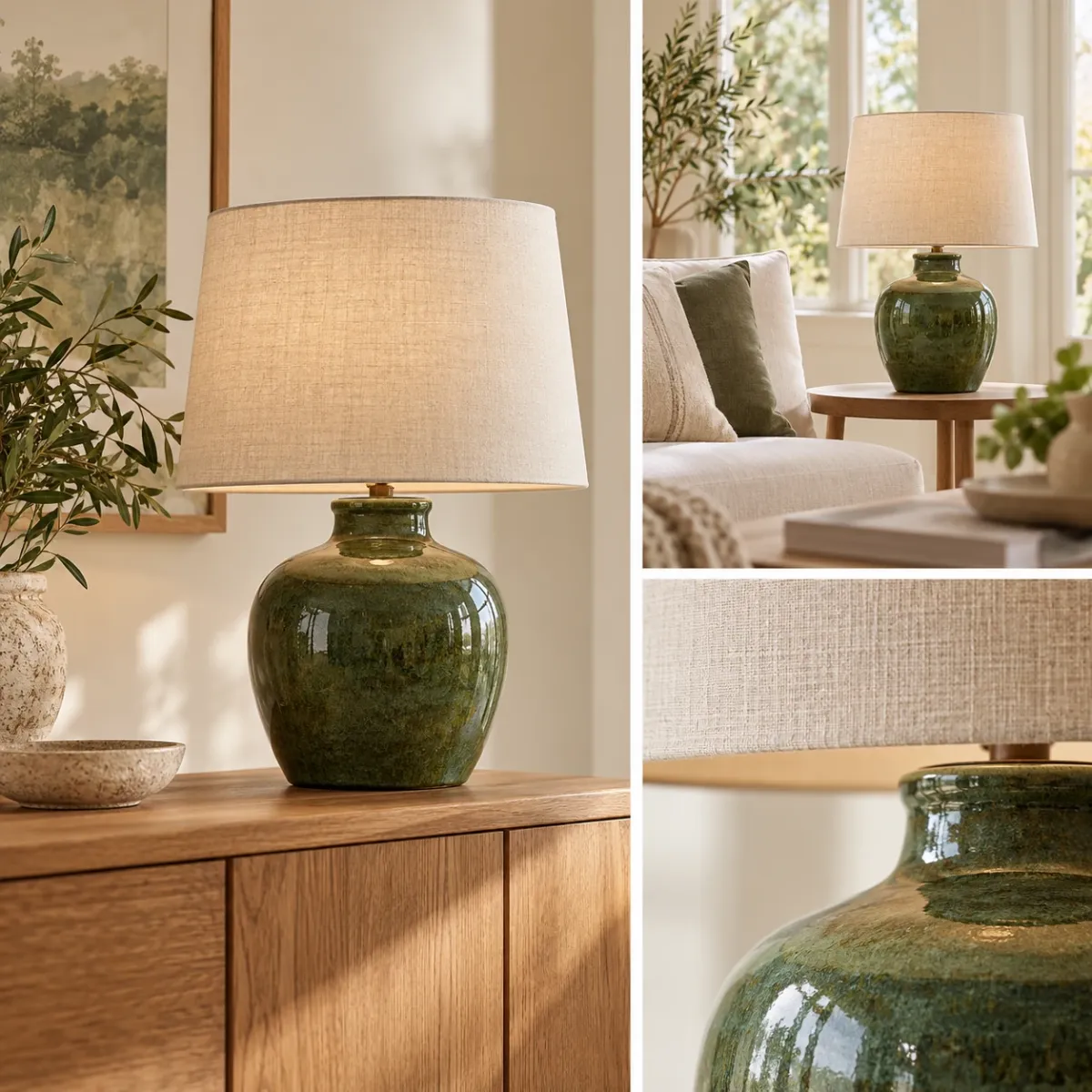
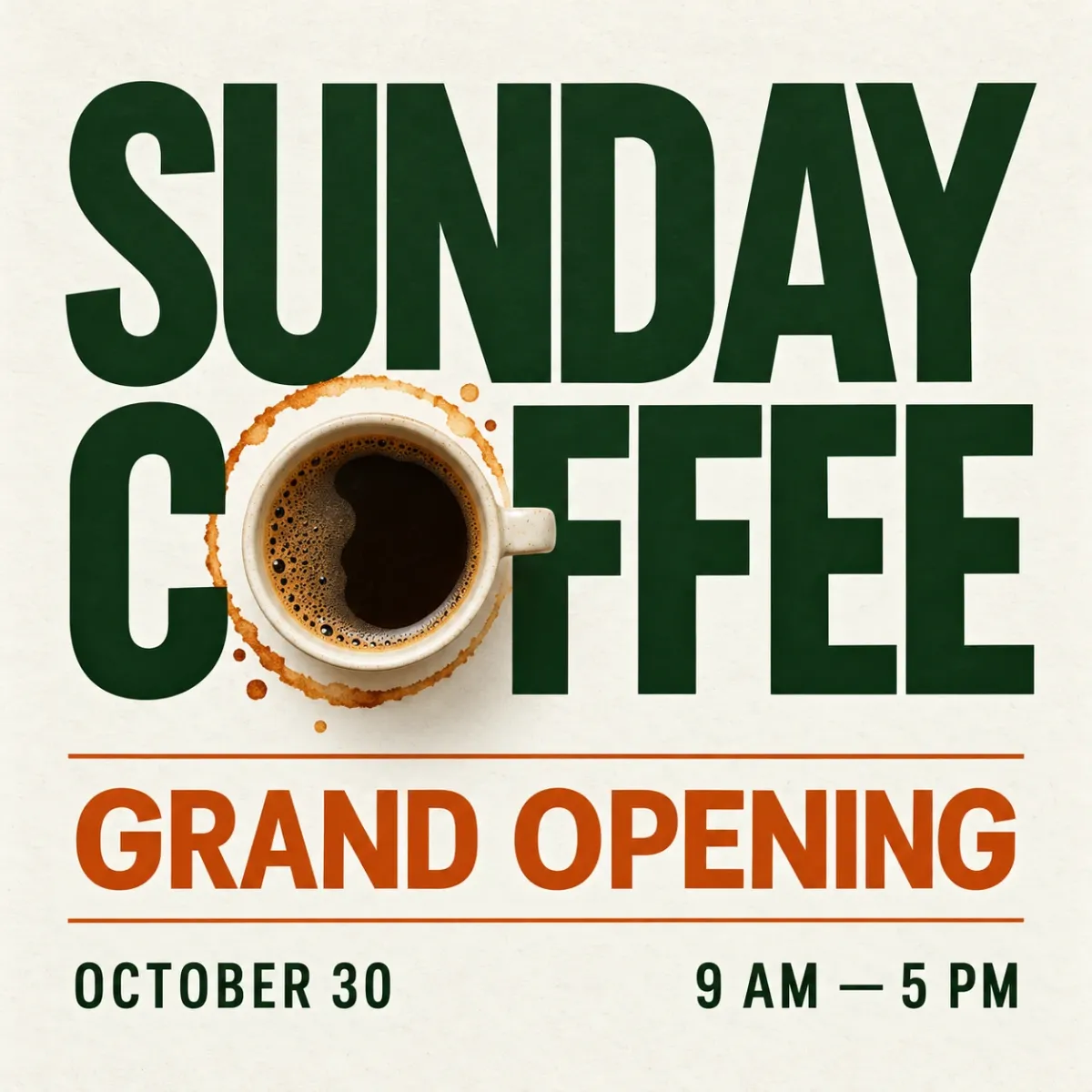
Choose Sunburst for product refinements and campaign visuals that need more attention to materials, lighting, and fine detail. This variant prioritizes detailed work and can take longer to process. For an existing photo, focus your instruction on the change you need and identify the visual elements that should remain recognizable.

What You Can Do with GPT Image 2.5

Create product scenes, campaign graphics, and visual concepts from a prompt or reference image.

Try GPT Image 2.5
Features - Product Photography and Editing - AIEnhancer

Product Photography and Editing

Use a reference photo to explore new backgrounds, lighting, and product settings. Describe the details you want to retain, such as the product shape, color, and label, then review them against the original. A simple brief might ask for a soft studio background while keeping the packaging and camera angle. Use the result as a visual draft for a listing or promotion.

Features - Posters and Campaign Graphics - AIEnhancer

Posters and Campaign Graphics

Create a visual draft for an event poster, launch announcement, or promotional campaign. Specify the headline, composition, and style in your prompt, then check the generated wording and layout before publishing. Include the exact headline and date, and describe which element should attract attention first. Leave space for any finishing touches you plan to add later.

Features - Concept Art and Visual Design - AIEnhancer

Concept Art and Visual Design

Turn ideas for characters, interiors, and illustrated scenes into visual concepts. Guide the viewpoint, lighting, and mood with your prompt, and choose a suitable aspect ratio and output resolution for your project. A wide frame can suit an environment study, while a portrait frame can suit a character concept. Keep the brief focused when comparing different visual directions. Explore more models and visual directions in the AI Image Generator.

How to Use GPT Image 2.5

Create or edit your image in three simple steps.

Step 1

Add a Prompt or Reference

Describe the image you want to create. For an edit, upload a reference and explain both the change and the details you want to keep.

Step 2

Choose Your Variant and Output

Select Flare or Sunburst, then choose your resolution and aspect ratio. Review the displayed credit requirement before generating. Start at a resolution appropriate for your draft, then use a larger output when the project calls for it.

Step 3

Generate, Review, and Download

Preview the generated image, download the result you want to keep, or adjust your prompt to explore another version.

What Users Say About GPT Image 2.5

Explore product visuals, campaign drafts, and illustration concepts with GPT Image 2.5.

Have you tried GPT Image 2.5? Share your experience with us through Contact Us.

GPT Image 2.5 FAQs

What to know about variants, references, output size, and credits.