 Seedream 5.0 Pro

Seedream 5.0 Pro: AI Image Generator and Editor
Turn a Design Brief into a Visual Draft
Explore layouts, product settings, and reference-led ideas with Seedream 5.0 Pro.
Posters with a Clear Hierarchy
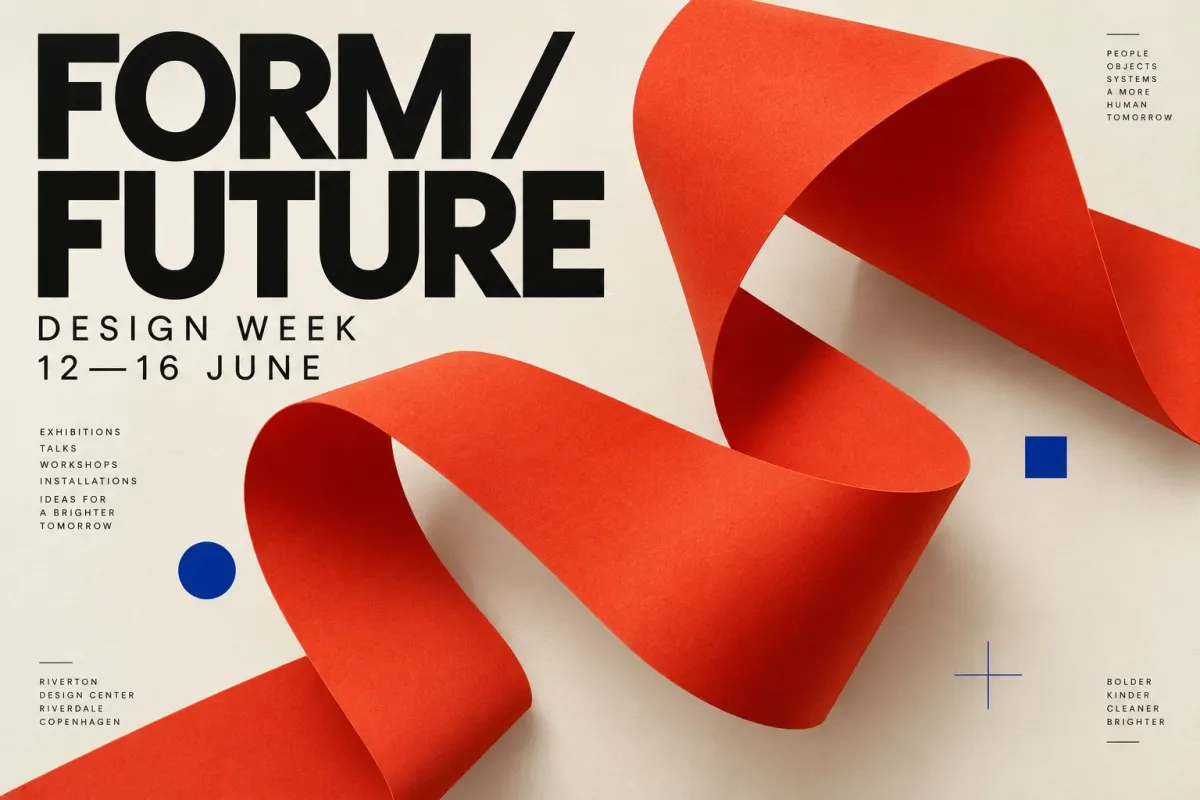
Turn an event announcement or launch brief into a poster concept. Include the exact headline, supporting details, and the element that should attract attention first. Describe the relationship between the subject and the text rather than listing disconnected style words. Try a portrait frame for a poster or a wide frame for a campaign banner. Check spelling, dates, and visual hierarchy before adding final typography or preparing the design for publication.
Product Images in Context
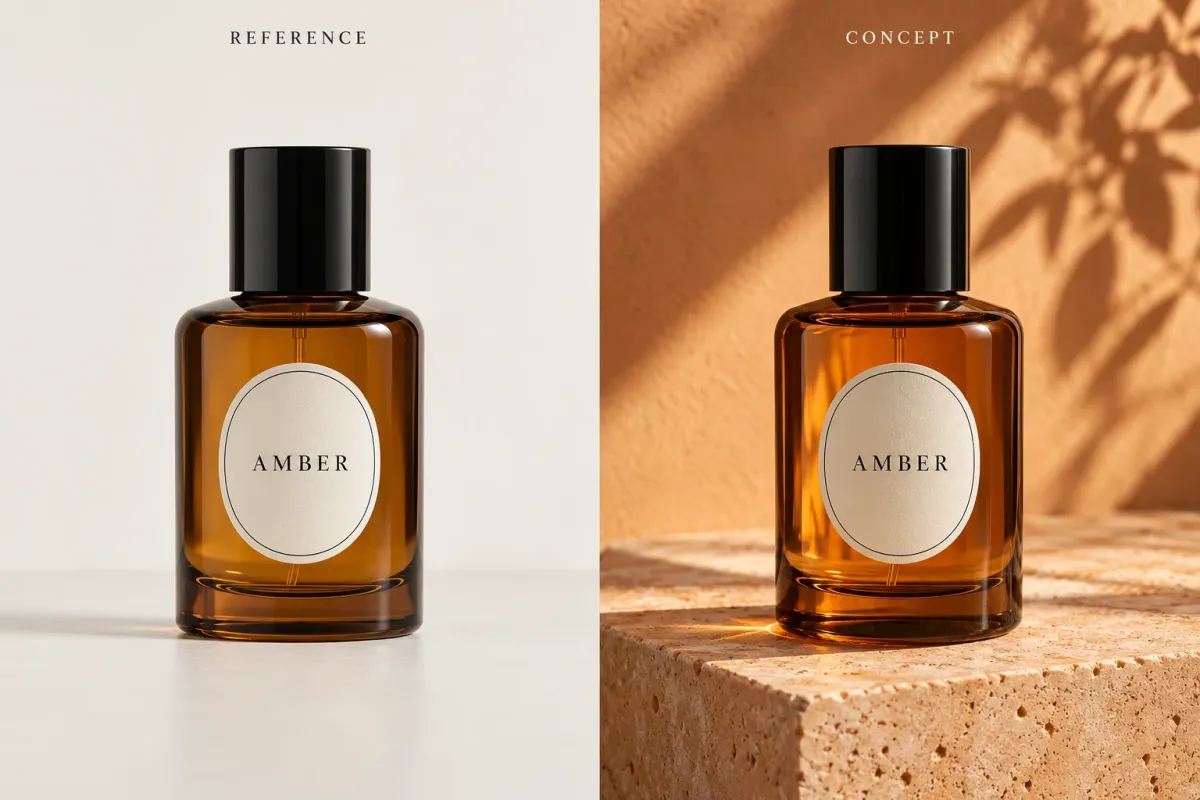
Use a product reference to explore a setting for a listing, campaign, or presentation. Describe the surface, background, lighting, and camera angle you want to change, and identify the product details that should remain recognizable. Compare labels, materials, proportions, and colors with your original instead of assuming every detail has been preserved. For reference-based work with other models, explore the AI Image Editor.
Reference-Guided Concepts
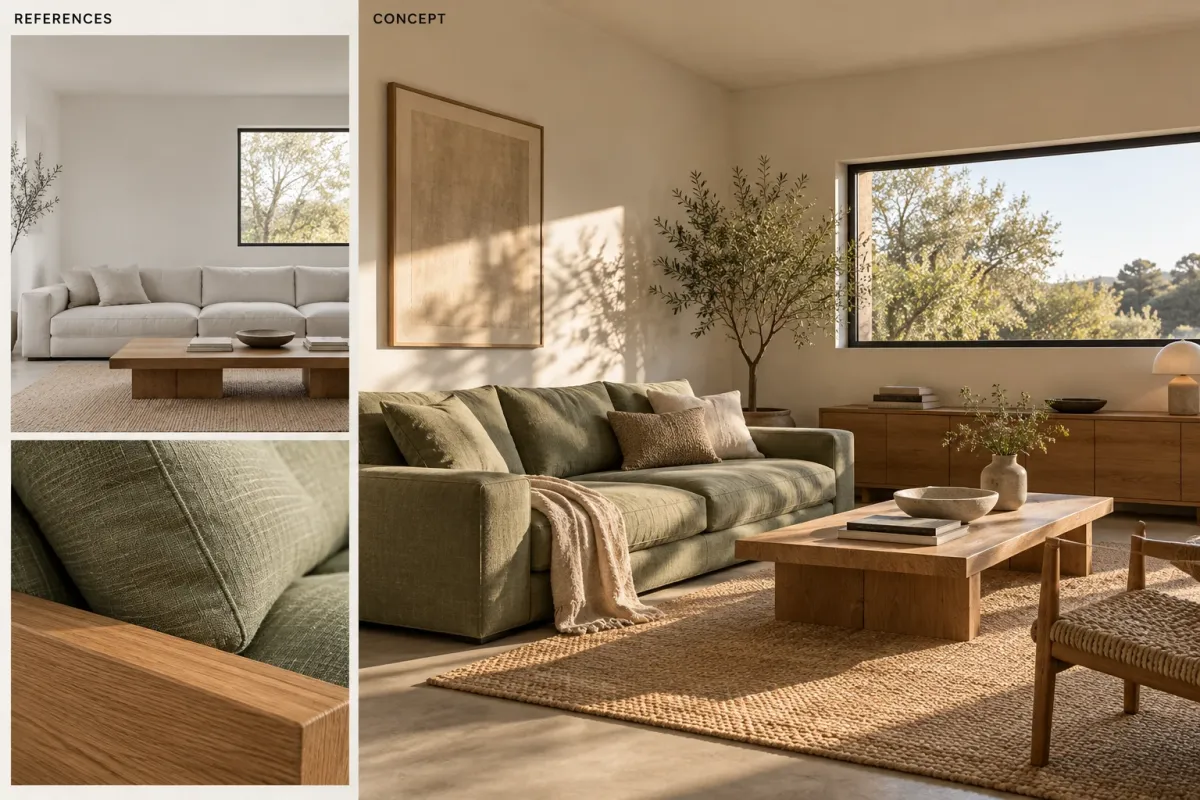
Bring references for the subject, setting, or visual direction into one brief. Explain the role of each image, such as using one for the room layout and another for a material palette. You can add up to ten reference images, but a smaller, purposeful set can make the intended direction easier to explain. Develop an interior mood or illustrated scene, then review the result against your references. Explore other interpretations with the AI Image Generator.
How to Use Seedream 5.0 Pro
Move from an idea to a result in three steps.
Describe Your Starting Point
Enter a prompt for a new image, or upload a reference for an edit. Name the subject, setting, and changes you need. A focused instruction makes it easier to understand what worked and what to adjust in the next attempt.
Set Up Your Output
Choose 1K, 1.5K, or 2K, then select an aspect ratio and PNG or JPEG output. Start with one image while exploring a direction. Review the displayed credit total before submitting, especially when increasing your output quantity.
Generate and Review
Submit your request, preview the result, and download the image you want to keep. Check important details at a useful viewing size. If the result needs refinement, change the relevant part of your prompt and compare the next version with your original brief.
What Users Say About Seedream 5.0 Pro
Explore workflows for product imagery, promotional drafts, and visual direction.
Share your experience through Contact Us.
Seedream 5.0 Pro FAQs
Answers about prompts, references, output settings, and credits.
What can I do with Seedream 5.0 Pro?
Use the model on AIEnhancer to create images from a prompt or work from a reference image. Product scenes, promotional drafts, and visual concepts are useful starting points. Review the result against your brief before publishing it.
Do I need to upload an image?
A reference is optional for text-based generation. Upload an image when an existing subject or scene should guide the result, and explain the changes you want rather than expecting the model to infer the entire task.
Is Seedream 5.0 Pro free to use?
Access follows AIEnhancer’s account and credit rules. Check the current access requirements and credit total before submitting. Do not assume that a free offer on another platform applies here.
Which output settings can I use?
Choose 1K, 1.5K, or 2K, one of eight aspect ratios, and PNG or JPEG output. The initial settings are 1K, 16:9, and JPEG. Review the credit total after changing your selections.
How are credits charged?
Each output costs 6 credits at 1K or 8 credits at 1.5K and 2K. Reference images are included in that price. Multiply the per-image cost by your output quantity. Changing the aspect ratio or file format does not add credits.
Will every detail stay unchanged when editing?
No. Describe what you want to preserve, then compare faces, text, product shapes, and colors with your source. Generated edits are visual drafts and may require further review or manual finishing.