GPT Image 2.6
Models
Icon - AIEnhancerGPT Image 2.6
Source images (Optional)
Click to upload
Drag & drop or Ctrl + V / ⌘ + V
Up to 4 images, 20MB each
0 / 4000
A
Auto
1K
Auto
Default
PNG
Example - AIEnhancer

GPT Image 2.6: Create Images and Animated GIFs

4.8 / 5 (423 reviews)

Choose the Format for the Work You Want to Make

Create a still image from text, edit with references, or make a short animated loop.

Create with GPT Image 2.6

One Brief, Two Variants to Explore

Flare and Sunburst share the same formats and credit price. Compare them against your own brief.

Start with Flare

Start with Flare

Flare is the default variant. Keep your prompt and output format fixed while you review the first result. Judge the composition, wording, or motion you actually need rather than treating a model label as a quality guarantee.

Compare with Sunburst

Compare with Sunburst

Try Sunburst when you want another interpretation of the same task. It uses the same 6-credit price per output. Compare the results before choosing; neither a variant name nor a higher quality setting guarantees that every detail will match your brief.

How to Create with GPT Image 2.6

Pick a format first, then describe a result that suits it.

Step 1

Choose the Output You Need

Start with PNG, JPEG, or WEBP for a still image and GIF for a short animation. If you have reference images, stay in a still-image format. GIF generation uses text only.

Step 2

Describe the Scene or Motion

For a GIF, focus on one movement and keep the scene simple. For a still-image edit, upload your references and explain what should change. Select Flare or Sunburst and review the quality and complexity settings.

Step 3

Preview and Download the Original

Play the GIF or compare a still-image edit with its references before downloading. Downloads keep the selected format. Review the credit total before generating another version; each output uses 6 credits.

What Users Say About GPT Image 2.6

From still-image edits to short loops, these comments focus on choosing an output format.

“For a product mockup, choose PNG when you plan to keep editing, or WEBP when preparing a still image for a web page. Preview the result before downloading.”
Maya Bennett - AIEnhancer
Maya Bennett
Brand Designer · Sample feedback
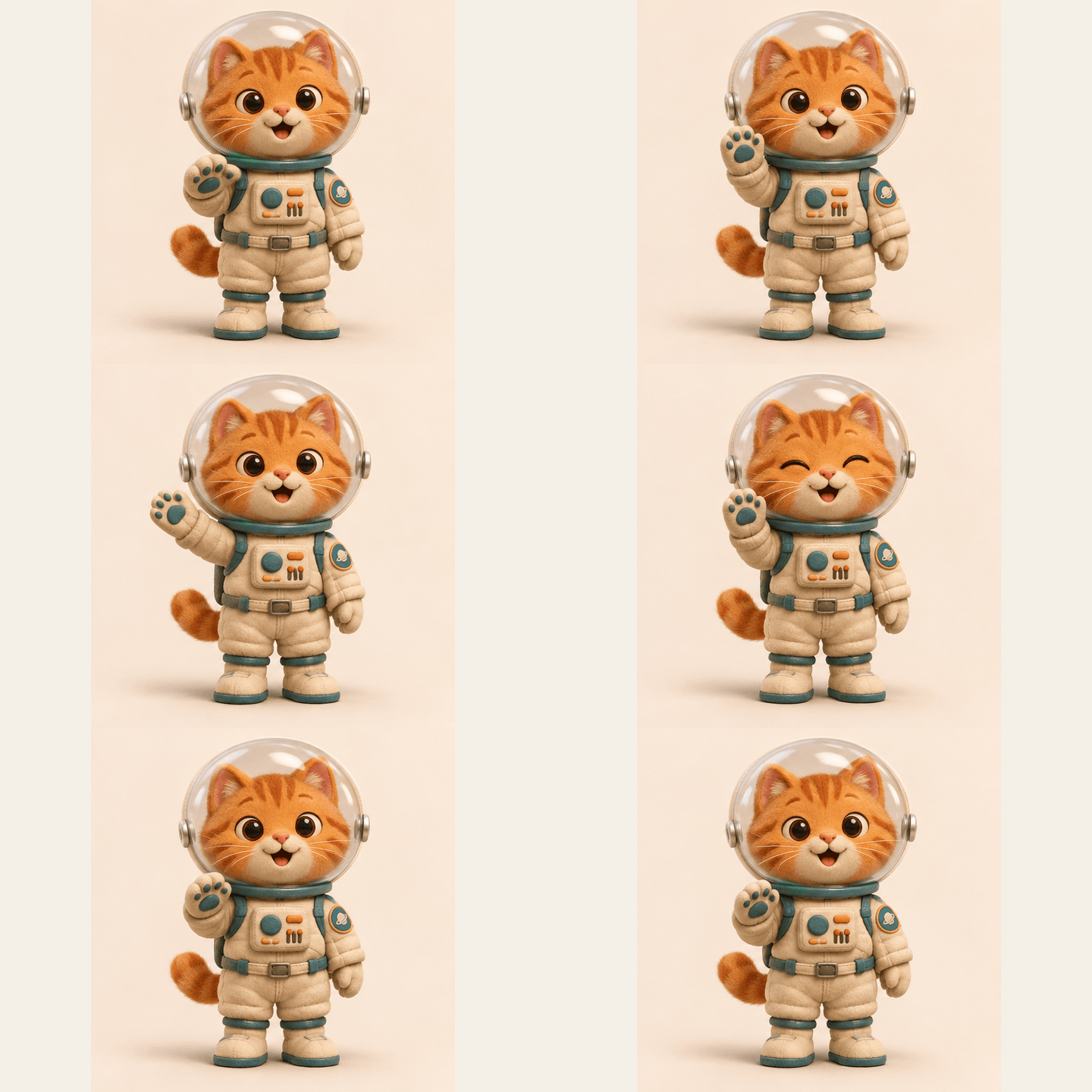
“For a simple mascot loop, I could choose GIF, describe one movement, and review the animation before downloading. Keeping the scene focused gave me a useful starting point.”
Julian Park - AIEnhancer
Julian Park
Content Creator
“I switch between still-image drafts and reference-based edits. Seeing the format restrictions before submitting helps me choose the right setup without losing my reference images.”
Sofia Ellis - AIEnhancer
Sofia Ellis
Visual Designer

GPT Image 2.6 FAQs

Check format restrictions, raster size, and credits before you submit.