Wan 2.7 Image
Models
Icon - AIEnhancerWan 2.7 Image
Source images (Optional)
Click to upload
Drag & drop or Ctrl + V / ⌘ + V
Up to 4 images, 20MB each
0 / 4000
16:9
Example - AIEnhancer

Wan 2.7 Image: Generate and Edit with Multiple References

4.7 / 5 (722 reviews)

Give Every Reference a Clear Role

Use up to four references to explain one image, rather than asking for four separate results.

Separate Subject and Setting
1

Separate Subject and Setting

Start with a scene prompt, or add references for the subject, background, and visual direction. Explain what each image contributes. A focused set is often easier to describe than several images with conflicting viewpoints. You do not need to fill all four slots to make a useful request. If two references suggest different camera angles or backgrounds, say which should take priority. Remove an image that does not contribute a clear requirement rather than expecting the model to resolve every conflict.
Say What Should Change
2

Say What Should Change

Describe the change in plain language: a product in a new setting, a different light, or another composition. Identify the details you want to retain. This page does not expose edit boxes or a color-palette control, so review the result rather than expecting a precisely selected region to stay constrained.

Review Separate Variations
3

Review Separate Variations

Select 1K or 2K and a supported aspect ratio, then begin with one output. Use the existing output-count control for more independent variations. These are separate tasks, not a continuous image sequence. Compare proportions, lighting, and reference details before keeping a result.

Explore a Product Setting or a Scene Composition

Compare the parts that came from your references with the changes you requested.

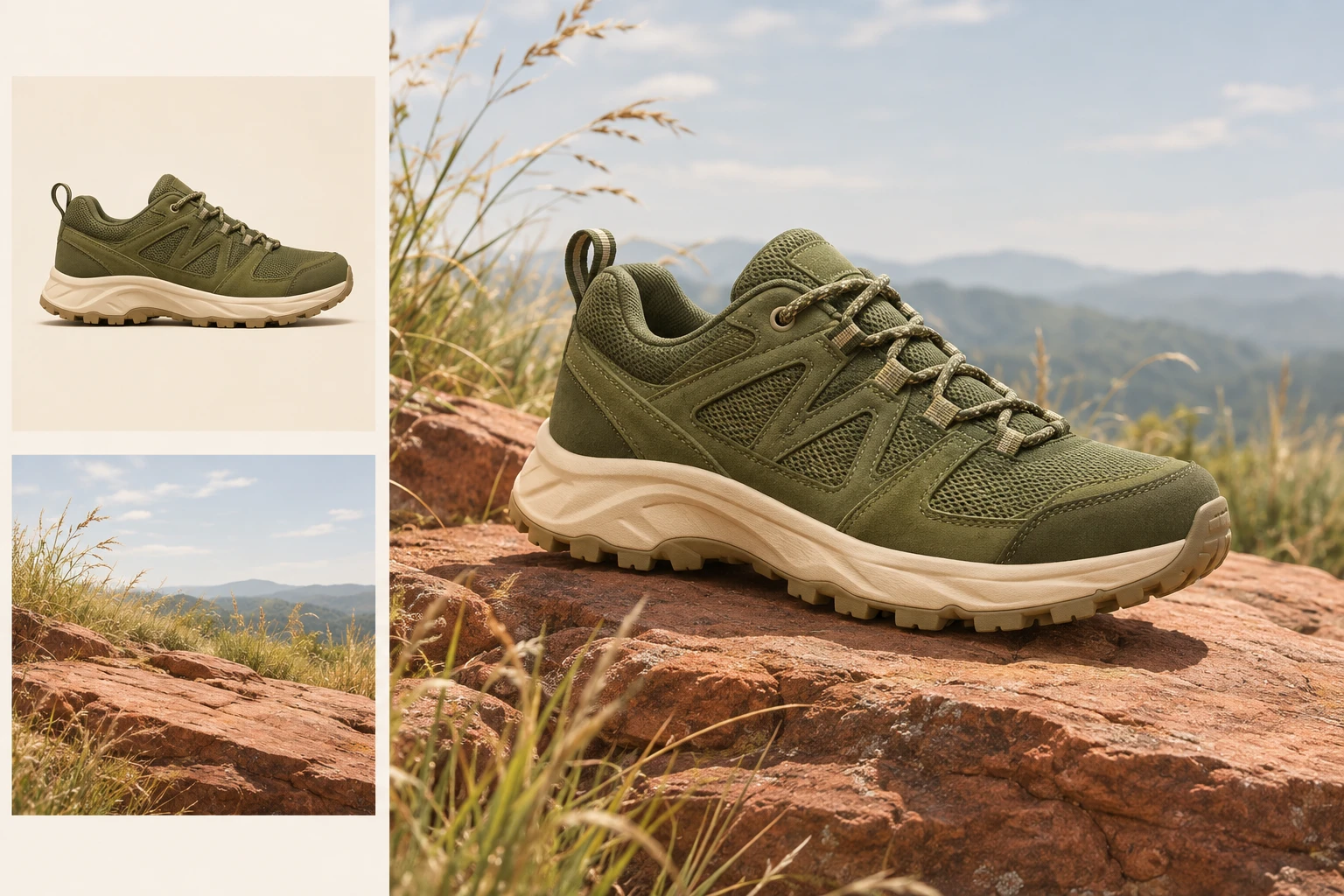
A Product in a New Setting reference 1
A Product in a New Setting reference 2
A Product in a New Setting

A Product in a New Setting

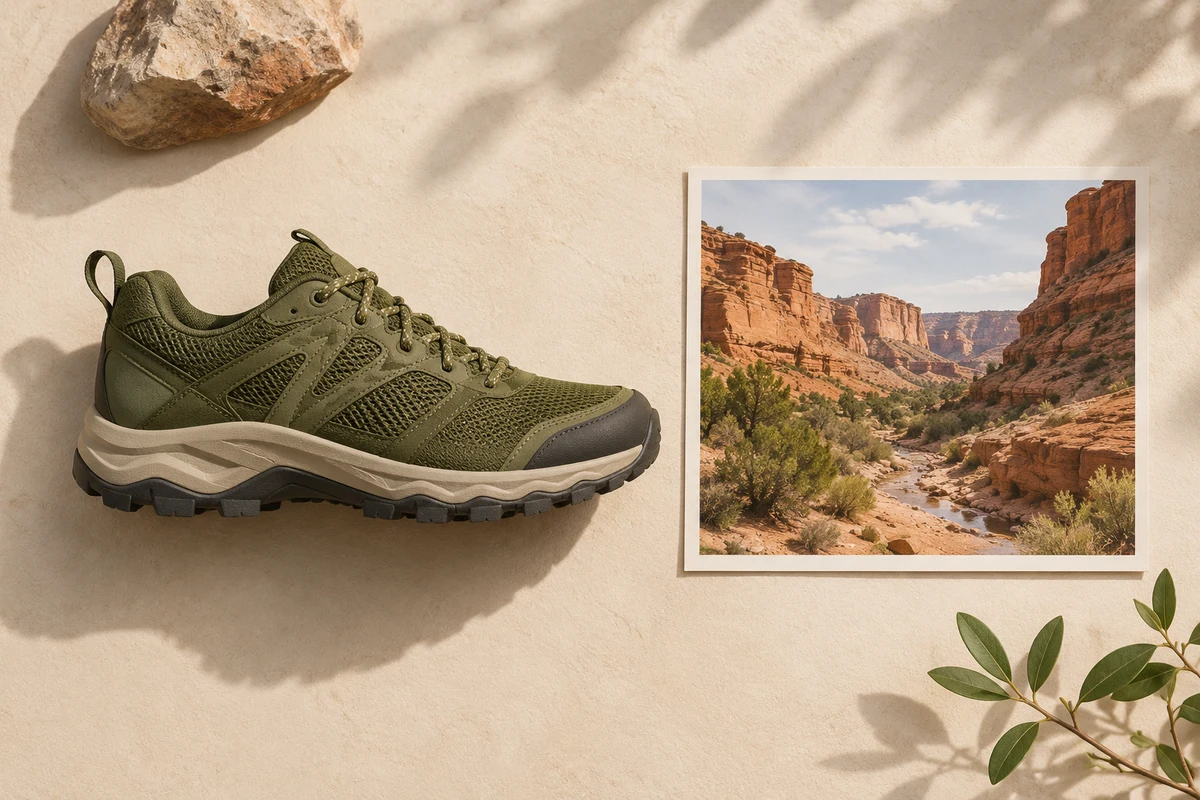
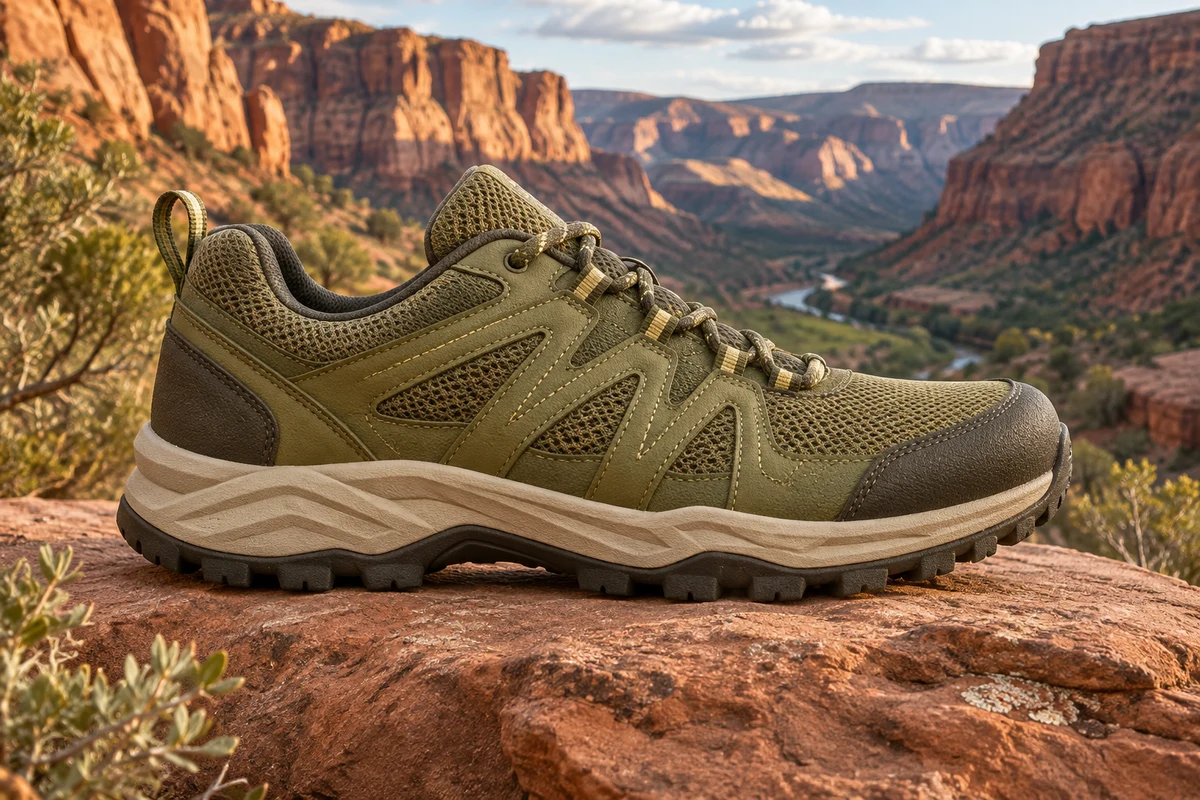
Use a recognizable product reference and describe a tabletop, studio background, or lifestyle setting around it. Specify the surface, light, and camera angle. Check packaging, labels, materials, and object scale against the source rather than assuming they have been preserved exactly. For reference-based work with other models, explore the AI Image Editor.

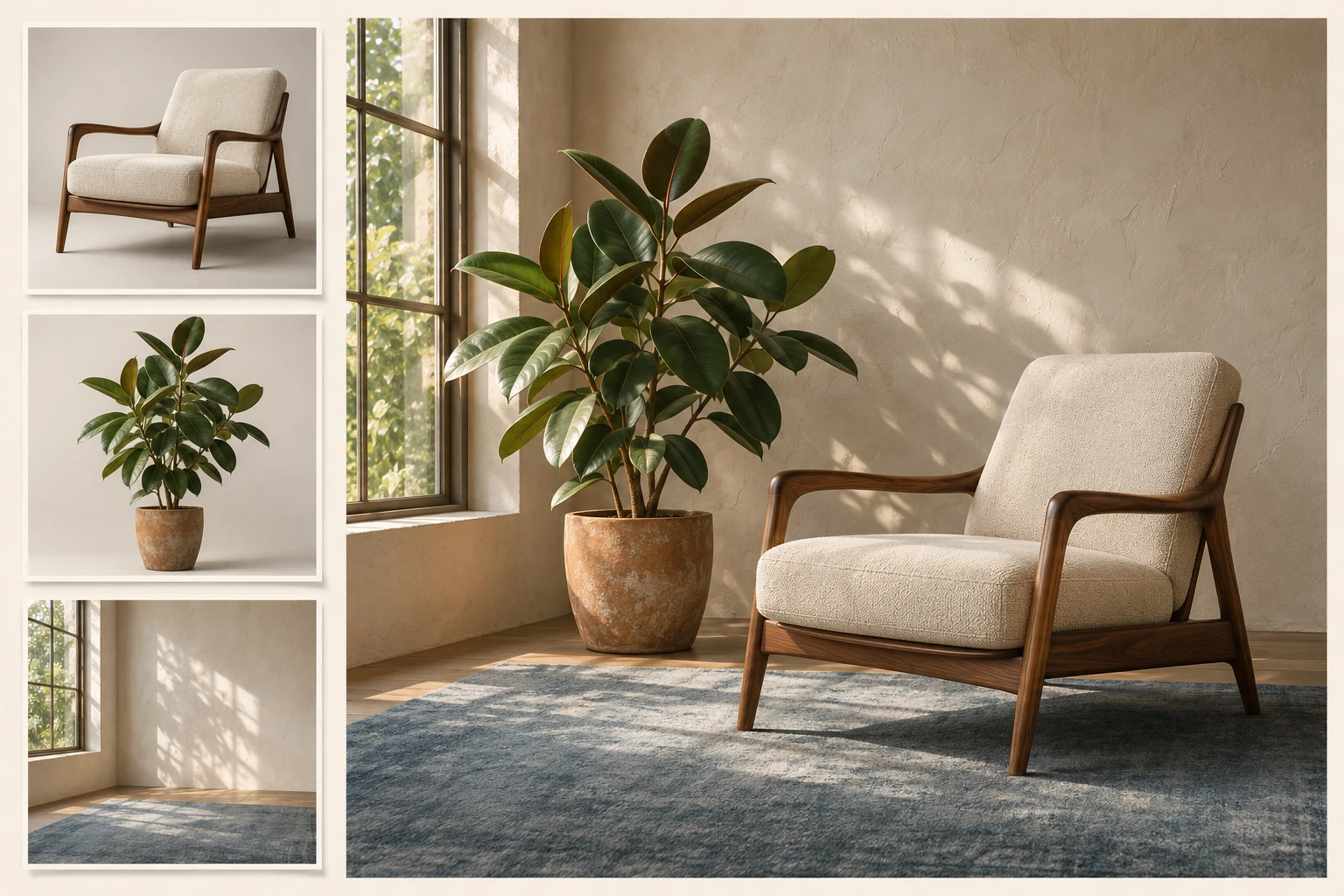
A Scene Built from Several Cues reference 1
A Scene Built from Several Cues reference 2
A Scene Built from Several Cues reference 3
A Scene Built from Several Cues

A Scene Built from Several Cues

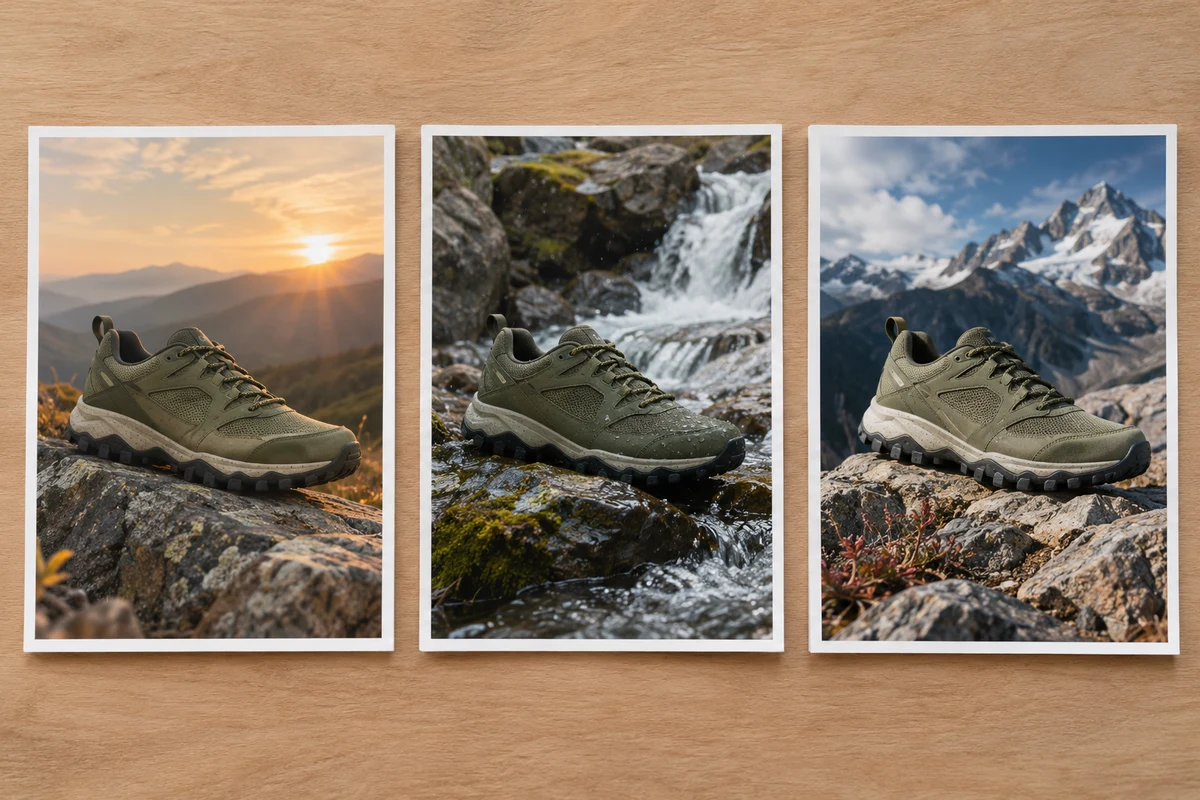
Use references to explain the subject, environment, and mood of a concept image. Make the relationship between these elements explicit: where the subject belongs, how large it should be, and which lighting direction should connect the scene. Check contact points and shadows before presenting the draft. Keep successful variations for comparison without treating them as a guaranteed matching series. Look for floating objects, mismatched shadows, or a subject that is too large for the setting. If the scene feels disconnected, revise the spatial relationship or use a reference with a more compatible viewpoint before requesting another version.

What Users Say About Wan 2.7 Image

These workflows use references to explore product settings and scene variations.

“I used a product reference to try a different tabletop setting. Comparing the materials and lighting with my original helped me decide which parts of the concept to keep.”
Lena Brooks - AIEnhancer
Lena Brooks
Product Stylist
“A few reference images made the intended scene easier to explain. I still checked proportions and small details, but the draft gave our team something concrete to discuss.”
Owen Patel - AIEnhancer
Owen Patel
Art Director
“I can start with one image, review it, and then request more variations through the same workflow. The settings and credit total make that process straightforward.”
Naomi Chen - AIEnhancer
Naomi Chen
Social Designer

Wan 2.7 Image FAQs

Check reference limits and understand how separate outputs differ from a sequence.