AI Virtual Try On Wedding Veil Photo – See How Different Veils Look
4.9 / 5 (1,123 reviews)
Compare Veil Styles with the Same Dress
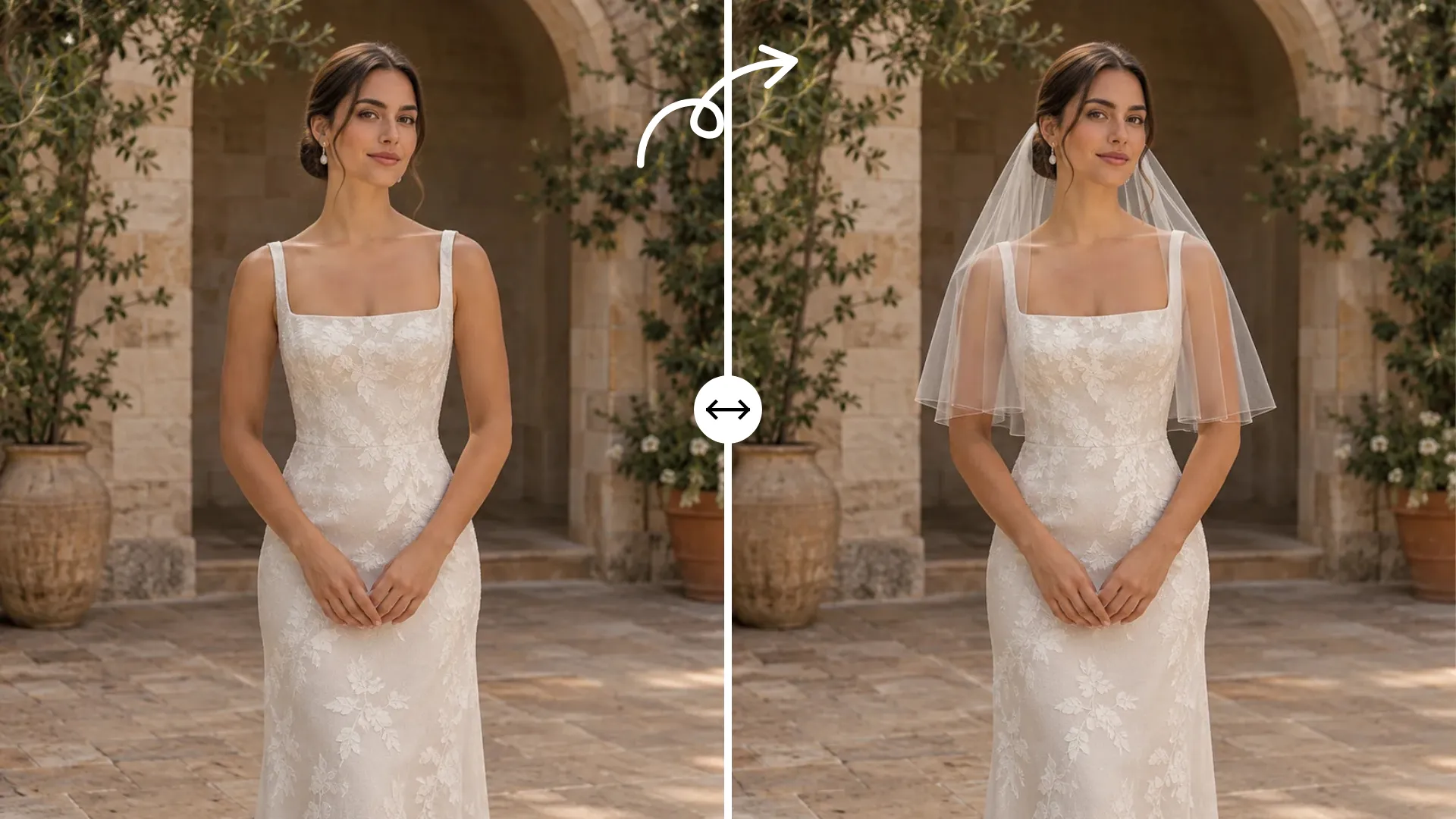
Create an AI virtual try on wedding veil photo to compare how different veils frame your face and fall over the same outfit.
Short Veils and Updos
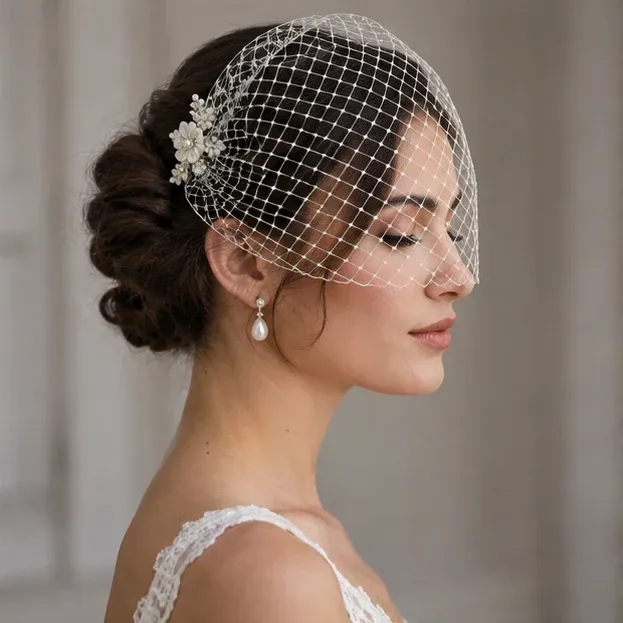
Use a close portrait to compare a short veil near the crown with one placed lower behind the bun. Look at where the edge sits relative to your earrings and neckline. If you plan to wear a hairpiece, check whether it stays visible and whether the veil competes with it for attention.
Long Veils and Dress Trains
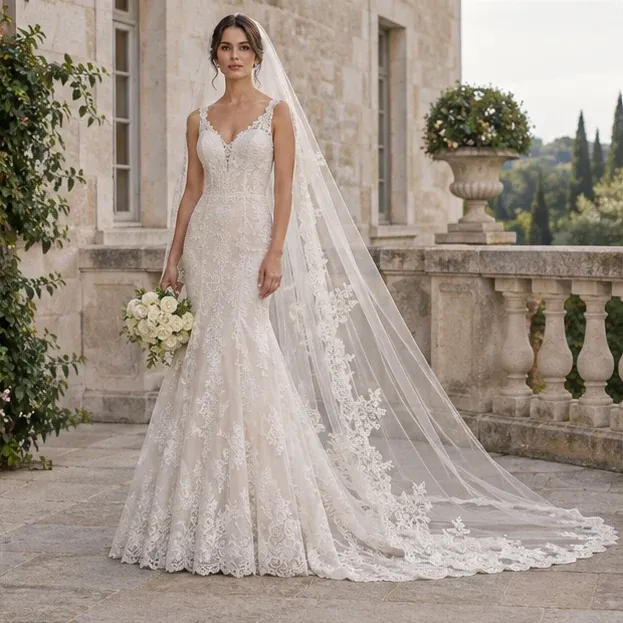
Use a full-length photo with space beyond the train. Compare a fingertip veil with a longer one, then follow the line from your shoulders to the floor. A plain edge lets you focus on the shape of the gown. A lace edge gives you something to compare with the detail already visible on the hem.
How to Try On a Wedding Veil from a Photo
Start with the photo you want to edit and a clear view of the veil you want to try.
Step 1
Add Your Photo
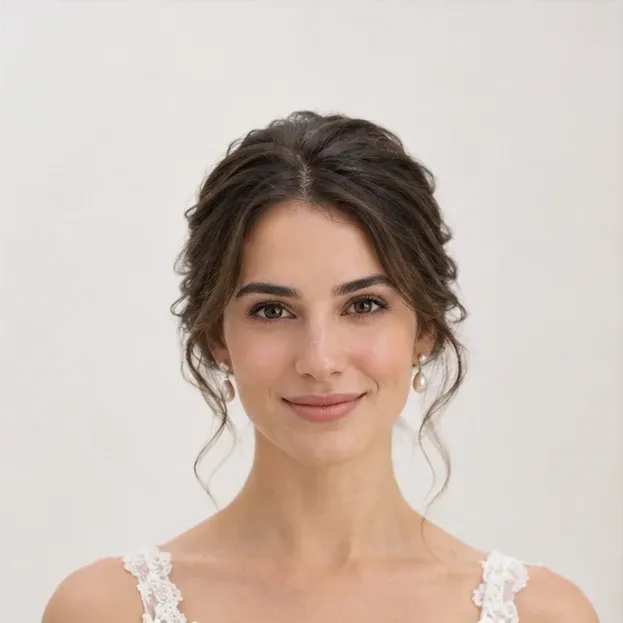
Upload a picture from a fitting or choose a sample to explore a style. A head-and-shoulders portrait works for a short veil. For a longer veil, use a photo that shows your full dress and the floor behind it.
Step 2
Choose a Veil
Pick a preset or upload a product photo showing the edge and overall shape. If you have a placement in mind, add a short prompt such as “Place the comb behind my updo.”
Step 3
Generate and Compare
Check the veil around your hair and see how the fabric falls over the dress. Keep the same person photo and change only the veil reference to compare two options. Download the version you want to keep.
Choose Photos That Show the Veil Clearly
The two inputs answer different questions. Your portrait shows where the veil should sit, and the reference shows how it should look.
Leave Room Around the Hairstyle
Choose a photo with space above the head and a clear view of the hairline. A tight crop can hide the point where the comb should sit. If your hair is down, use a photo that shows how it falls across your shoulders so you can judge which areas the veil might cover.
Show the Whole Veil
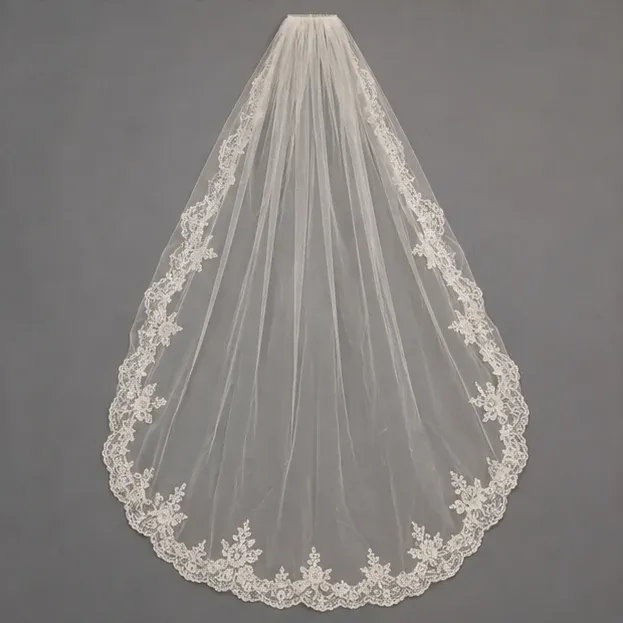
Use a product image with the attachment area, fabric and outer edge in view. For ivory tulle, choose an image with enough contrast to see the outline. If you only have a close-up of the lace, use it to explore the trim and confirm the overall shape with a fuller reference.
Put Your Veil Preview to Work
Use the preview to make a shortlist or explain what you want at a fitting. If you are preparing a set of bridal photos, browse AIEnhancer for other photo tools.
Build a Fitting Shortlist
Save two or three versions and compare them at the same size. Look at the neckline, how much of the dress stays visible and where the veil ends in the frame. Take your favorites to the appointment and ask to see how those styles drape and move in person.
Share a Styling Reference
Send your stylist the preview alongside the original veil reference. Point out the feature you want to discuss, such as a comb below the bun or lace along the train. If you want to test a different background after choosing the veil, open the image in AI Image Editor.
What Users Say About Wedding Veil Try-On
See how people use veil previews to compare styles and prepare for fittings.
“I tried a short veil and a fingertip veil on the same fitting photo. Seeing where the shorter veil ended next to my earrings helped me narrow it down to two styles to ask about at my appointment.”
Nora Bennett
Comparing veil styles
“My first photo cut off the train of my dress, so I switched to a full-length shot. That made it easier to see where the longer veil fell in relation to the hem.”
Leah Morgan
Checking veil length
“I uploaded a reference photo of a lace veil and used the preview to show my stylist where I wanted the comb to sit behind my bun. It gave us a clear starting point for the fitting.”
Sofia Rivera
Preparing for a fitting
Wedding Veil Try-On FAQs
Find out which photos work best for a veil try-on and what to check in your preview before a fitting.
Can I add a wedding veil to an existing photo?
Yes. Use the photo you want to edit and choose a veil reference. If the photo already shows a veil, use a version without it when available so you can compare the new style more easily.
Can I try a veil I found in a shop?
Use a reference photo you have permission to use. A full view helps show the length and shape. Check the actual item photos before making a purchase decision.
Will the tool change my wedding dress?
The edit is intended to add a veil to your existing look. Check the neckline, embellishments and facial likeness after generating, especially where the tulle overlaps the dress.
Can I use the preview to choose an exact length?
Use it to compare how styles look in a photo. Confirm measurements, fabric weight and how the veil attaches at your fitting.
Do I need a full-length photo?
A close portrait works for short veils. Use a full-length photo for a chapel veil so its drop and train have room in the frame.
Can I try a veil without uploading a reference?
Yes. Select a preset to explore a shape, or upload a reference when you want to preview a particular veil.