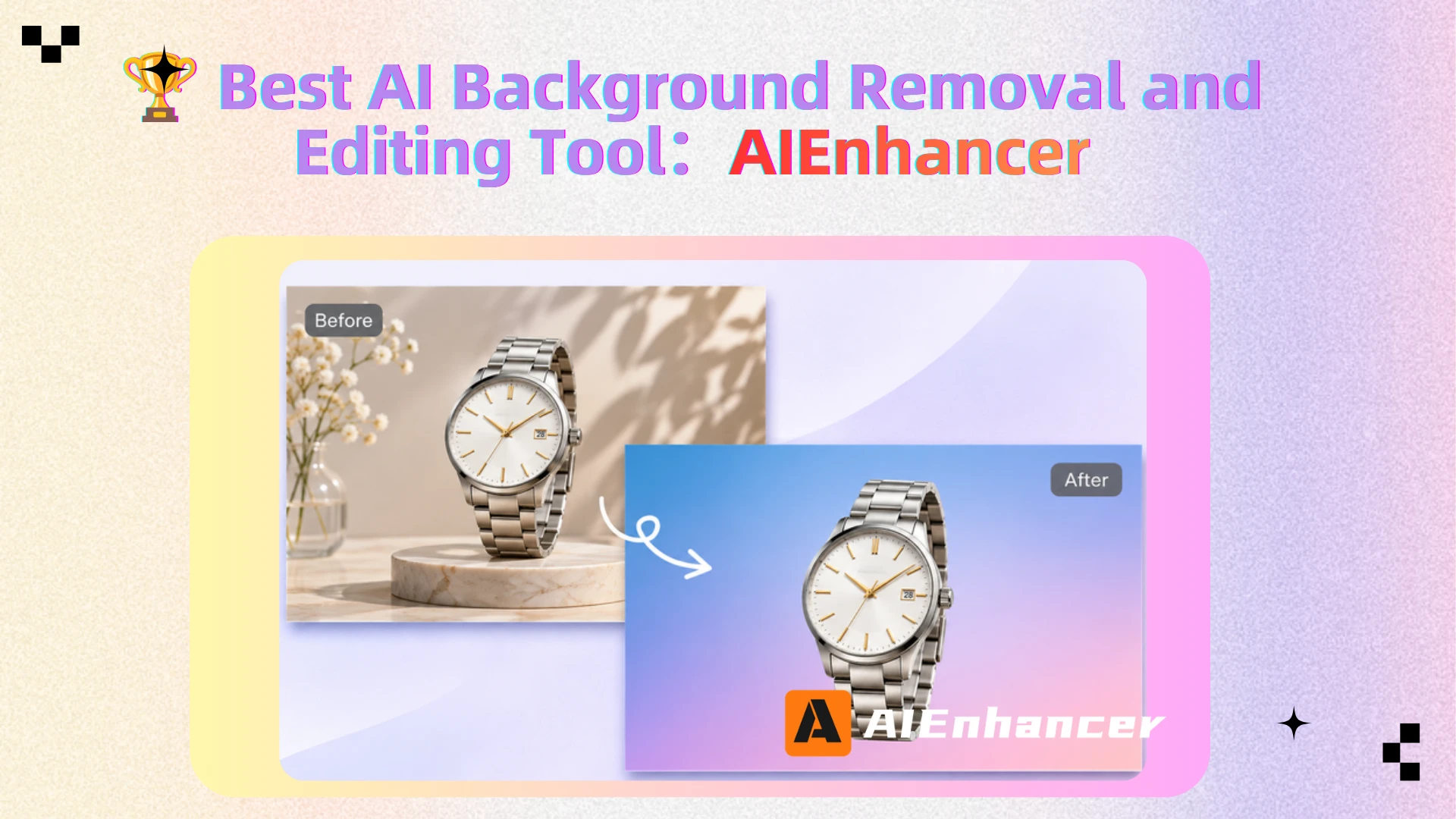
6 Best AI Tools for Background Removal and Photo Editing
Introduction
AI makes photo background removal faster and easier than ever. But a clean cutout isn't always enough. Product photos, portraits, and social media graphics often need background replacement, lighting adjustments, or image enhancement to look their best.
With AI photo background removal and editing tools, you can handle these tasks in just a few steps.
Quick Answer: Remove.bg is best for quick cutouts, Photoroom for product photos, Canva and Adobe Express for simple designs, and Photoshop for professional editing. AIEnhancer is a great option for background changes, AI editing, and image enhancement.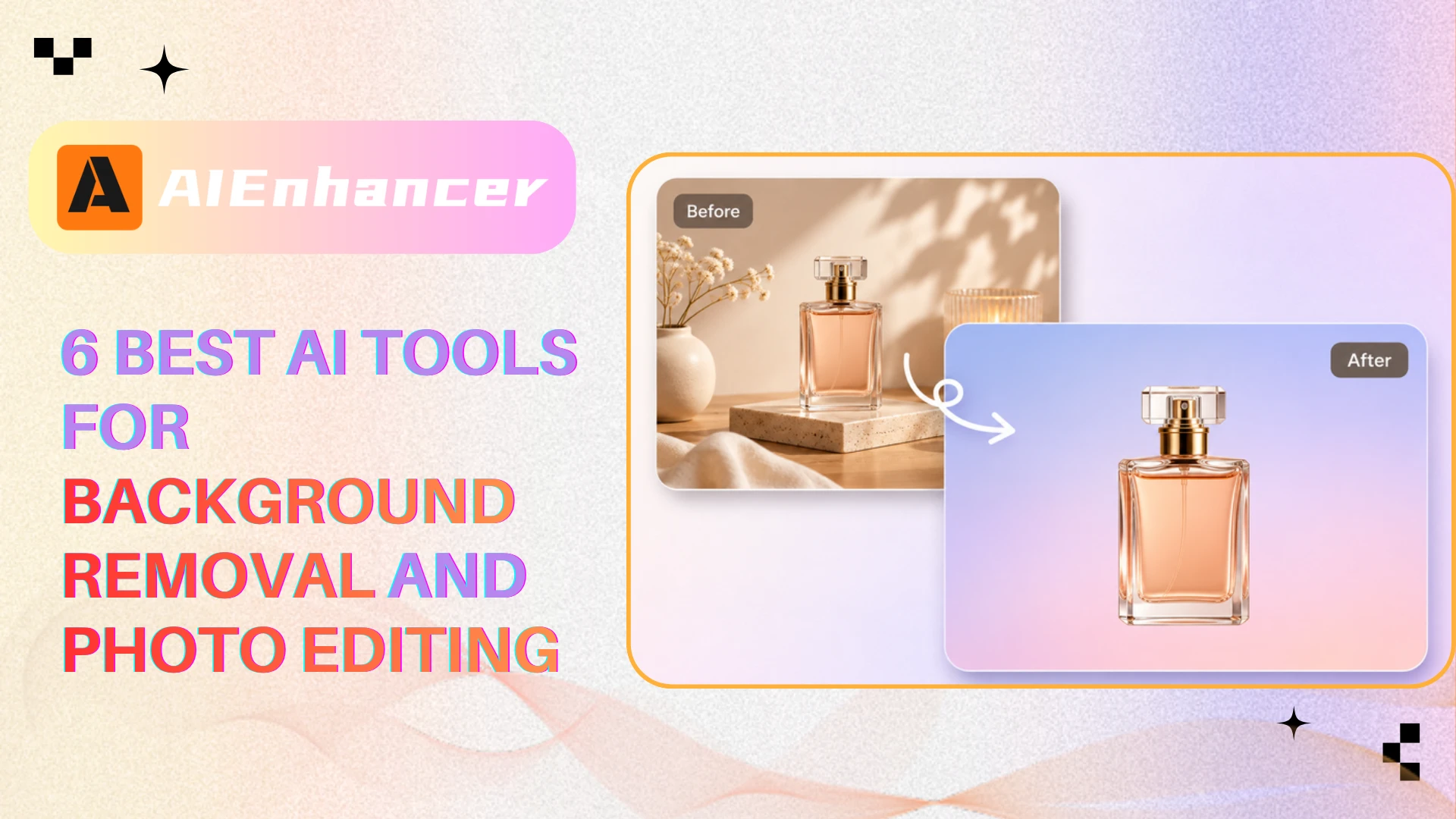
What Is AI Photo Background Removal and Editing?
AI background removal uses image recognition and segmentation technology to identify the main subject in a photograph and separate it from the surrounding environment.
Unlike traditional manual selection, AI can automatically detect people, products, animals, and other objects. The background can then be removed, replaced with a solid color, or changed into another scene.
Background editing goes further. It includes adjusting lighting, improving image quality, replacing surroundings, removing unwanted objects, and refining the final composition.
The distinction matters because a clean cutout doesn't always make a good image.
For example, removing the background from a product photo might leave uneven lighting or blurry details. Additional editing helps the product look more natural against its new environment.
Modern AI tools increasingly combine these capabilities, allowing users to complete more of the process without switching between applications.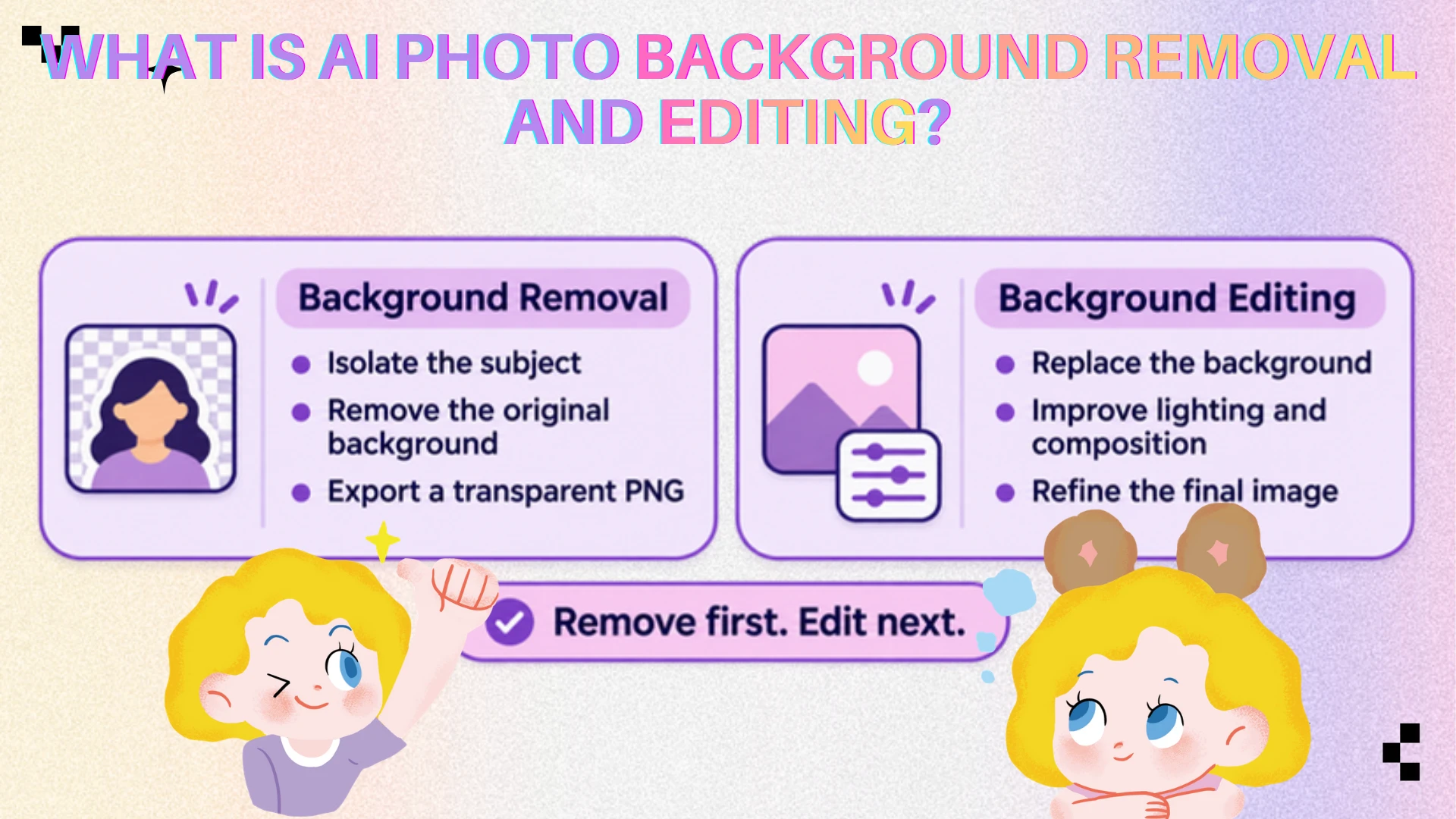
Best AI Background Removal and Editing Tools Compared
| Tool | Best For | Main Strength | Limitation |
|---|---|---|---|
| AIEnhancer | Background changes and photo refinement | AI editing, enhancement, upscaling | Some operations use credits |
| Remove.bg | Quick cutouts and automation | Simple removal, API workflows | High-resolution exports may cost extra |
| Photoroom | E-commerce images | AI backgrounds, batch workflows | Advanced features have plan limits |
| Canva | Social media graphics | Templates and layouts | Background Remover is paid |
| Adobe Photoshop | Professional retouching | Precise masks and compositing | More time to learn |
| Adobe Express | Fast everyday design | Easy removal and templates | Limited advanced masking |
Features and plan restrictions can change; check official pricing and licensing before commercial use. This is a use-case comparison, not a controlled accuracy or speed test.
6 Best AI Background Removal and Editing Tools
1. AIEnhancer — Best for Background Editing and Photo Refinement
Removing a background doesn't always solve every image problem.
Sometimes the subject looks blurry, the lighting needs adjustment, or the replacement background doesn't match the original photograph.
AIEnhancer offers background removal and background-changing tools alongside image enhancement, upscaling, and prompt-based editing.
Its AI image editor allows users to describe changes using natural language, making it useful for workflows that require more than an isolated subject.
For example, a creator preparing a product image could replace the background with a modern studio setting, improve overall clarity, and refine the final composition.
AIEnhancer is particularly relevant when users want to combine background editing with broader image improvements.
However, it isn't designed to replace Photoshop's detailed manual masking or specialized batch catalog workflows.
Best for: Photo refinement, creative background changes, and general AI editing.
Pros: Multiple image tools, prompt-based editing, enhancement capabilities.
Cons: Some operations require credits; AI-generated changes may need review.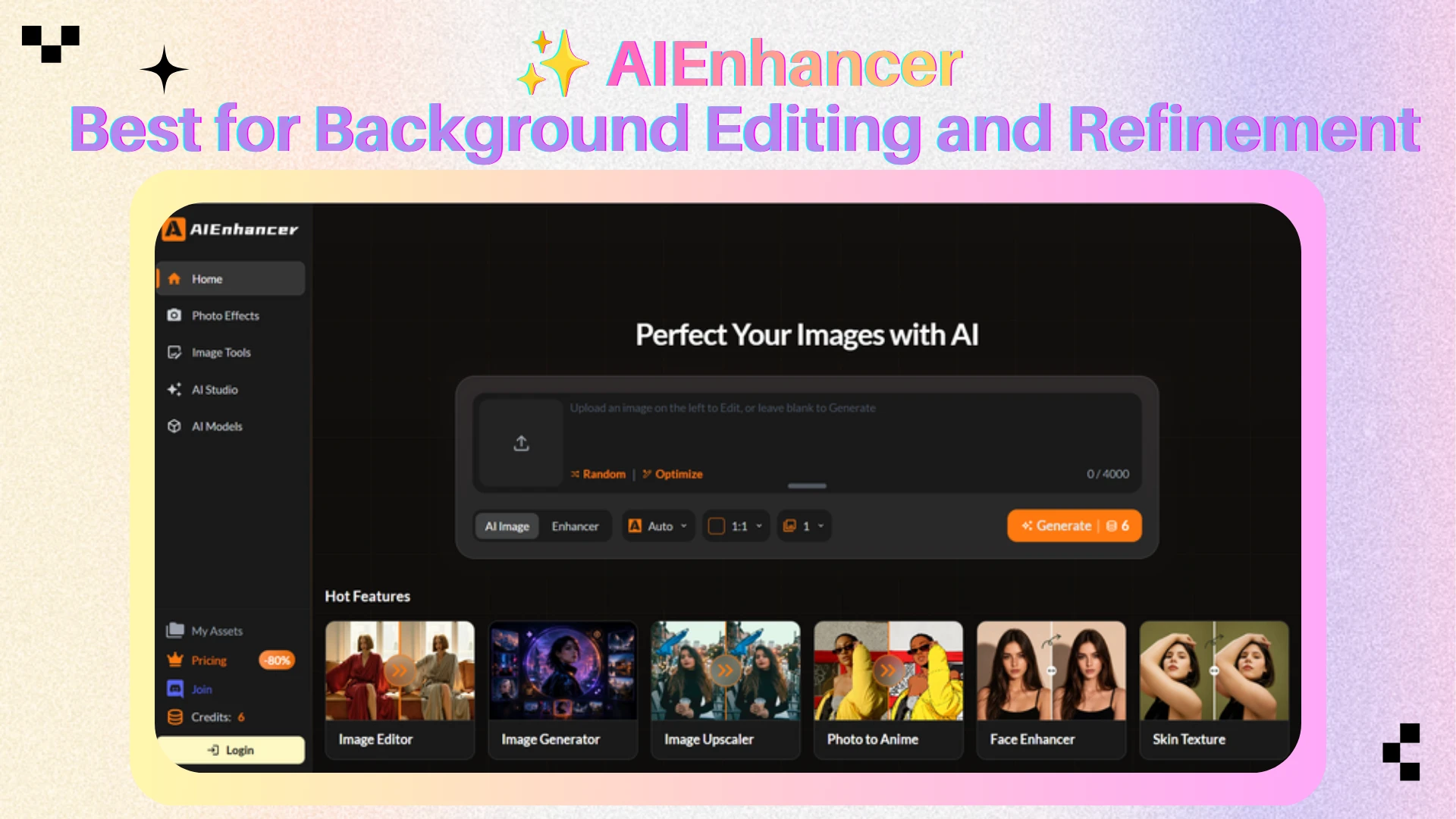
2. Photoroom — Best for E-commerce Product Photos
Photoroom focuses on turning ordinary product photographs into professional-looking commercial images.
Beyond removing backgrounds, it offers AI-generated environments, shadows, templates, and batch editing capabilities.
These features are useful for online sellers who need consistent images across a product catalog.
For example, a clothing retailer can remove distracting backgrounds from multiple product photos and replace them with matching studio-style settings. This helps maintain a recognizable visual style without organizing additional photoshoots.
Photoroom also supports workflows for marketing graphics and marketplace listings.
Some advanced features and higher-volume processing depend on subscription plans or credits.
Best for: Online sellers, product catalogs, and e-commerce marketing.
Pros: Product-focused tools, AI backgrounds, batch workflows.
Cons: Advanced features have plan limits; less suited to detailed manual retouching.
3. Canva — Best for Social Media and Marketing
Canva makes background removal part of a broader graphic design workflow.
After removing a subject's background, users can place it into social media templates, presentations, promotional banners, or advertisements.
Its biggest strength is convenience. Instead of exporting a cutout and opening another application, users can complete the design in the same workspace.
For instance, a small business owner can isolate a product, add a branded background, include promotional text, and prepare a social media post within minutes.
Canva also offers tools for correcting areas that weren't removed accurately.
However, its Background Remover is a paid-plan feature, and detailed image masking is less flexible than professional editing software.
Best for: Social media creators, marketers, and small businesses.
Pros: Extensive templates, easy design workflow, beginner-friendly interface.
Cons: Paid background removal; limited professional retouching controls.
4. Adobe Photoshop — Best for Precise Editing
Photoshop remains a powerful option for images requiring precise adjustments.
Its Remove Background feature automatically separates a subject, while Select and Mask and layer masks allow users to refine difficult edges manually.
This is particularly important for portraits with fine hair, transparent objects, reflective surfaces, or complicated compositions.
Photoshop also supports advanced background replacement, color correction, lighting adjustments, and realistic compositing.
A professional photographer, for example, can isolate a portrait, replace the background, and fine-tune shadows and colors to create a natural-looking result.
The downside is complexity. Photoshop requires more time to learn and may be unnecessary for simple background removal tasks.
Best for: Professional photographers, designers, and detailed image manipulation.
Pros: Precise masking, extensive editing control, advanced compositing.
Cons: Learning curve, paid software, more complicated workflow.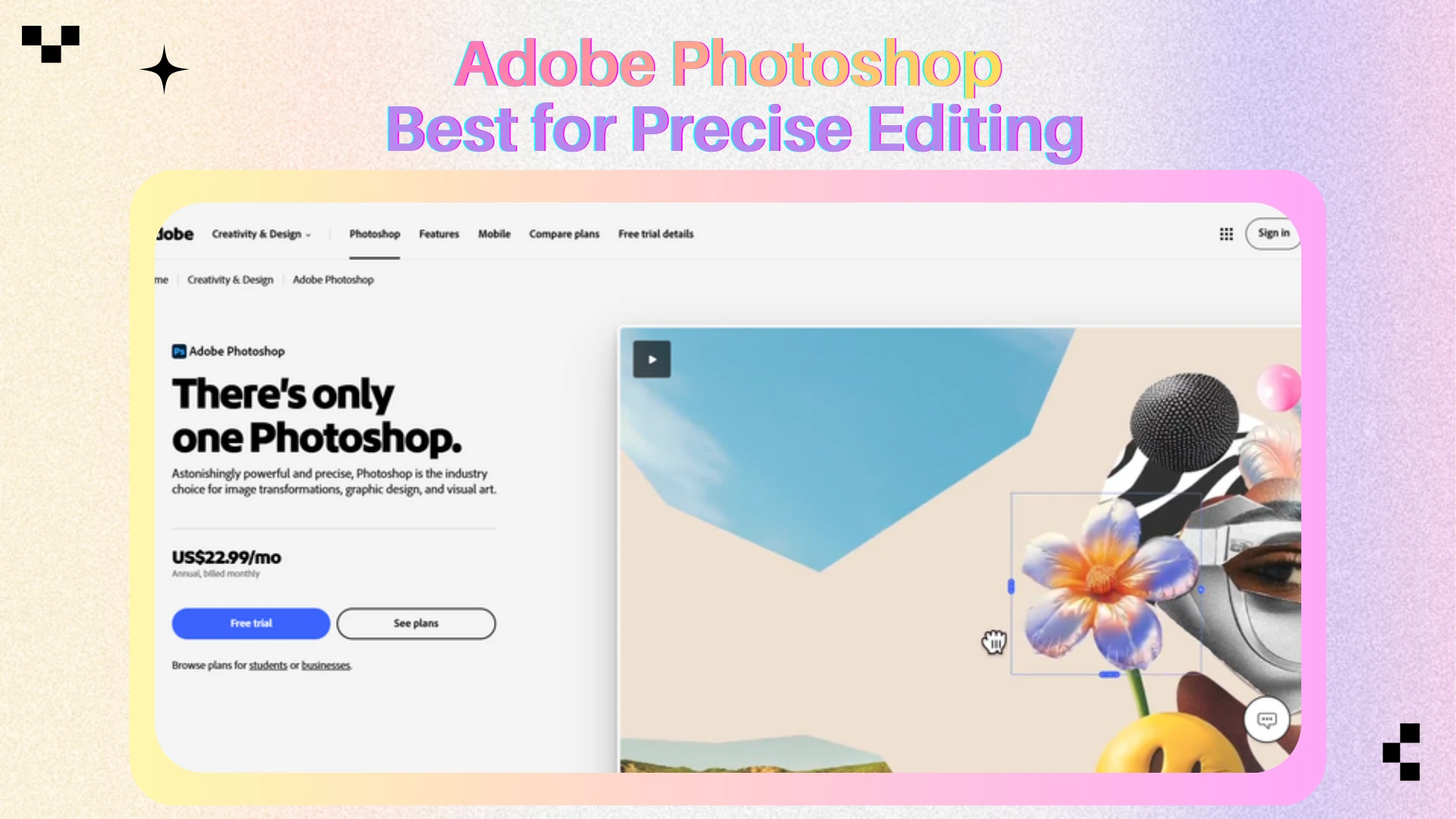
5. Adobe Express — Best for Simple, Fast Designs
Adobe Express offers accessible background removal and simple graphic design features.
Users can upload an image, automatically remove its background, and download a transparent PNG without learning professional editing software.
The cutout can also be used in templates for social media posts, flyers, presentations, and other designs.
This makes Adobe Express a convenient choice for students, small businesses, and casual creators.
Unlike Photoshop, it focuses on fast results and easy editing rather than precise manual selection.
Best for: Beginners, students, and quick marketing designs.
Pros: Free background removal, simple interface, integrated templates.
Cons: Limited advanced masking and professional retouching options.
6. Remove.bg — Best for Quick Background Cutouts
Remove.bg is one of the most straightforward AI background removal tools available.
Upload an image, and the platform automatically identifies the foreground subject and removes the surrounding background. The result can be downloaded as a transparent image or used for further editing.
Its simplicity is the main advantage. Users don't need design experience or complicated editing settings to produce a basic cutout.
Remove.bg also provides API capabilities for developers and businesses that need to automate background removal across multiple images. API users should verify the latest integration requirements before implementation.
However, free downloads have resolution limitations, and higher-quality processing generally requires credits.
Best for: Quick cutouts, transparent PNGs, and automated workflows.
Pros: Simple interface, automatic processing, API support.
Cons: Limited advanced editing; high-resolution exports may require payment.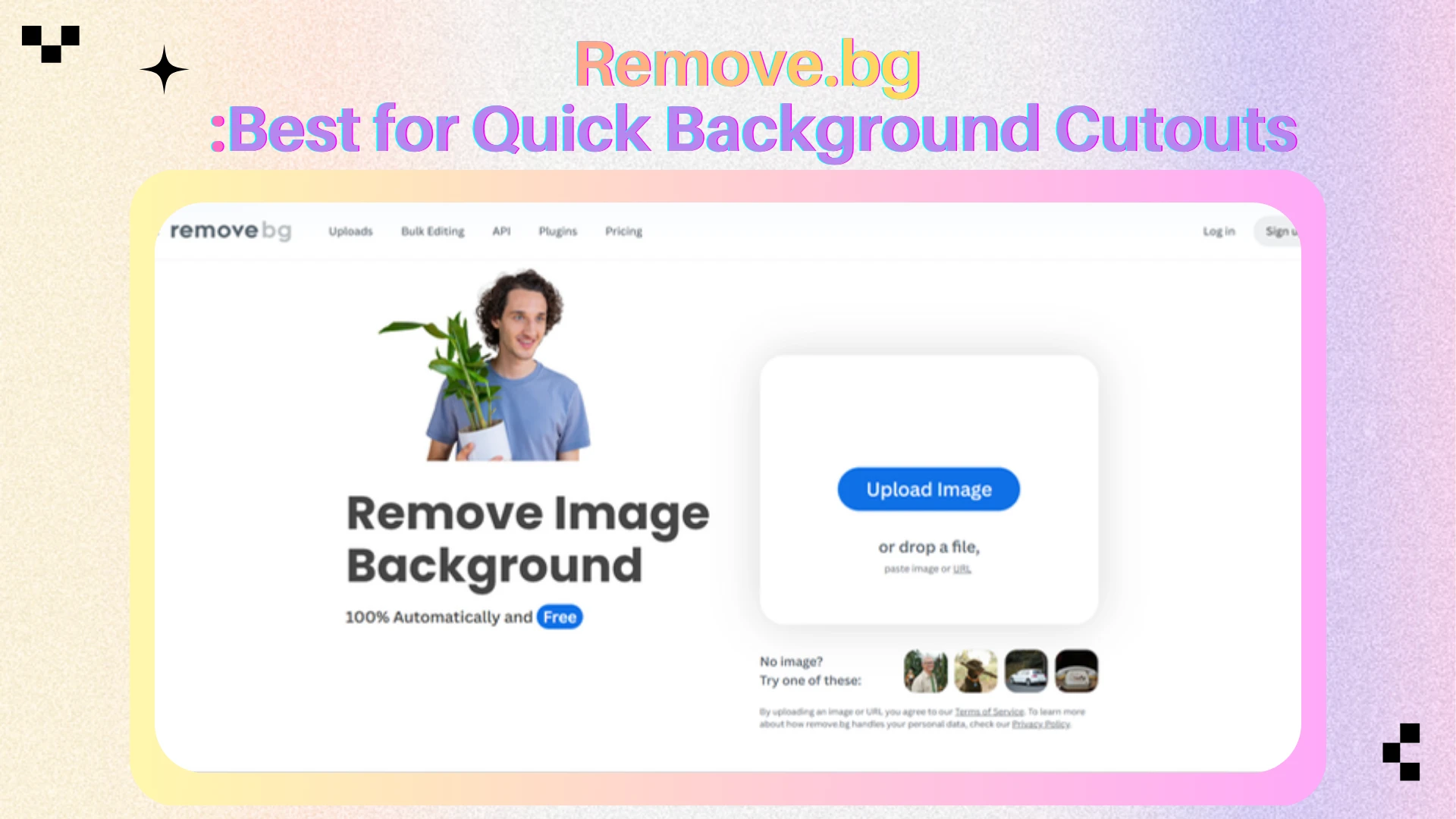
What Features Should You Look For?
Before choosing a tool, consider what your final image actually needs. Five factors are especially useful.
Edge quality. Fine hair, fur, lace, and transparent materials are challenging. Review the cutout at full size and check whether you can correct missed areas.
Background replacement. A transparent PNG may be enough for a presentation. Product advertising may require a new studio scene, color matching, or realistic shadows.
Image resolution. A good cutout loses value if the exported image is too small or blurry. Confirm the available resolution and whether upscaling or sharpening is supported.
Batch editing. If you're preparing a catalog, consistent settings across many images may matter more than creative flexibility on one photo.
Price and permissions. Check export restrictions, credits, watermarks, and commercial-use terms. A free preview doesn't necessarily mean unrestricted production use. For recurring work, calculate the cost per usable export rather than comparing subscription prices alone.
How to Edit a Photo After Removing Its Background
Background removal creates the starting point. These five steps help turn it into a usable final image.
Step 1: Choose a Clear Source Photo
Start with the best original available. Adequate resolution, clear edges, and balanced lighting improve the chances of a clean subject separation.
Step 2: Remove the Background and Check the Cutout
Use a suitable remover, then inspect the result before downloading it. Pay attention to gaps between objects, missing hair strands, unwanted outlines, and pieces of the original background.
Try placing the cutout over light and dark colors. A checkerboard transparency preview can make edge defects harder to notice. In product photography, inspect handles, gaps, transparent packaging, and reflective surfaces separately; they often expose masking errors.
Step 3: Replace the Background for the Intended Use
Choose a background that matches your image's purpose. Neutral settings work well for product listings, while creative scenes are better suited for social media and marketing.
For a new setting, use the AI background changer to describe the scene you want. For example, you can replace a cluttered room with a clean studio background.
Make sure the new background matches the subject's perspective, lighting, and color temperature for a natural-looking result.
Step 4: Improve the Overall Image
After replacing the background, check whether the subject still looks natural. You may need to adjust clarity, contrast, composition, or shadows.
For example, try a prompt such as:
"Add soft, natural lighting and a subtle shadow beneath the product. Keep its original shape, colors, and labels unchanged."
Compare the edited image with the original to ensure important details, such as faces, packaging, and product shapes, remain accurate.
Step 5: Export the Right Format
Choose PNG when you need transparency, JPEG for a completed photograph, or WebP for compatible web use where file size matters.
Check the exported file for edge artifacts or compression.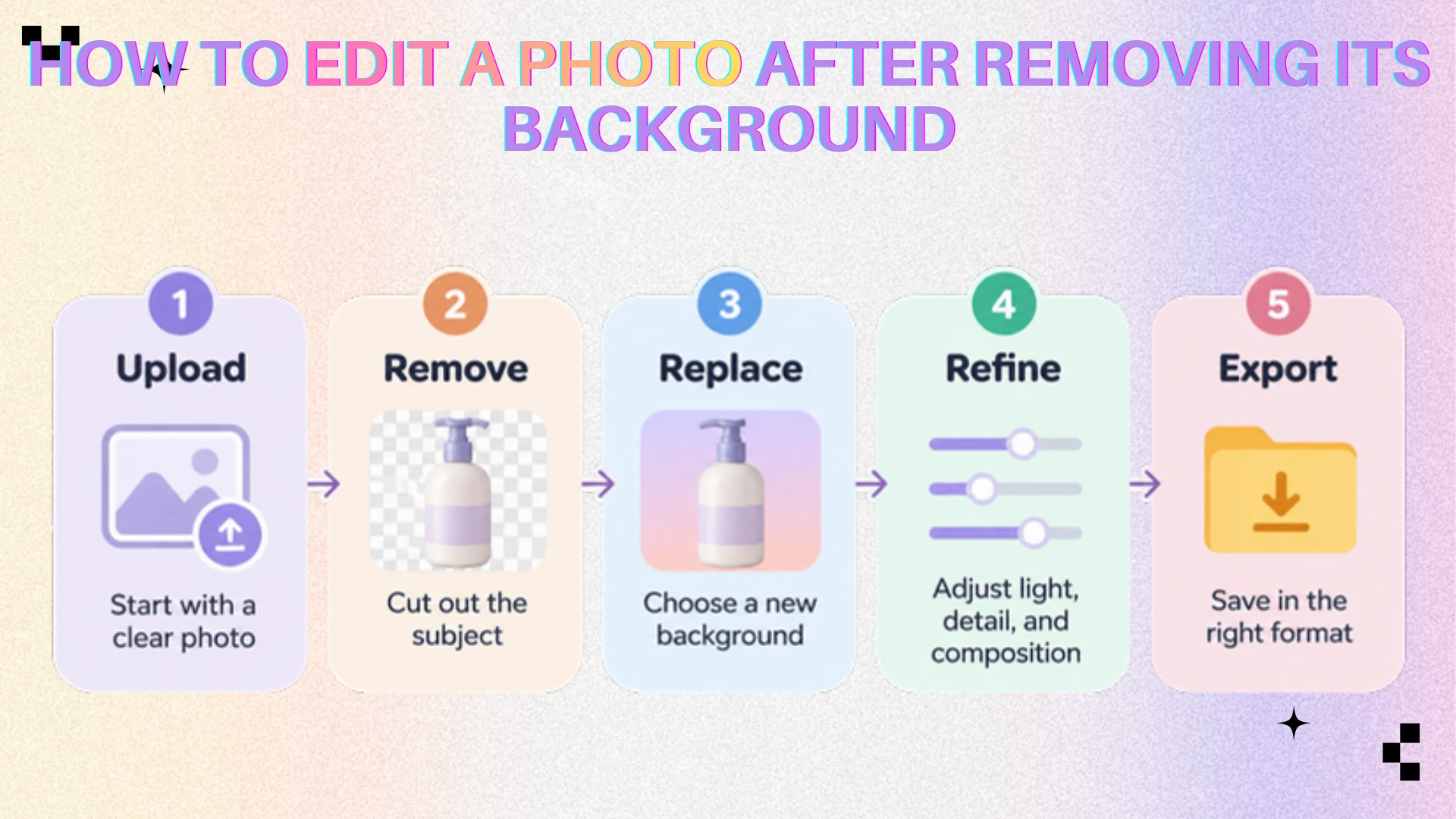
Which Tool Is Best for Your Use Case?
Online stores: Choose Photoroom for repeatable product imagery and catalog-oriented workflows. Remove.bg is useful when fast cutouts or automation are the priority.
Social media and marketing: Canva and Adobe Express are convenient for combining cutouts with copy, branded graphics, and ready-made layouts.
Professional portraits or commercial retouching: Photoshop provides precise manual adjustments when automatic selection isn't enough.
Background changes plus image enhancement: AIEnhancer is a practical option when you also need prompt-based editing, sharpening, or upscaling.
Quick transparent images: Remove.bg or Adobe Express may be all you need for an occasional cutout. If your image contains hair, glass, or translucent fabric, prioritize tools with editable masks over one-click convenience.
Test your own images rather than relying on a product demo.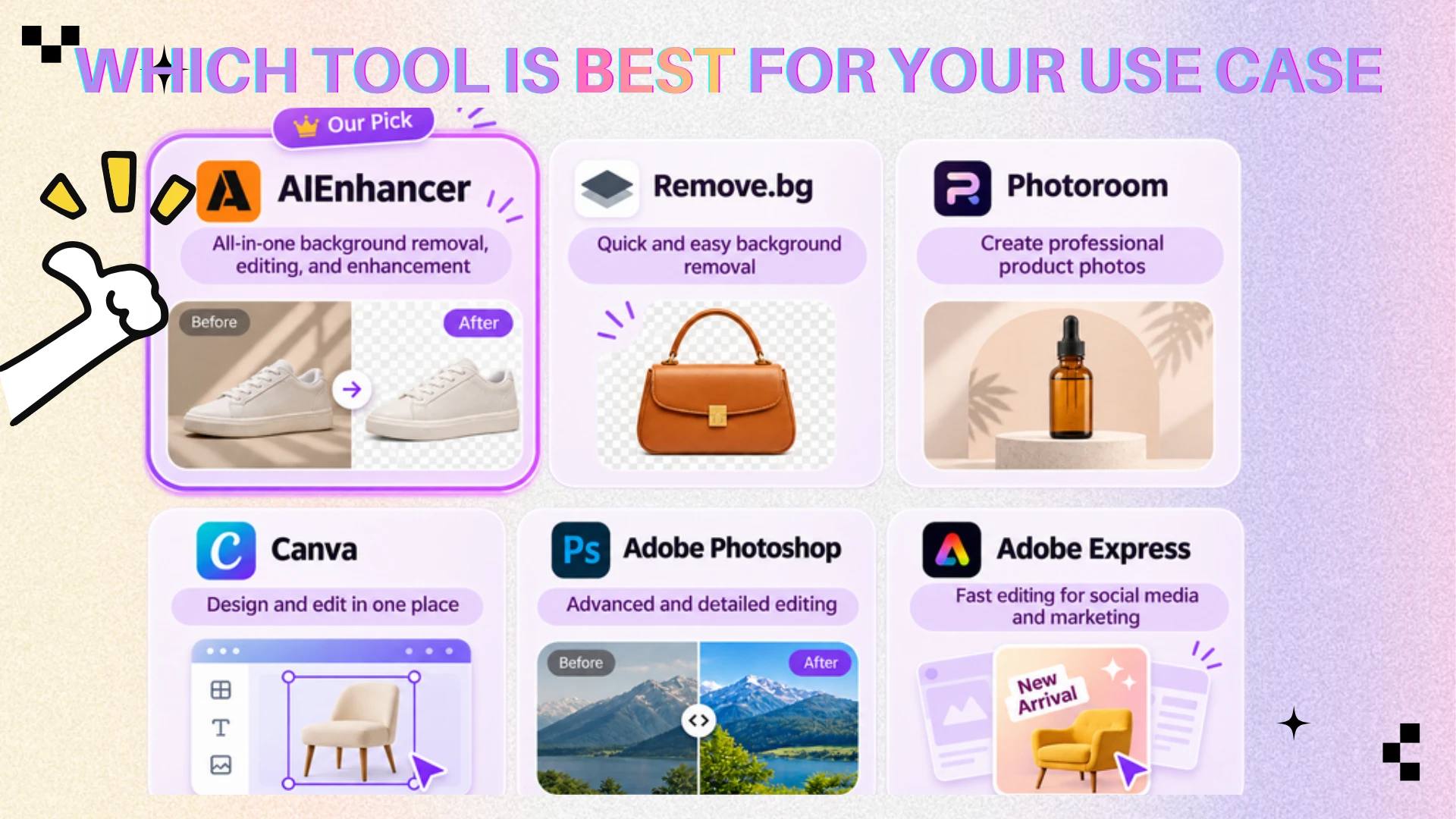
Common Mistakes That Make AI Edits Look Unnatural
Ignoring the edges: A cutout can look clean at thumbnail size but show halos or missing details when enlarged. Always zoom in.
Mismatched lighting: A brightly lit subject in a dark room looks pasted on unless the light direction and shadows make sense.
Over-editing: Strong sharpening or aggressive generation can distort textures, faces, labels, and object shapes. Keep a copy of the original for comparison.
Wrong export settings: JPEG won't preserve transparency. If you need a cutout for another design, save it as PNG.
Skipping usage checks: Verify commercial licensing and high-resolution export limits before using edited images in paid campaigns.
Frequently Asked Questions
What is the best AI background remover in 2026?
It depends on the job. Remove.bg emphasizes fast cutouts; Photoroom supports product photography; Canva and Adobe Express are convenient for simple designs. Photoshop is better suited to complex manual corrections, while AIEnhancer supports broader photo editing and enhancement tasks.
Can I remove a photo background for free?
Yes. Adobe Express offers free background removal, and some other platforms allow limited free processing. However, export resolution, features, and commercial permissions vary. Review the plan details before relying on a tool for business use.
Which AI tool works best for hair and difficult edges?
Fine hair and semi-transparent materials can challenge any automatic remover. Photoshop provides manual tools to refine these boundaries. For fully automatic products, results depend on the photo's lighting, contrast, and resolution; inspect a sample rather than assuming one tool always wins.
How do I make a photo background transparent?
Upload the image to a background remover, process it, and export it as a PNG with transparency enabled. If you receive an image with a white background, check the export setting rather than assuming transparency was preserved.
Can AI replace a background without changing the subject?
Many tools attempt to preserve the subject, but AI-generated edits can still change small details. Use explicit instructions, keep the original image, and verify faces, products, text, and logos before publishing.
Can I enhance a photo after background removal?
Yes. You can sharpen, upscale, or edit photos with AI after changing a background. Check the result for unintended alterations.
Are these tools suitable for commercial images?
Many offer commercial workflows, but rights depend on the service and plan. Check licensing terms, export restrictions, and whether generated elements are permitted in your intended use. For product imagery, ensure the final result represents the item accurately. This is especially important for marketplaces, where edited images must still reflect what customers will receive.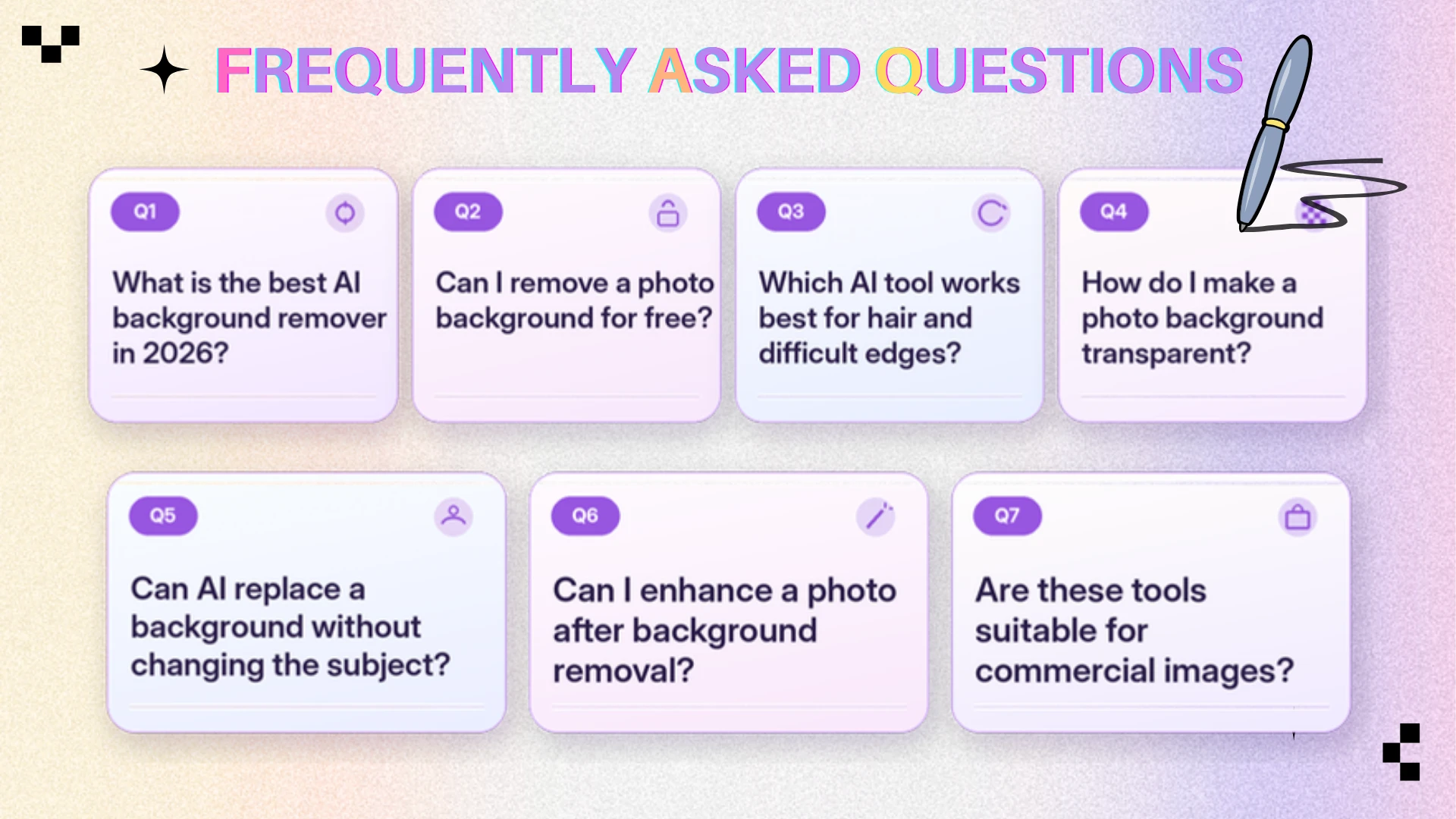
Final Thoughts
AI background removal saves time, but a professional-looking image usually needs more than an isolated subject. Clean edges, suitable lighting, sharp details, and consistent composition all contribute to the result.
Remove.bg handles fast cutouts, Photoroom focuses on product imagery, Canva and Adobe Express simplify design, and Photoshop supports detailed retouching. AIEnhancer is useful when background changes are part of a broader editing and enhancement process.
Choose the tool that fits your complete workflow—not just the first click.